Chapter 6
65
UM10372_PCNC440_Manual_0221A
PATHPilOT iNTERFACE
6.5.1.1 Transferring Files or Folders from a USB Drive
1. Insert a USB drive into any open USB port.
2. Navigate to the le to transfer USB drive window.
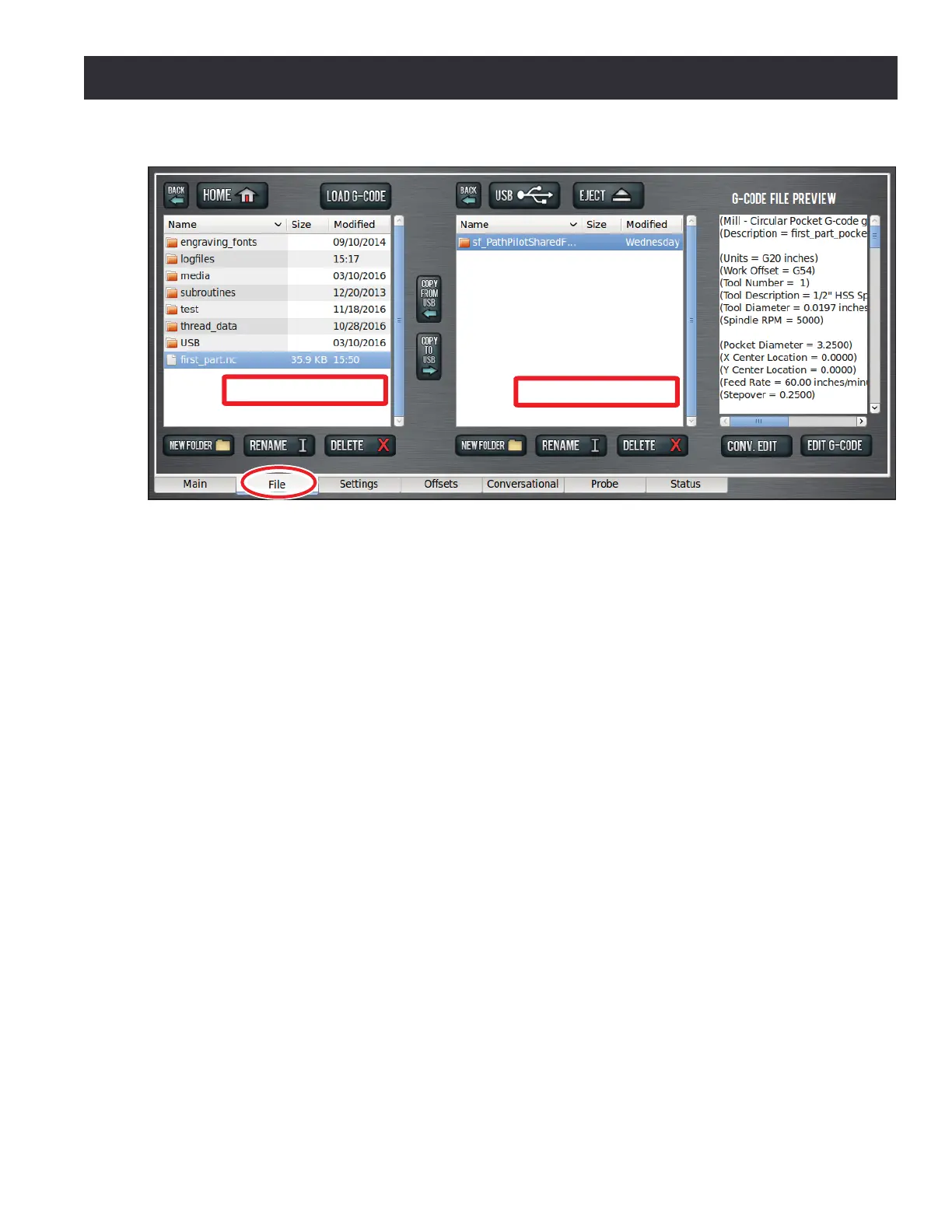
NOTE: Use Back to navigate backwards; use USB to jump to the highest (home) level (see Figure 6.14).
3. In the hard drive window, navigate to the desired locaon in the PathPilot interface to copy
the transferred le from the USB drive.
4. Highlight the le or folder to copy in the USB drive window; click Copy From USB (see Figure
6.14).
5. If the le to be transferred has the same name as an exisng le on the controller, you can
either overwrite the le, give it a dierent name, or cancel the le transfer.
6. When copied to the new locaon, the le displays in the USB drive window.
7. Click Eject to disconnect the USB drive from the controller (see Figure 6.14).
NOTE: Ejecng the USB drive this way helps to avoid corrupng data on the USB drive.
6.5.2 Loading G-code
The Load G-code funcon is only available for les stored on the controller (see Figure 6.14).
1. Navigate to the desired .nc le in the hard drive window; highlight the le and click Load
G-code (see Figure 6.14).
2. Click on the Main tab; verify G-code le name appears in recent les drop-down menu. For
more informaon on selecng a recent G-code program le, refer to Main Tab secon earlier
in this chapter.
Figure 6.14
Hard Drive Window
USB Drive Window


 To Next Page