ptg
C H A P T E R S I X Complying with PDF and Accessibility Standards
124
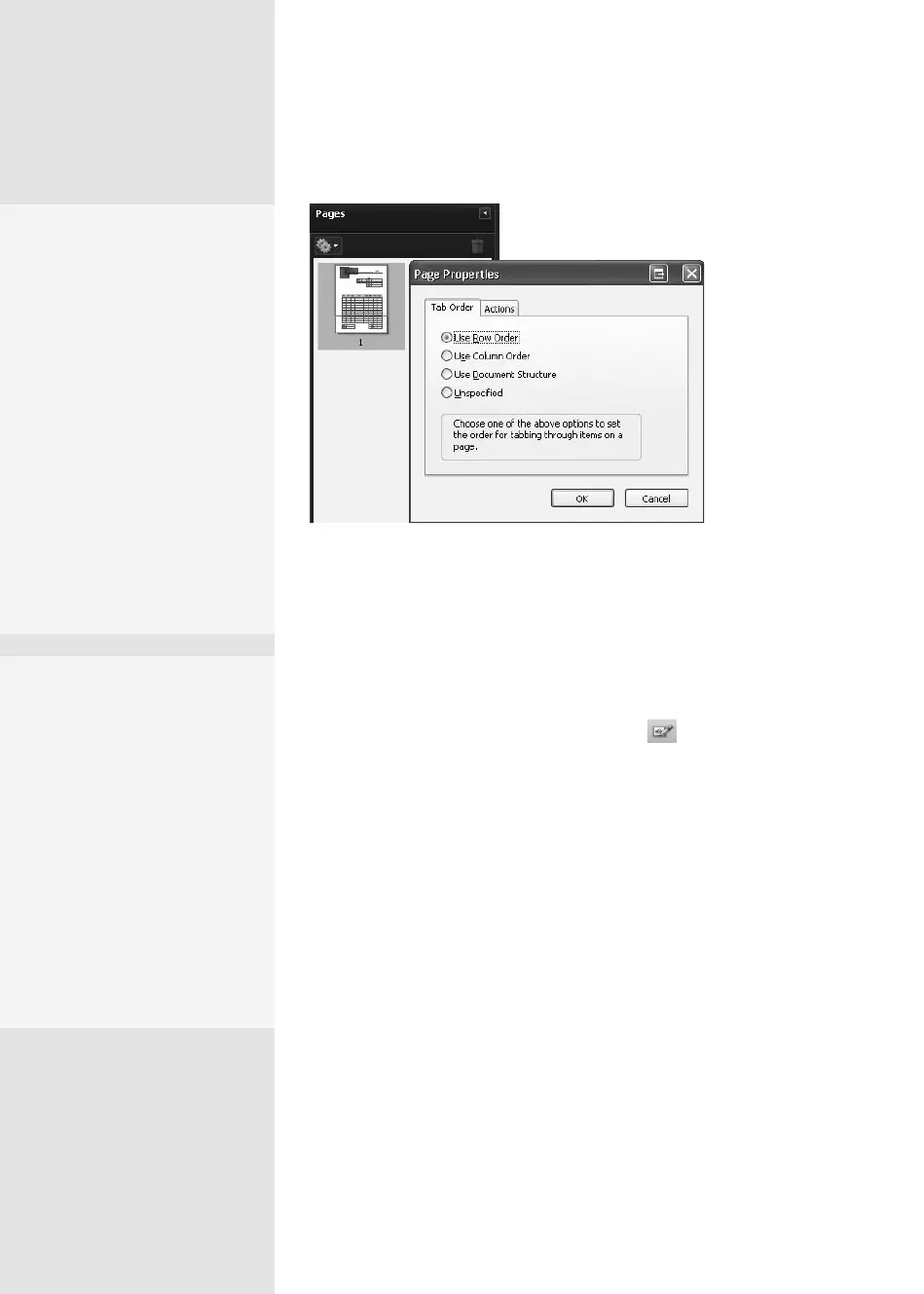
Figure 49a Choose a path for the user to tab through the document.
4. Click OK to close the dialog and test the tab order. Check out the side-
bar “Tabbing Through” for a list of keystrokes to use for testing.
Reading Order. The path taken through a document is called its read-
ing order. Acrobat oers the TouchUp Reading Order tool to dene and
order individual content elements on a page.
Select the TouchUp Reading Order tool on the Advanced Edit-
ing toolbar. Alternatively, you can choose Tools > Advanced Editing >
TouchUp Reading Order Tool or Advanced > Accessibility > TouchUp
Reading Order.
Click the PDF page with the tool. The TouchUp Reading Order dia-
log opens, and the content of the page is shown in separate gray num-
bered blocks. The numbers identify the document’s reading sequence
(Figure 49b). Read some tips for using the tool and touchup process in
the sidebar “Order Up Reading Order.”
•
If there is too much cor-
rection to do, it may be
quicker to start over.
Click Clear Structure and
then rebuild the page’s
structure.
•
Use the listings in the
Order pane to change
reading order. Drag
the icon to the left of
the object you want
to reorder until the
horizonal indicator bar
is in the correct location.
Then release the mouse
to change the order.
Tabbing Through
Test the form’s tab order and
form field function:
•
Press the Tab key to move
the focus to the next field.
•
Press Shift+Tab to move
focus to the previous field.
•
Press the Spacebar to
move through a field’s
options.
•
Press the arrow keys to
select list, check box, and
radio button form items.
From the Library of Daniel Dadian


 To Next Page
 Loading...