ptg
125
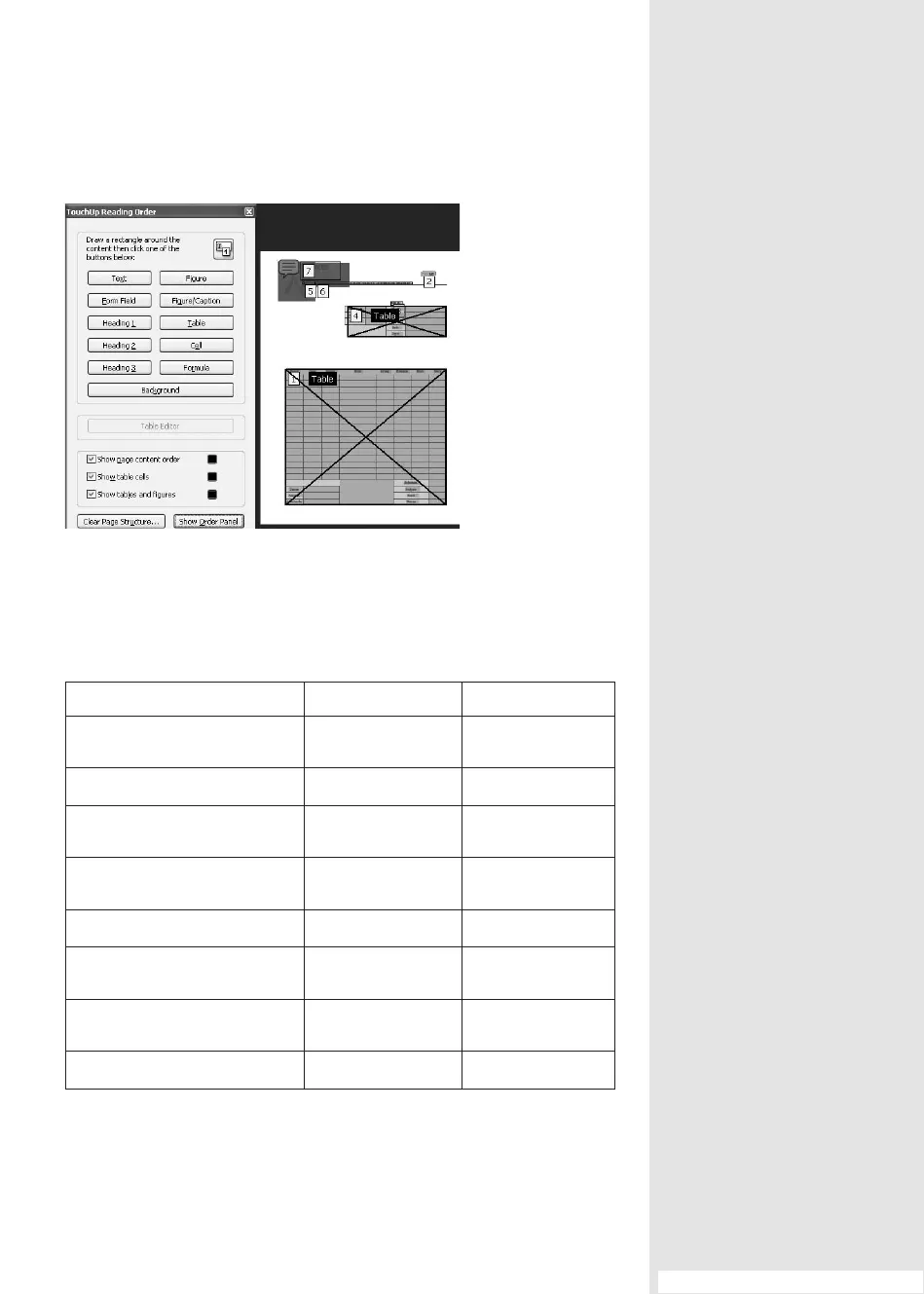
Figure 49b Display and modify the reading order in a document.
As with other features and processes in Acrobat, you can use key-
strokes to activate accessibility tools and commands (Table 49.1).
Table 49.1 Accessibility Keystrokes
Action Windows Action Mac OS Action
Change reading settings for the
current document
Shift+Ctrl+5 Shift+Command+5
Quick Check tool
Shift+Ctrl+6 Shift+Command+6
Reflow a tagged PDF and return
to unreflowed view
Ctrl+4 Command+4
Activate and deactivate Read Out
Loud
Shift+Ctrl+Y Shift+Command+Y
Pause reading out loud
Shift+Ctrl+C Shift+Command+C
Read only the current page out
loud
Shift+Ctrl+V Shift+Command+V
Read out loud from the current
page to the end of the document
Shift+Ctrl+B Shift+Command+B
Stop reading out loud
Shift+Ctrl+E Shift+Command+E
#49: Enhancing PDF Accessibility
From the Library of Daniel Dadian



 To Next Page