ptg
C H A P T E R S E V E N Transforming Document Pages
142
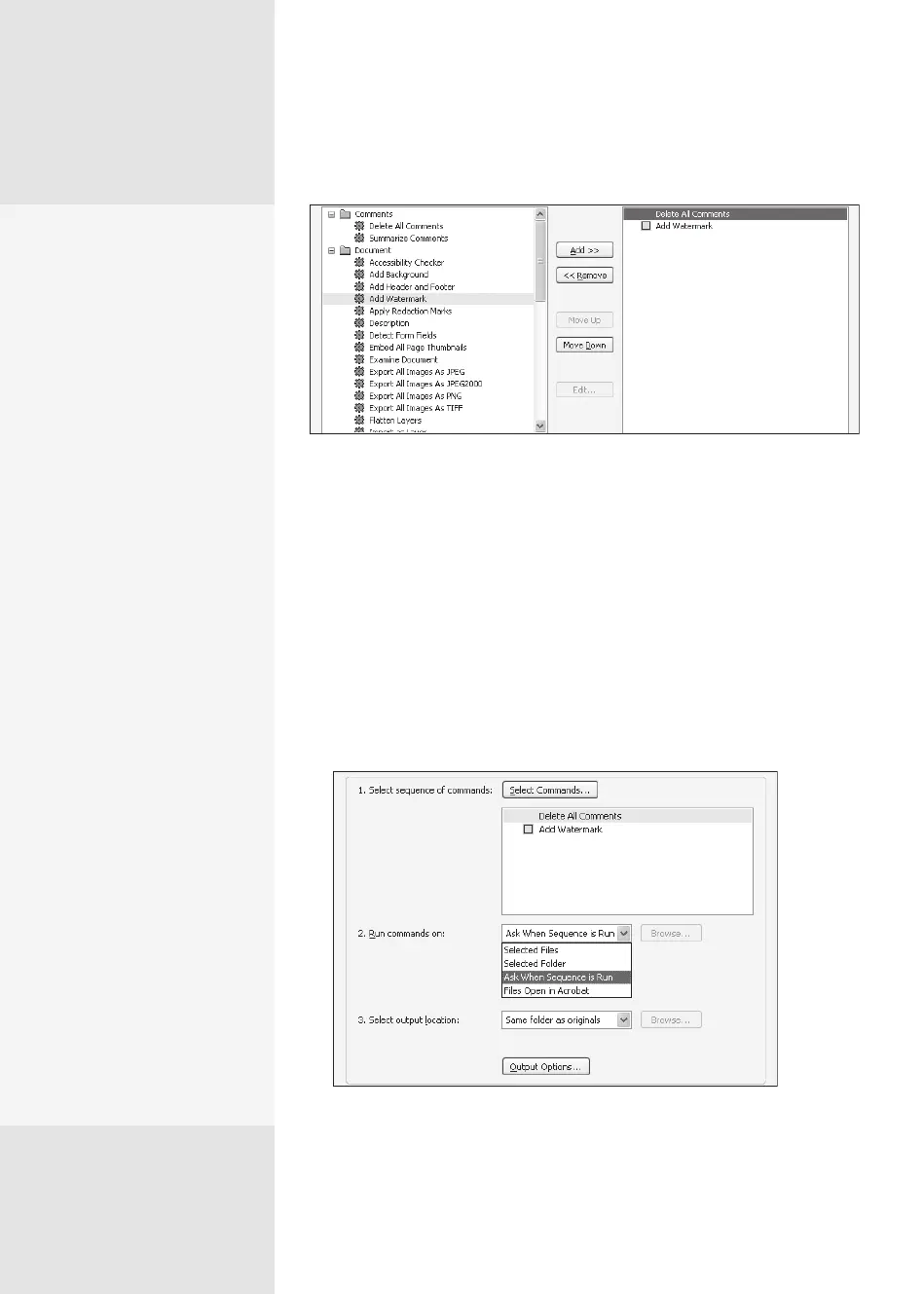
Figure 55a Choose from a long list of actions to include in the batch sequence.
5. Congure the settings or assign an Interactive Mode to actions you want
to control manually. In the example shown in Figure 55a, the action for
deleting comments has no icon to the left of the command’s name—
comments are deleted or they aren’t. The Add Watermark action has an
icon to its left meaning it can be made interactive, but isn’t an interactive
command in the example. Read more in the sidebar “Do It Your Way.”
6. When you have nished adding commands, click OK to return to the
Edit Batch Sequence [name] dialog. The commands are listed in the
dialog (Figure 55b).
Figure 55b Specify the settings for running your custom batch
sequence in the dialog.
Plan Ahead
To get you into the batch
sequence mindset, here are
a few things to consider:
•
Plan ahead. As you start
working on a project,
consider what repetitious
tasks could be handled
by a batch sequence.
•
Put the files you plan to
batch into a separate
folder. It’s easier to keep
track of where you are in
your workflow. You can
include files other than
PDF documents in your
batch sequence.
•
Configure and tweak a
sample file. When you are
satisfied with the appear-
ance, you are ready to
build and use a batch
sequence for the rest.
•
Write and test your
batch sequence at any
time. You don’t need to
be working with a proj-
ect’s files to write the
sequence.
•
Consider writing a group
of batch sequences.
•
Pay attention to how you
like to work. As you con-
struct a batch, you can
allow for prompts that let
you check documents.
From the Library of Daniel Dadian



 To Next Page