ptg
143
#55: Batching Tasks to Save Time
7. Choose an option from the “Run commands on” pop-up menu based
on the requirements of your project (see the sidebar “Everything in
Its Place”).
8. Choose an option from the “Select output location” pop-up menu
according to your project’s needs. If you think you might use the
sequence repeatedly, choose Ask When Sequence is Run. If the les
are intended for the same output folder, choose Specic Folder and
select the folder.
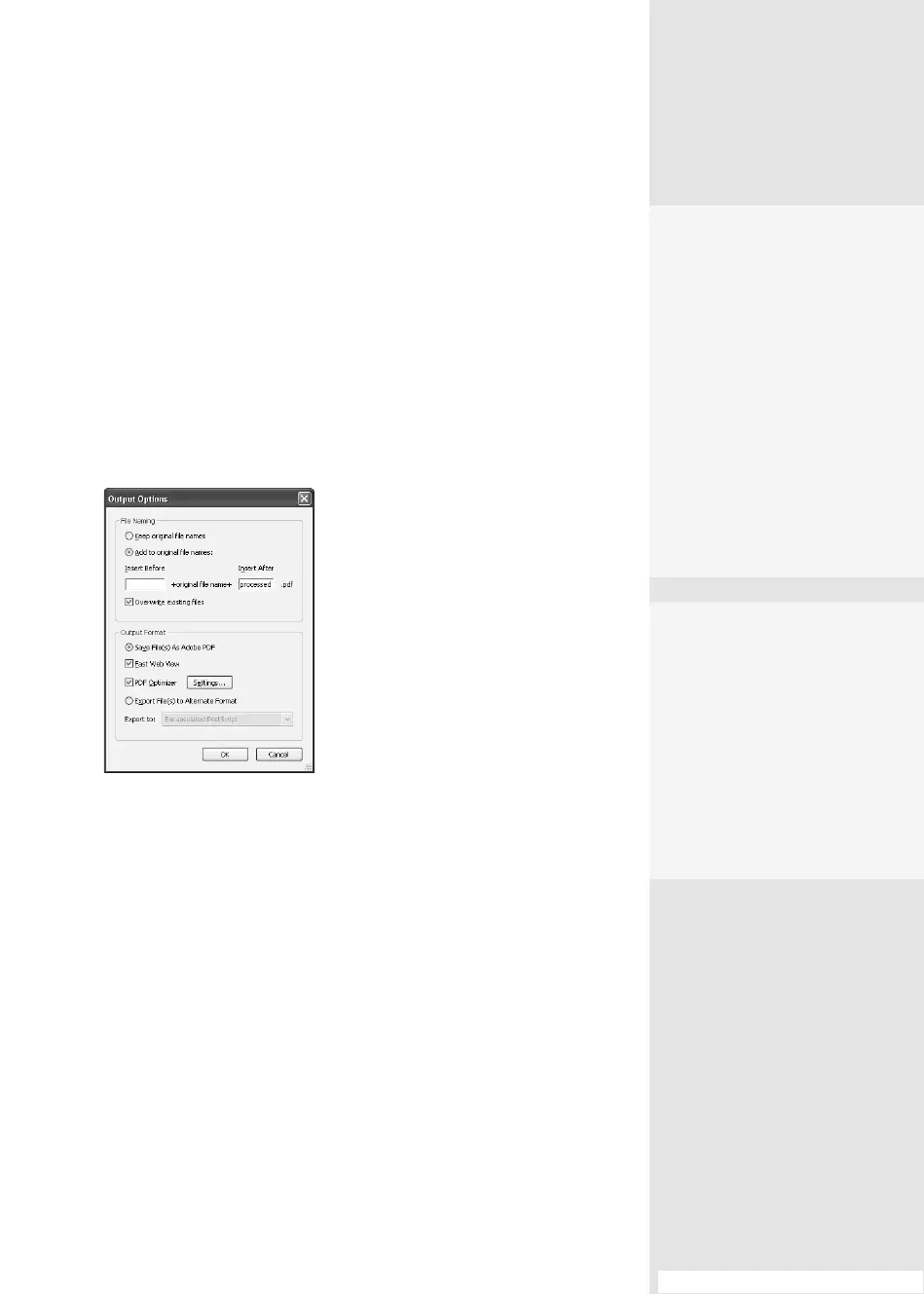
9. Click Output Options so you can congure the processed les further
in the Output Options dialog (Figure 55c).
Figure 55c Specify filename and file
format options for the batch sequence.
10. Select custom options for your project. For example, you can do the
following:
•
Append characters to the original lenames and specify whether
or not to overwrite the original les.
•
Choose an output format from the menu, such as Web pages,
Word documents, text, and so on.
•
Select Fast Web View to minimize le size.
•
Run PDF Optimizer options (read about the PDF Optimizer in #33,
“Optimizing a PDF Document”).
•
Export the processed les in one of the Acrobat export formats
(learn more about exporting in #34, “Exporting PDF Documents
in Other Formats”).
But What About …?
In the Edit Sequence dialog,
if you choose a specific
folder on which to run the
commands, a Source File
Options button appears.
Click the button to open a
list of file formats—any type
of file you can convert to PDF
can be included.
Everything in Its Place
If you are building a
sequence for a specific
project and have stored the
files in one folder location,
choose that option. If you
have files in several folders,
choose Selected Files. The
option you choose deter-
mines the other selections
that are available. For exam-
ple, if you choose Files Open
in Acrobat, the rest of the
dialog is dimmed.
(continued on next page)
From the Library of Daniel Dadian



 To Next Page