ptg
171
•
Select the slide where you want to add the video, and choose Adobe
Presenter > Import Video to open a dialog. Select the video to import,
click Open, and wait while the le is processed. You’ll see a white box
overlaying the slide on which the video is placed.
Regardless of the method you use for bringing video into a presenta-
tion, you can edit it via Adobe Presenter. Here’s how:
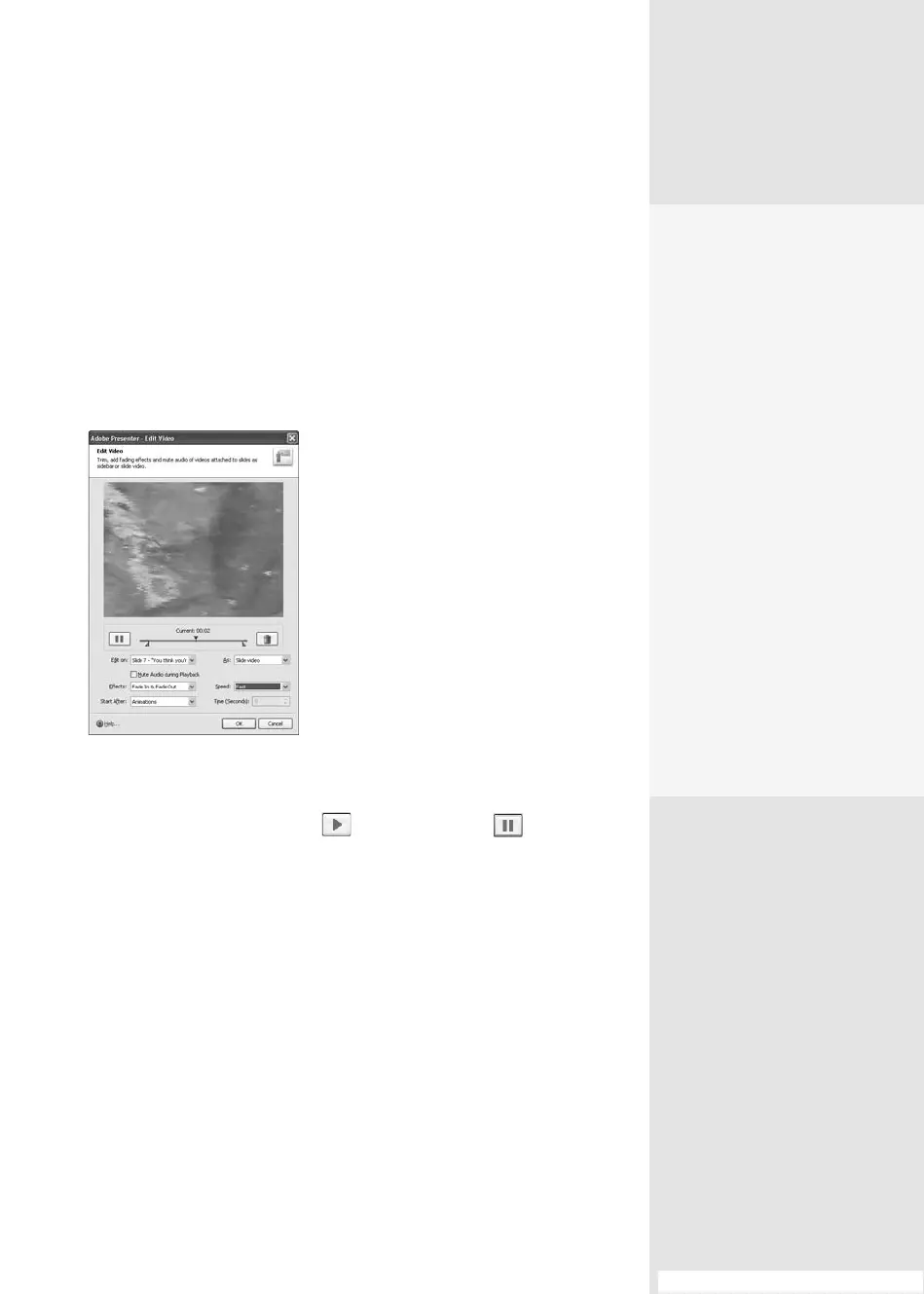
1. Select Adobe Presenter > Edit Video to open the dialog (Figure 65b).
Figure 65b Edit features of the
video you import or record.
2. To preview the clip, click Play ; click Stop/Pause to stop the
preview.
3. Adjust the length of the clip by dragging the start and end markers in
from the edges of the playbar if desired.
4. Specify other features for the video:
•
Choose how to play video by selecting the slide or sidebar option.
•
Choose a Fade or Speed option from the Eects pull-down menu.
•
Choose when to play the video by selecting an option from the
Start After pop-up menu. You can indicate a time delay, or specify
that the movie start after the slide’s animation or audio.
#65: Recording and Using Audio and Video
Check Your Assets and
Give Users Playback
Control
If you want to check your
presentation’s inventory of
Flash files, choose Adobe
Presenter > Manage Flash
to open a dialog listing the
files according to the slide
number. The listings include
the SWF files’ names.
The SWF files in your presen-
tation are controlled by the
playback controls in the Pre-
senter playbar, or by using
the playbar in the original
SWF file. The default uses the
Presenter playback option.
To change the setting, select
the Controlled By Presenta-
tion Playbar check box for
any files you want to control
from their original playbar.
(continued on next page)
From the Library of Daniel Dadian



 To Next Page