ptg
C H A P T E R E L E V E N Live Reviewing and Collaboration
220
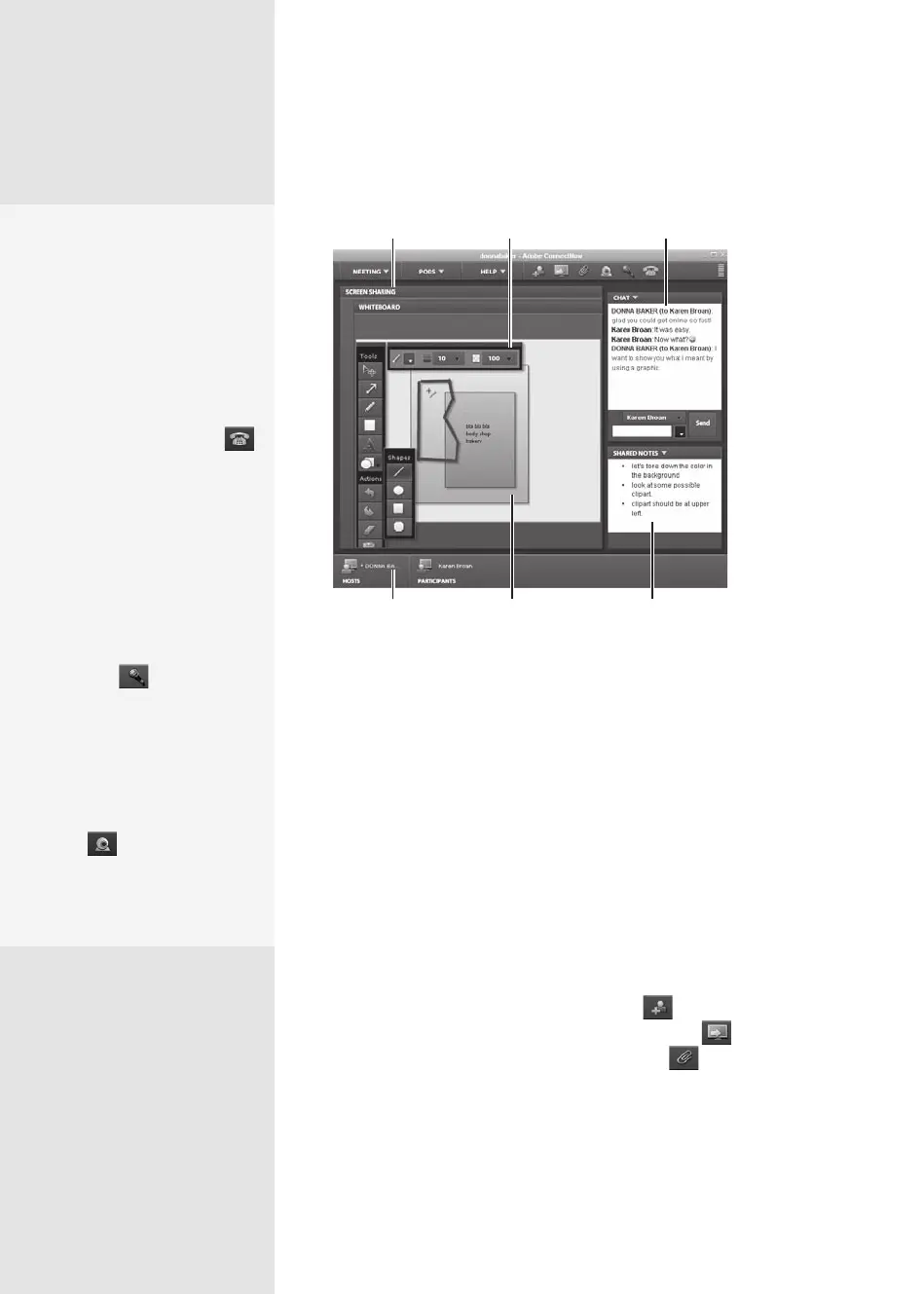
Export notes as a fileExport whiteboard
as an image
Control and
manage participants
Organize and arrange
pods as desired
Chat in real time
Participants can
access and configure tools
Figure 82a Conduct real-time interactive meetings in your
private meeting room.
Look for these features and tools:
•
The interaction areas are called pods, and are accessible from the Pods
pop-up menu. In addition to the ones shown in the gure, you can also
open Files and Webcam pods.
•
Select administrative commands, such as setting meeting preferences
or testing your microphone from the Meeting pop-up menu.
•
Find troubleshooting, Adobe Flash, and account settings in the Help
pop-up menu—along with Adobe ConnectNow Help, of course.
•
Use the tools at the upper right of the window to administer your meet-
ing. For example, click Invite Participants to add another member
to your session; click Share My Computer Screen to invoke screen
sharing for your group; or click Upload a File to locate and share a
le from your computer.
Talk Out Loud
ConnectNow offers differ-
ent audio features: Some
are free, while others may
include long-distance
charges. Here are your
choices from the Adobe
ConnectNow toolbar:
•
Click the Phone icon
and choose Adobe
Conference Number to
display a text box show-
ing call-in numbers and
the meeting ID number.
The service is free, but
long-distance phone
charges apply.
•
Click the Microphone
icon to activate your
system’s microphone
to speak with other
meeting attendees
using Voice over Internet
Protocol (VoIP).
•
Click the Webcam icon
to activate your
Webcam and use it with
sound to add video along
with the audio.
From the Library of Daniel Dadian



 To Next Page