ptg
223
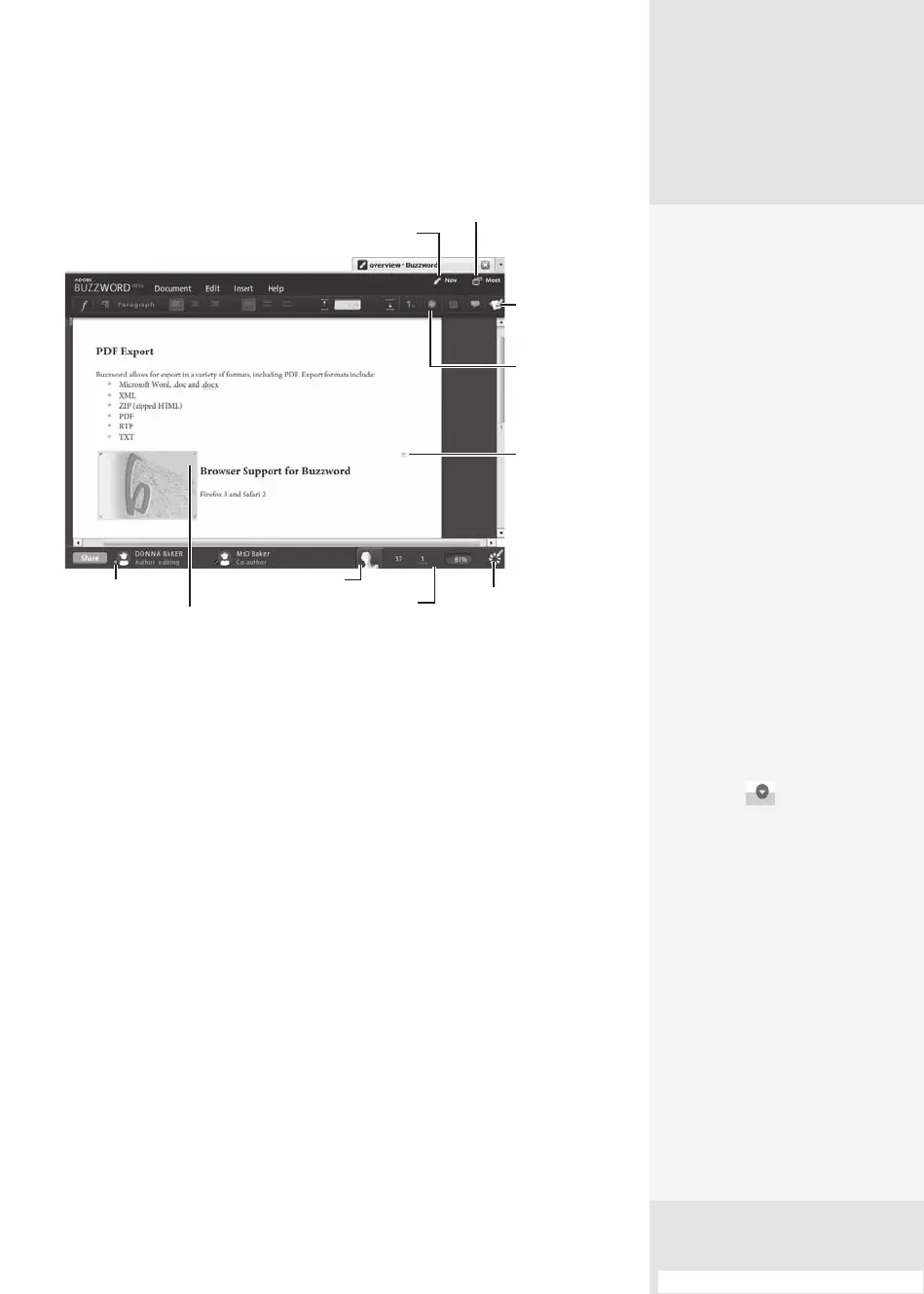
View history
Insert comment
at the active line
Share the file
Insert and
resize images
Synchronator
saves the file and
updates the server
Word count,
flagged words,
and magnification
Open list of
Buzzword
documents
Start collaboration session
Start new file
Click to display
a settings panel
Figure 83 Use the features in the Buzzword application to write, configure, and share
a document online.
The application menu contains the sorts of commands you’d expect,
such as the following:
•
Document. Click the Document menu to display commands for man-
aging documents. You’ll also nd commands for page setup and print-
ing, and for sharing.
•
Edit. On the Edit menu look for common edit commands, including
Check Spelling, which identies potentially misspelled words with a
jagged underline.
•
Insert. You can insert a range of features into a Buzzword document,
such as tables or images, headers and footers, page or line breaks, and
even special characters and a limited number of elds.
•
Help. Use commands in the Help menu to view Help les, and link to
Buzzword support sites.
#83: Working in Buzzword
Get the Buzz
Some of the Flash-enabled
features added to Buzzword
make it simpler for you to
work in the interface with-
out having to choose menu
items, as you are likely to do
when working in an ordinary
application. Here are a few:
•
Visual guides appear
over items on the page
when you select different
objects. For example, if
you drag a column on a
table, controls show the
amount of the indent; if
you add an image, con-
trols for resizing display
and show dimensions as
you change the image
size.
•
Activating different items
on a page displays arrow
buttons . Click an
arrow to open a context
menu for that item. For
example, if you click a
column in a table, click
the arrow button to show
commands to cut/copy/
paste the column, or
insert more columns.
•
A faint comment icon
moves along with your
pointer on the right side
of the page. Click the
icon to open a comment
box, which is associated
with the content on that
line of your document.
From the Library of Daniel Dadian



 To Next Page