ptg
C H A P T E R E L E V E N Live Reviewing and Collaboration
224
Tip
Click the Adobe Buzzword logo to open another menu, where you can
read about the program and user policies, sign out of Buzzword, or
choose Settings & Preferences to open a dialog. Here you’ll nd the
Adobe ID account information, as well as Buzzword preferences that let
you specify the unit of measure displayed in the application—inches is
the default. You can also choose whether to ag spelling errors, and can
construct a word list.
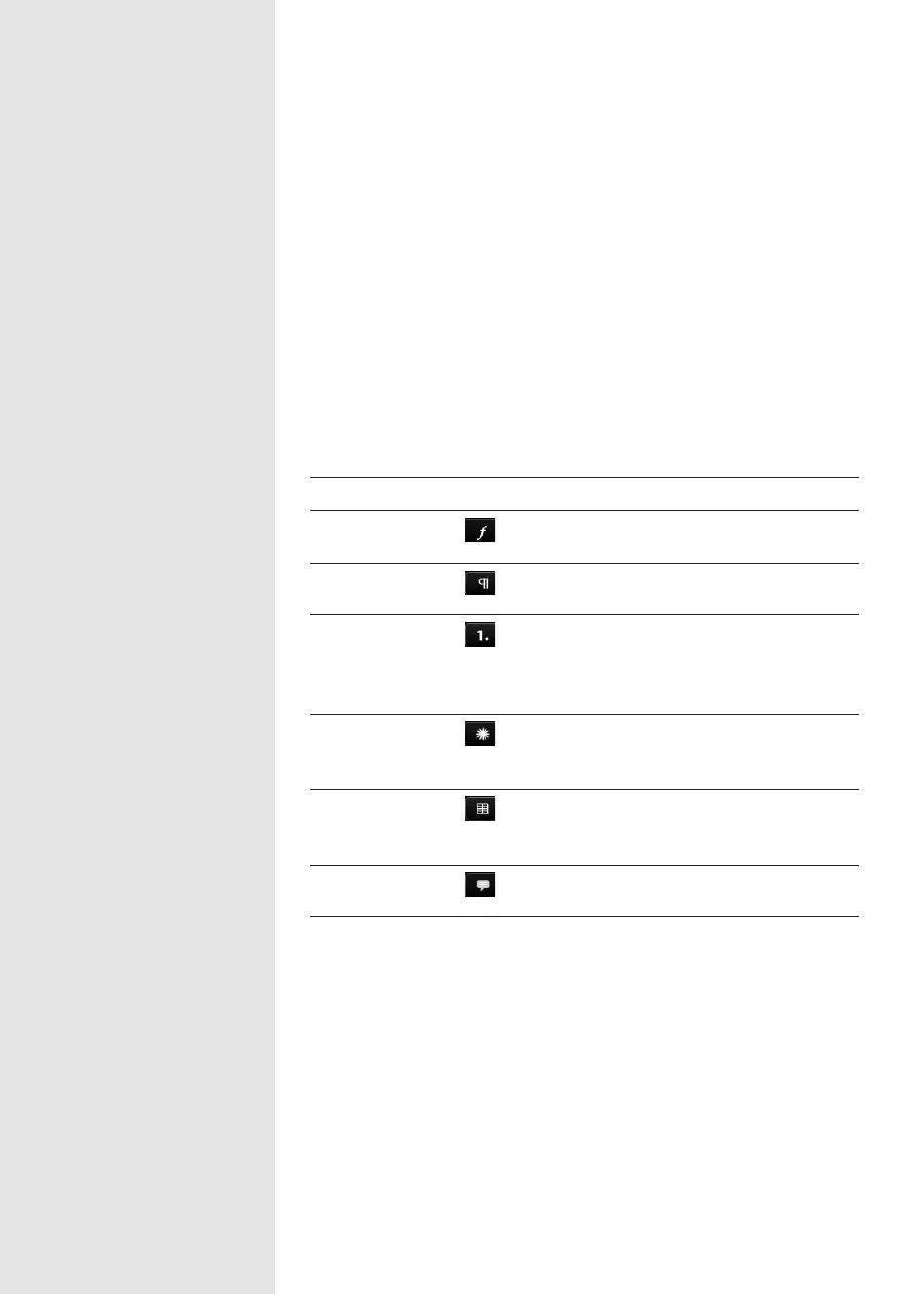
A list of the settings panels and their options are listed in Table 11.1.
Table 11.1 Buzzword Options Panels and Settings
Panel Name Icon Look for These Settings
Font Choose a font name, size, style, and
color.
Paragraph Choose alignment, spacing, and
indent.
List Choose type of list, the icon, the
outline level, and commands to
skip inserted content between list
items.
Image Select an image to place, then
choose a text wrap option and off-
set value.
Table Insert table and configure rows/
columns, gridline color, and back-
ground color.
Comment Add a new comment or show exist-
ing comments.
From the Library of Daniel Dadian



 To Next Page