ptg
291
Once your Scale Ratio is set, start to draw points on the page with the
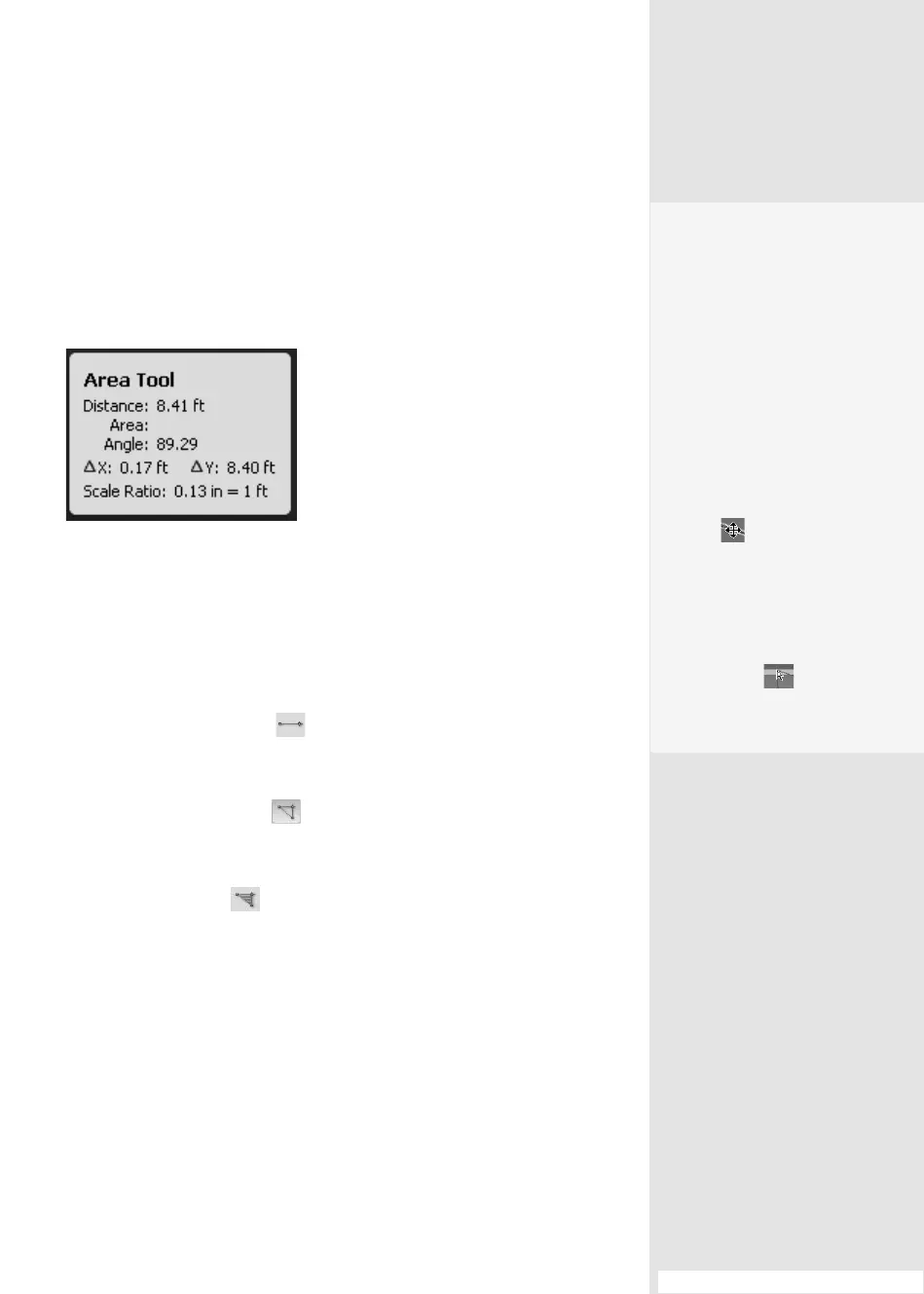
selected measurement tool. As you draw, information is displayed in the
Measurement Info widget (Figure 108b). You can read the values set with
mouse clicks, angles, and delta values (the location of the point on the
X-Y axes of the page).
Figure 108b Read information about your
measurement.
Note
To stop the drawing process before completing a shape, press Esc on your
keyboard or select another tool from the toolbars. To constrain the seg-
ments to straight lines as you draw, hold down the Shift key as you click
and drag the mouse.
Each tool measures in a dierent way:
•
Click the Distance Tool to measure the distance between two
points. Click the location for the rst point, drag to the second point,
and click the mouse again.
•
Click the Perimeter Tool
to measure the distance between several
points. Click each point you want to measure and then double-click
the last point to nish the measurement.
•
Click the Area Tool to measure the area within line segments. With
the tool, click each point you want to measure and then click the rst
point again to complete the measurement area.
#108: Measuring Objects
Move It Around
You can adjust the paths
and points you draw for a
measurement. Make sure
either the Hand tool or the
same tool you used for the
measurement is active and
move your mouse over the
measured shape:
•
To move the measure-
ment on the page, drag
when you see the Move
tool
over one of the
measurement’s paths.
•
To adjust one of the
endpoints on the meas-
urement, drag when
you see the Direct
Select tool over
an endpoint of the
measurement’s shape.
From the Library of Daniel Dadian



 To Next Page