ptg
329
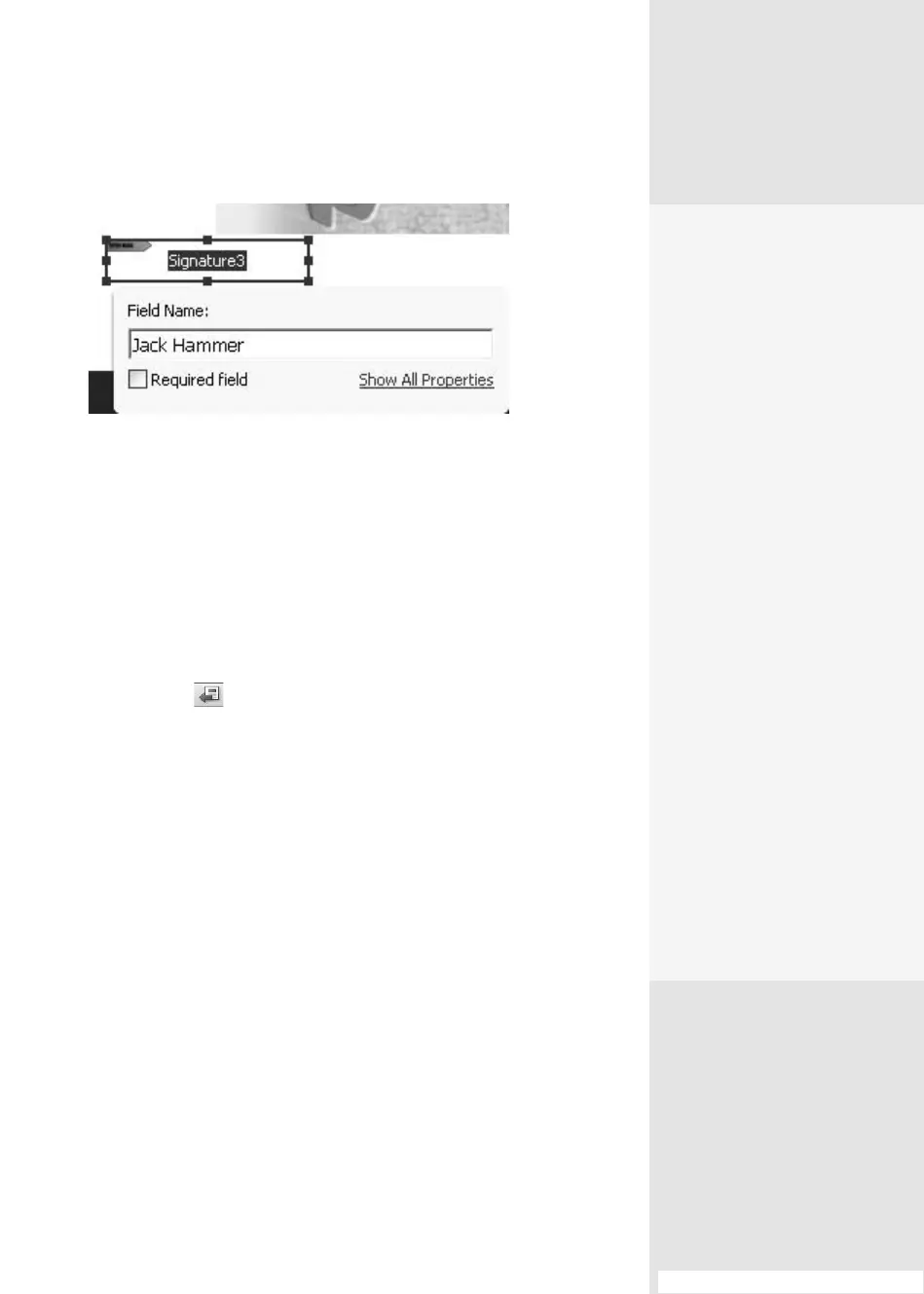
Figure 122a Use the Digital Signatures tool to add and congure
the elds on your document.
Note
Click Show All Properties to open the full Digital Signature Properties
dialog, where you can include a tooltip, choose an appearance for the
eld, and specify actions that occur when the eld is signed. Click Close to
return to the document. Read all about eld properties in #87, “Working
in Form Edit Mode.”
5. Continue to add additional signature elds as required. Click Close
Form Editing
to close the window and return to the document
in the original Acrobat window.
Next, sign or certify the document. Click the Sign task button to display
its menu and choose either Sign Document or Place Signature, depend-
ing on how you want to add your signature:
•
Sign Document. If you choose Sign Document, an information dialog
opens, explaining that you can use an existing unsigned eld. Click
OK to close the dialog, click the eld you want to use, and add your
signature.
•
Place Signature. If you choose Place Signature, an information dialog
opens, explaining how to draw a new eld. Click OK to close the dialog,
then click and drag to add the new signature eld.
What a Signature
Can Tell You
Make sure the members of
a review group all have the
same sets of certificates; a
missing certificate results in
an unknown signature. You
can get certificate informa-
tion directly from a signa-
ture to use to validate that
signature.
Verify that the reason the
signature isn’t validating is
not simply that the certifi-
cate is missing. In the Sig-
natures panel, select the
signature’s listing and then
choose Options > Show Sig-
nature Properties to open
the Signature Properties dia-
log. Click Show Certificate at
the right of the Summary tab
(shown by default when the
dialog opens). When the Cer-
tificate Viewer dialog opens,
select the Trust tab, and then
click Import Contact to open
the Import Contact Settings
dialog. Follow the prompts
to add the certificate to your
list and verify the signature.
#122: Tracking Changes
From the Library of Daniel Dadian



 To Next Page