ptg
C H A P T E R S I X T E E N Making Your Documents Secure
330
Continue as described in #121, “Signing a Document.”
Finally, after the reviewing or distribution process is complete, you can
check out the document at any point. When you open the le, Acrobat
automatically validates the signatures for you and displays the results
in the Document Message Bar. Click Signature Panel to open the panel.
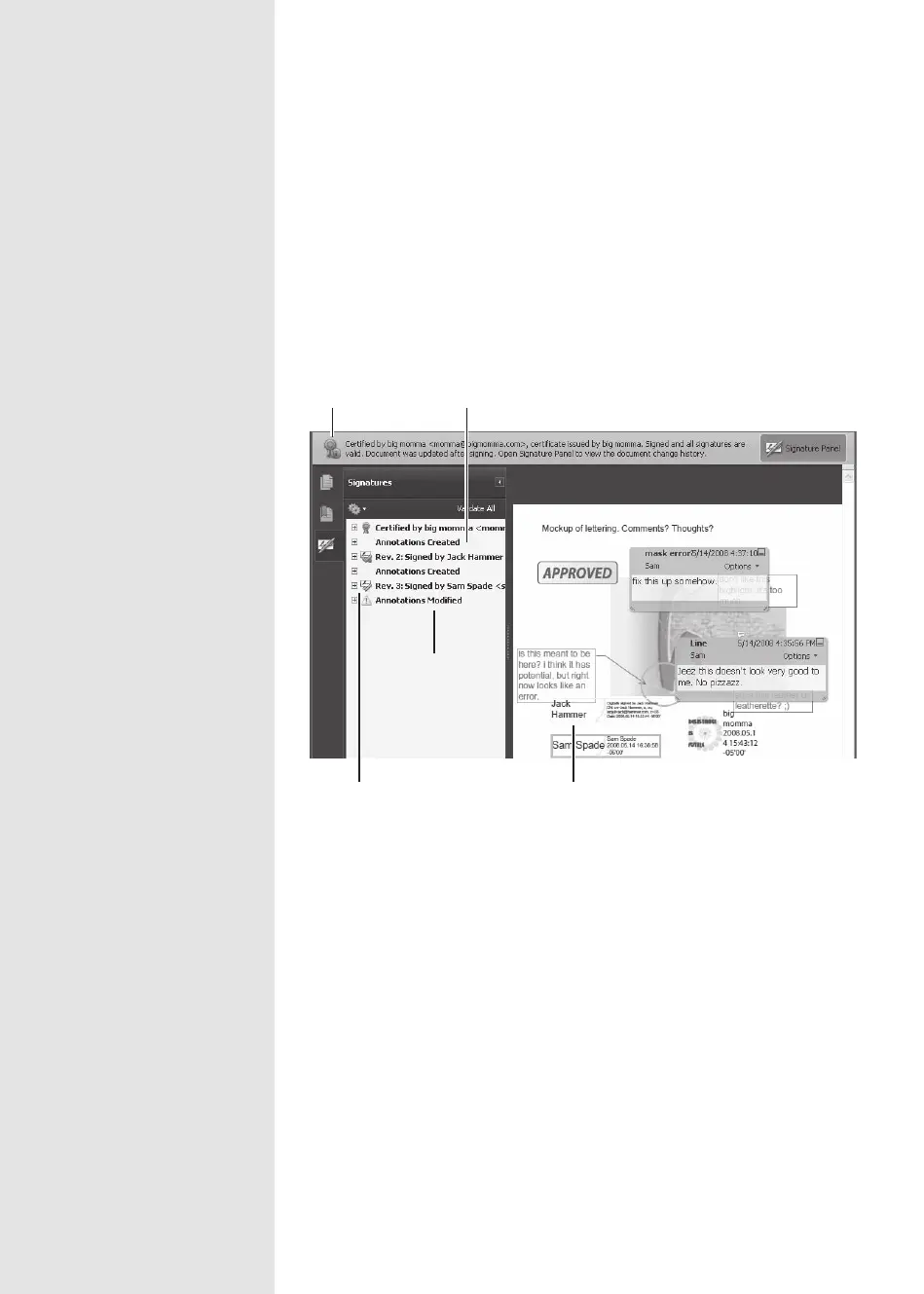
You’ll see a number of items listed (Figure 122b).
Modifications include
closing or resizing
comment boxes
Original is certified
Added comments are
listed as annotations
Signatures are valid Signed in fields
Figure 122b Track changes in the Signature Panel when a workflow involves multiple
digital IDs.
Compare the current version of the le with its contents at the time
a signature was applied using the historical information stored with the
signatures. Select the signature in the Signature Panel, and then choose
Options > Compare Signed Version to Current Version to process the le.
From the Library of Daniel Dadian



 To Next Page