ptg
335
Trusted Identities. Trusted authors come to you via the digital ID you
hold for an identity. To add someone to your list, open the Signature Panel
for a document that includes the signature and follow these steps:
1. Select the signature in the Signature Panel, and choose Options >
Show Signature Properties to open the dialog.
2. In the Summary tab, which shows by default, click Show Certicate to
open the Certicate Viewer dialog.
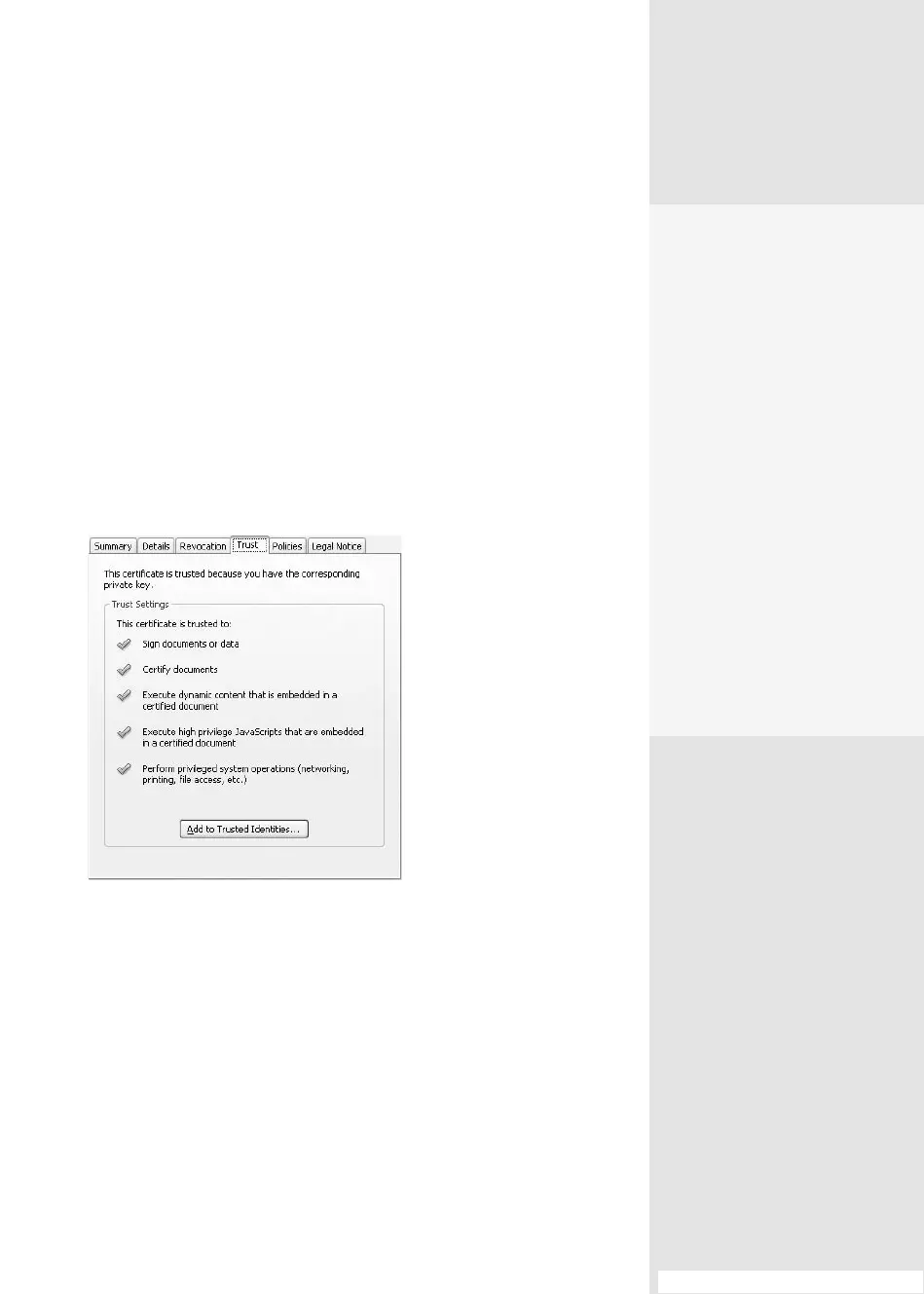
3. Click the Trust tab to display the digital ID’s Trust Settings (Figure 124b).
Click Add to Trusted Identities. You’ll see an information dialog that
explains you’ll have to validate signatures again if you change trust set-
tings. Click OK.
4. Next, the Import Contact Settings dialog opens, so you can select/
deselect the trust items shown in Figure 124b. Click OK to return to
the Signature Properties dialog; click Close to return to the program.
Trust Manager. With all the dierent sorts of trusts in Acrobat, it stands
to reason that there’s a trust manager in place! In the Preferences, click
Trust Manager to display the settings. Dene options in these three areas:
•
Select the “Allow opening of non-PDF le attachments with external
applications” check box to launch a source program if you want to
open a Microsoft Word or Excel le attached to your PDF document.
#124: Managing Multimedia and Security Trusts
Pick Your Player
In the Multimedia Trust (leg-
acy) preferences, you can
specify whether to allow mul-
timedia to play in trusted doc-
uments. Assign a permission
level for multimedia opera-
tions from these choices:
•
“Always” plays content in
the player at all times.
•
“Never” prevents the
player from being used.
•
“Prompt” asks for a deci-
sion when a nontrusted
document that con-
tains media is open. You
decide whether to add a
nontrusted document to
your list of trusted docu-
ments or authors.
Figure 124b Include a digital
ID in your list of trusted identities.
(continued on next page)
From the Library of Daniel Dadian



 To Next Page