ptg
C H A P T E R S I X T E E N Making Your Documents Secure
336
•
Specify how PDF les access the Internet. The default option is “Unless
explicitly permitted, PDF les cannot send information to the Internet.”
Read about your options in the sidebar “Whom Do You Trust?”
•
Let Acrobat handle automatic updates for root certicates from an
Adobe server. The default action includes asking you rst before instal-
lation. How considerate!
Managing All Your Security Settings. Acrobat 9 includes an interest-
ing new feature that lets you pack up all your security settings into one
convenient package you can export and save as an external le, ready to
share with others or move to another computer. Follow these steps:
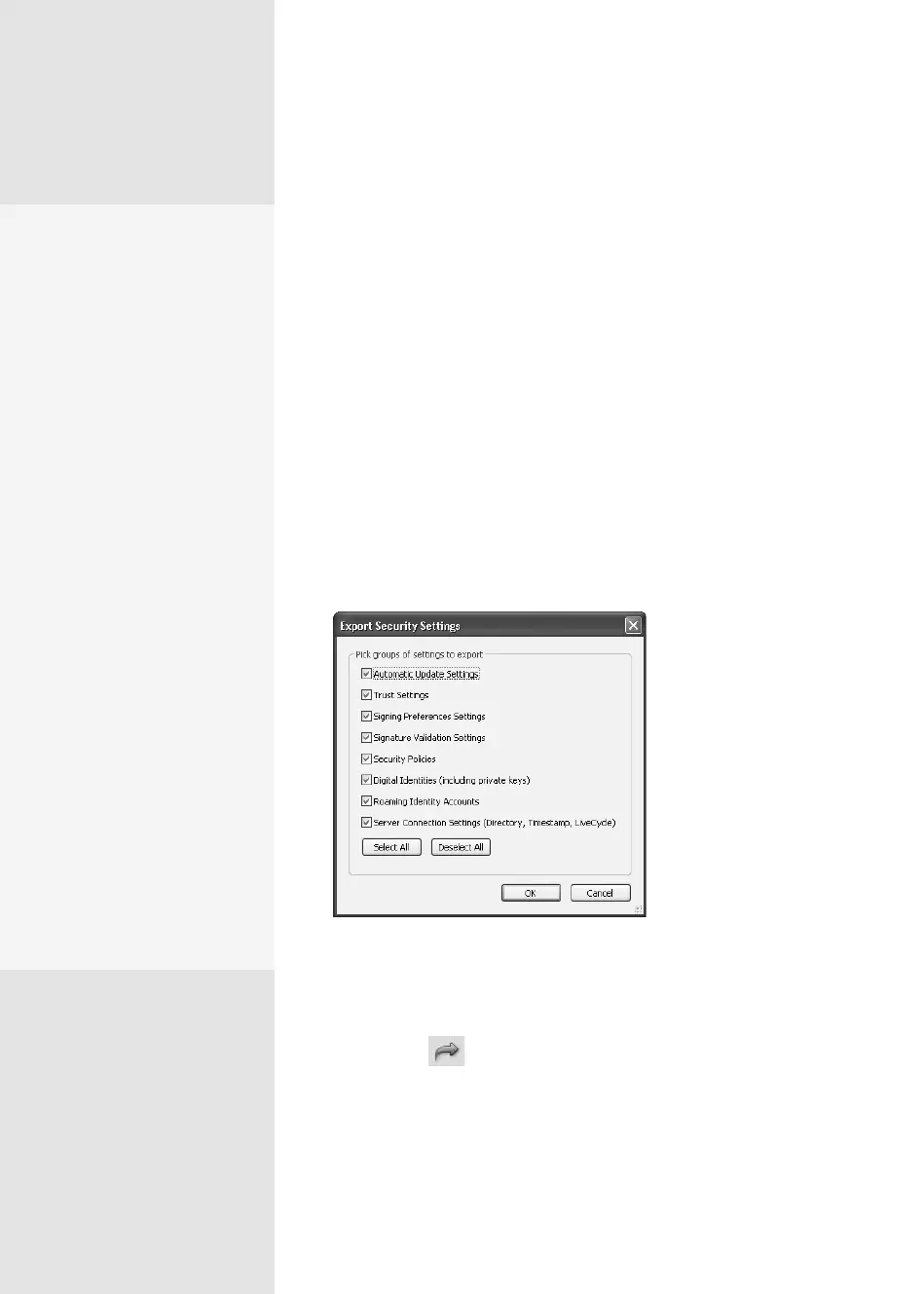
1. Choose Advanced > Security > Export Security Settings to open the
dialog shown in Figure 124c. As you see in the dialog, the list includes
settings you’ve collected and created in many dialogs, preferences,
and tasks.
Figure 124c Choose groups
of settings to export.
2. Click OK to open an expanded version of the dialog, where you can
select each category of setting and specify what components are
exported.
3. Click Export to open a small encryption dialog and choose how
you want to secure the settings le. Choose password, certicate, or no
security, and then click OK. Proceed with the next dialogs according to
the selected security type.
Enhancing Security
As if password, certificate,
and other forms of security
weren’t enough, Acrobat 9
includes an Enhanced
Security feature. In the
Preferences, click Security
(Enhanced) to display the
settings. The recommenda-
tion is to maintain the secu-
rity level, and the Enable
Enhanced Security check
box is selected by default.
You may have problems
with a high level of security
in some workflows, which
you can specify in the dialog.
To define a location exempt
from the enhanced security
feature:
•
Click Add File to locate
and include a single file.
•
Click Add Folder Path to
define a folder location
to exempt.
•
Click Add Host to display
a field where you type
the URL for the hostname
to be excluded from the
security level.
From the Library of Daniel Dadian



 To Next Page