89
14.4.2 Backup
It manages exchange of system settings between Delta 80 and an external memory (Pendrive).
Press F4 to enter Memories management.
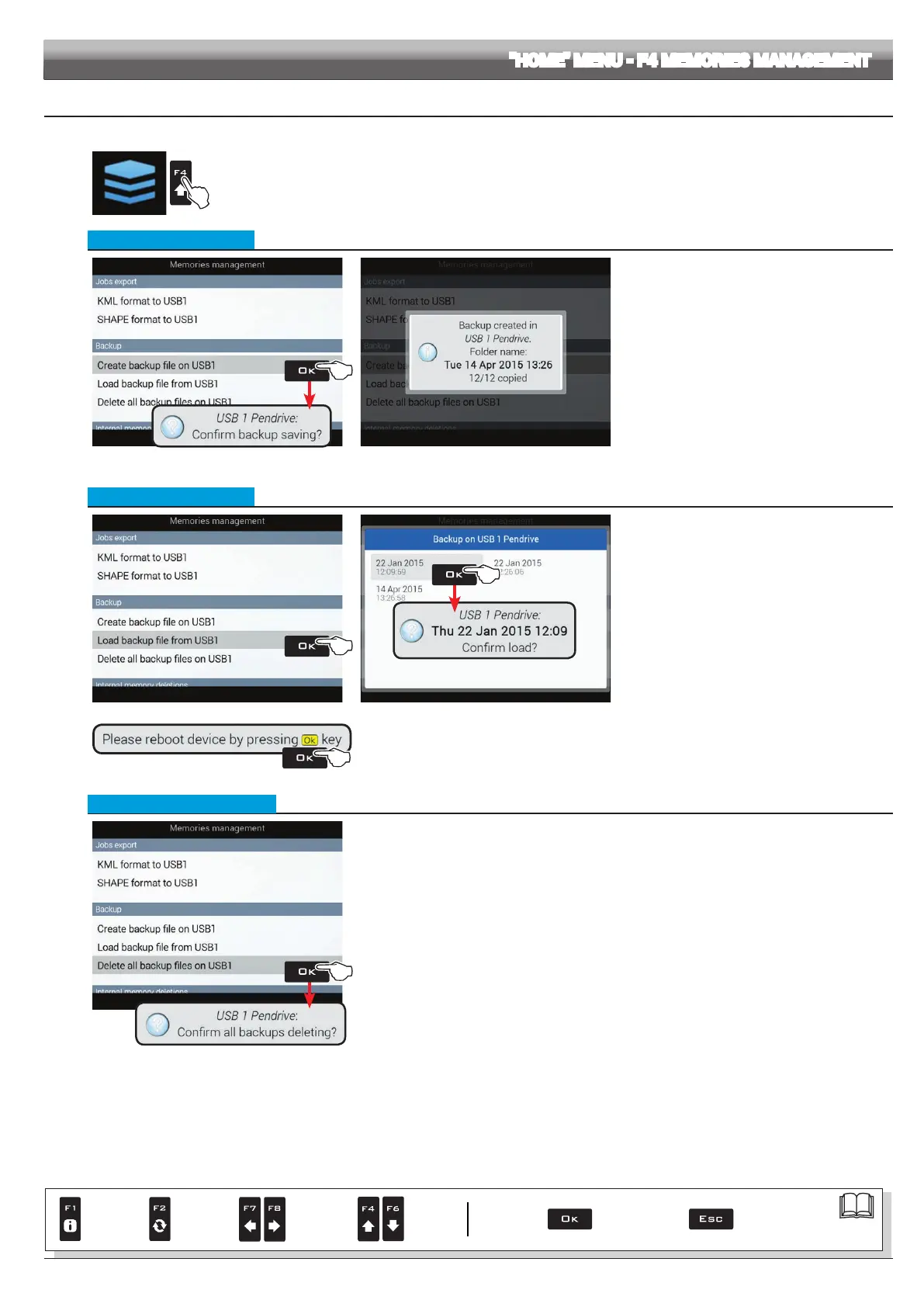
• Create backup le on USB1
Fig. 283
Fig. 284
Allows to save a (backup) copy of system settings to
USB pendrive.
- Select
Create backup file on USB1 (Fig. 283) and
press OK.
Delta80 requests you to conrm saving
(OK: conrm, ESC: cancel).
- A conrmation message (Fig. 284) is displayed once
the process is completed. Press ESC.
The backup is saved on the USB pendrive, inside a
folder named "backups".
• Load backup le from USB1
Fig. 285 Fig. 286
Allows to load onto the device a (backup) copy of system
settings and ACTIVATE THEM.
Before doing this, we recommend you to save a
backup of existing settings.
- Select
Load backup file from USB1
(Fig. 285) and press OK.
- Select backup folder to load (Fig. 286) and press OK.
Delta80 requests you to conrm the following: ALL
active settings will be lost
(OK: conrm, ESC: cancel).
Fig. 287
- Message in Fig. 287 is displayed once the process is completed.
Reboot device by pressing
OK.
• Delete all backup les on USB1
Fig. 288
Allows to delete all backups from the USB pendrive.
- Select
Delete all backup files on USB1 (Fig. 284) and press OK.
Delta80 requests you to conrm deletion (OK: conrm, ESC: cancel).
"HOME" MENU - F4 MEMORIES MANAGEMENT
Par.
7. 4
Conrm access
or data change
Exit the function or
data change
Delete
selected
character
Scroll
(LEFT /
RIGHT)
Data
increase /
decrease
Scroll
(UP /
DOWN)
Enter
selected
character


 To Next Page