99
"JOB MENU" - F3 TANK
15.3
F3 Tank
Manages tank lling.
The management mode will change according to the device set for the tank level reading
(basic settings, chap. 9).
1
2
Fig. 318
1 In the guidance screen, press
Menu.
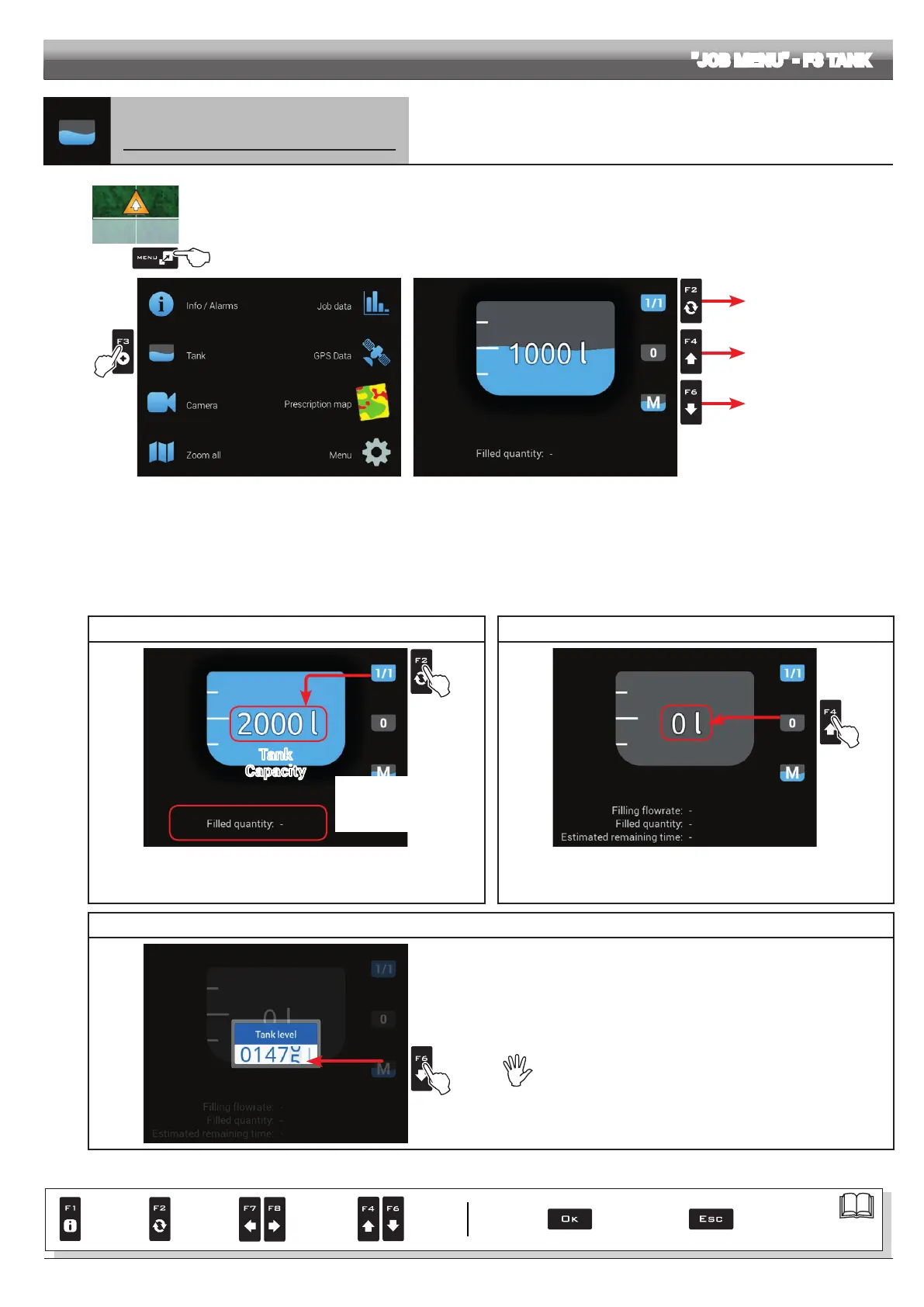
2 Press F3 to view the Tank menu (Fig. 319).
Complete lling
Level reset
Filled quantity manual
setup
Fig. 319
• TANK LEVEL SOURCE: LEVEL SENSOR
The computer displays the real quantity of uid inside the tank, detected by the level sensor.
• TANK LEVEL SOURCE: MANUAL / FILLING FLOWMETER
The computer calculates the quantity of uid inside the tank (by processing the job data), and allows to enable several manual procedures:
- Complete lling, according to the tank capacity (Fig. 320)
- Level reset (Fig. 321)
- Filled quantity manual setup (Fig. 322)
TANK FILLING LEVEL RESET
Tank
Capacity
Fig. 320 Fig. 321
Press
F2 to set tank level to the maximum value.
The display will show the tank as full: its total capacity has been set during
advanced setup (par. 10.1.10).
Press F4 to set tank level to zero.
The display will show the tank as empty.
FILLED QUANTITY MANUAL SETUP
Fig. 322
- Press
F6 to set the quantity of liquid lled in the tank.
- Set the value and conrm.
The display will show the tank level that has been reached.
It is not possible to set values higher than tank total capacity.
When the lling owmeter
is connected, the display
shows the lling data in real
time.
Par.
7. 4
Conrm access
or data change
Exit the function or
data change
Delete
selected
character
Scroll
(LEFT /
RIGHT)
Data
increase /
decrease
Scroll
(UP /
DOWN)
Enter
selected
character


 To Next Page