27
10 ADVANCED SETUP
ACTIVE SETTINGS
self-propelled
machine
with towed/3-point hitch
implement
Before proceeding with advanced setup, select type of system
conguration: all advanced setup changes will be applied to ACTIVE
SETTINGS (mac, imp, tra, usr).
SETUPS MANAGEMENT
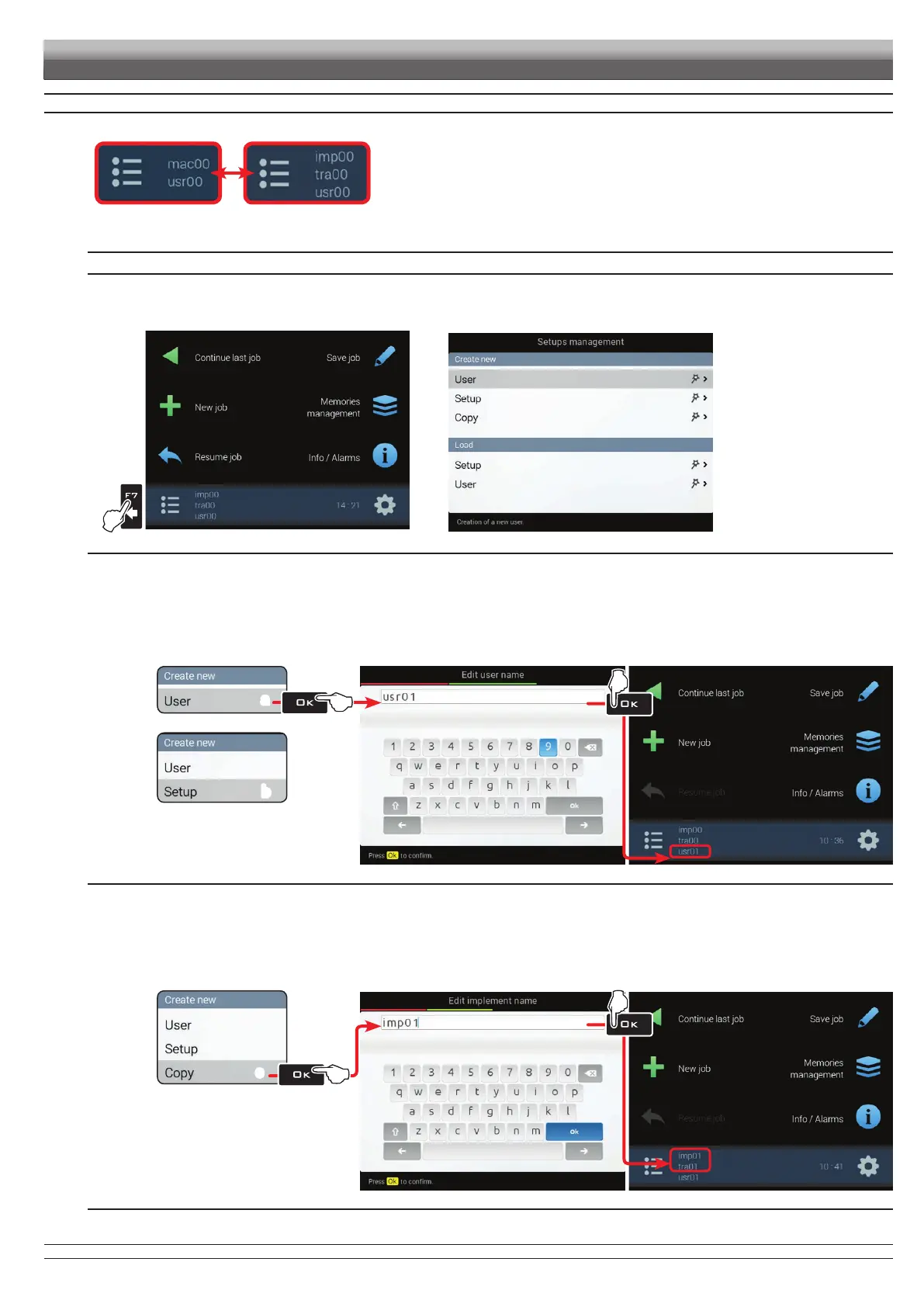
1 Press F7 in the "Home" screen (Fig. 61).
Now it is possible to create a new setup (2A), or select an existing one (2B):
in all cases the setup will be enabled and the name will be displayed in the "Home" screen.
1
Fig. 61
2A
2B
Fig. 62
CREATION OF A NEW SETUP (Create new > User / Create new > Configuration)
Select Create new > User (a in Fig. 63) to create a new setup and press OK.
Follow all suggested steps and select required options. OK: next step ESC: previous step.
Type the name (in the example of Fig. 64: usr01) and press OK.
The new setup is now active on the computer (Fig. 65). Before moving on to the advanced setup procedure, carry out the basic setup (chap. 9).
You can repeat the same steps for setup
Create new > Configuration (b)
a
b
Fig. 63
Fig. 64 Fig. 65
COPY OF A SETUP (Create new > Copy*: COPY DATA FROM AN EXISTING SETUP)
* copy valid only for les of the "Conguration" type
Select Copy (c in Fig. 66) to copy the active setup and save the data on a new one; press OK.
Follow all suggested steps and select required options. OK: next step ESC: previous step.
Type the name (in the example of Fig. 67: imp01) and press OK.
The saved setup is now active on the computer (Fig. 68). Proceed to advanced setup.
c
Fig. 66
Fig. 67 Fig. 68
ADVANCED SETUP
CONTINUES


 To Next Page