125
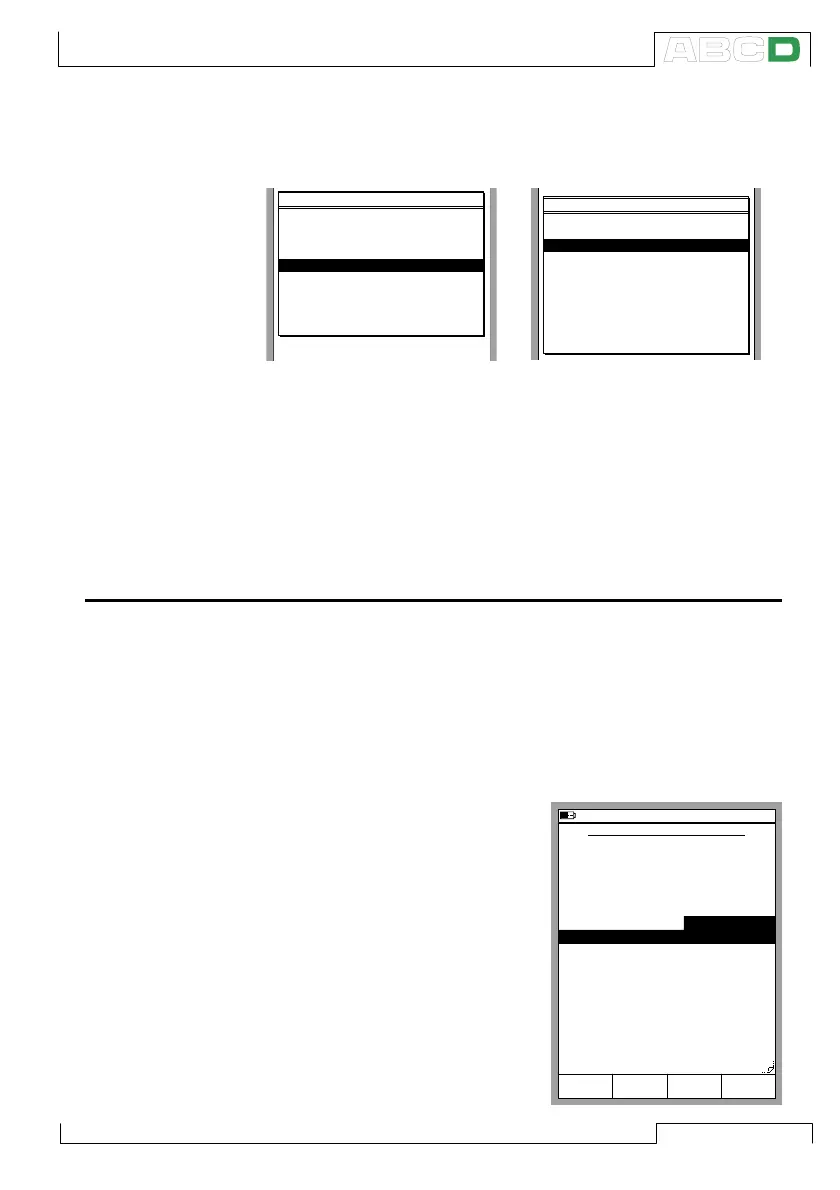
Whichever way you start creating the instrument, you will first have
to select the Input Quantity and the Output Quantity. These selec-
tions cannot be changed afterwards.
SELECT INSTRUMENT INPUT
Voltage
Low Voltage
Current
Resistance
Pressure
Temperature
TC Temperature
RTD Temperature
Frequency
Value
SELECT INSTRUMENT OUTPUT
Voltage
Low Voltage
Current
Resistance
Pressure
Temperature
TC Temperature
RTD Temperature
Frequency
Value
Switch
After the Quantity selections, there are five pages of instrument
data that need to be completed. They are presented in chapter
Editing Instrument Data.
Note.
There’s also a possibility to create a new instrument based on an
instrument already existing in MC5P’s memory. Do this with the Copy
Instrument option available in menu.
Editing Instrument Data
The instrument data pages may be re-edited whenever you want.
Note.
Only the following fields may be edited if the instrument data is
downloaded from a calibration software (valid for Beamex’s calibra-
tion software QD3 and QM6):
• Input Span and
Output Span.
General Data Page
Out of the four text fields in the up-
per part of this page, only Position
ID or Device ID is required. Change
the Error calculation formula and
the error limits according to your
needs. Zero value in any error limit
field means that the limit is not com-
pared against the calculated maxi-
mum error.
11.11.2003 13:43
Position ID
MENU
PT 101.6
Position Name
Feed 3, pressure
Device ID
Device Name
Error Calc. Method
% of span
Reject if
0.50
Adjust if
0.30
Do not Adjust if
0.10
Adjust to
0.10
>
>
<
<
Save
page
Next
Edit
INSTRUMENT GENERAL DATA
Maintaining MC5P’s Instrument Database



 To Next Page