153
MC5 Datalog Viewer
General
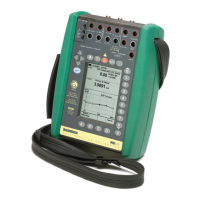
MC5 Datalog Viewer is a utility for transferring Data Logging results
from MC series calibrators to a personal computer (PC). The re-
sults can be viewed in MC5 Datalog Viewer and saved in the utility’s
own format or exported for use in other applications, e.g. Microsoft
Excel
®
.
MC5 Datalog Viewer has two windows. One for displaying the re-
sults in a table and another that displays a graph based on the
results.
The graph and the table have a linked cursor. Double-click any-
where inside the graph area and you will see a vertical bar. The
corresponding data row in the table is highlighted. Similarly, if you
move the highlighted row in the table (by clicking on another row or
using the arrow keys), the vertical bar in the graph window moves
to the corresponding location in the graph.
Installing MC5 Datalog Viewer
MC5 Datalog Viewer does not require a special installation proce-
dure. Just copy MC5_DataLog.exe to a folder that suits your needs
and start the software from that location.
Communication Settings
Before connecting to MC5P Multifunction Calibrator, be sure to se-
lect the correct Serial Port and Port Speed in the settings menu.
Always start using the maximum Port Speed. If communication prob-
lems arise, decrease the port speed.
File Management
Transferring data from MC5P
To upload the results, select the Transfer Data button in the toolbar.
In the following dialog: Select the data to be downloaded and press
Start.
The data is uploaded to the RAM memory of the PC and is avail-
able for viewing in MC5 Datalog Viewer.
MC5 Datalog Viewer



 To Next Page