77
Scaling
In scaling, the measured/generated/simulated value is displayed in
another, user defined quantity/unit. Start scaling as described in
chapter Display Mode Settings on page 76.
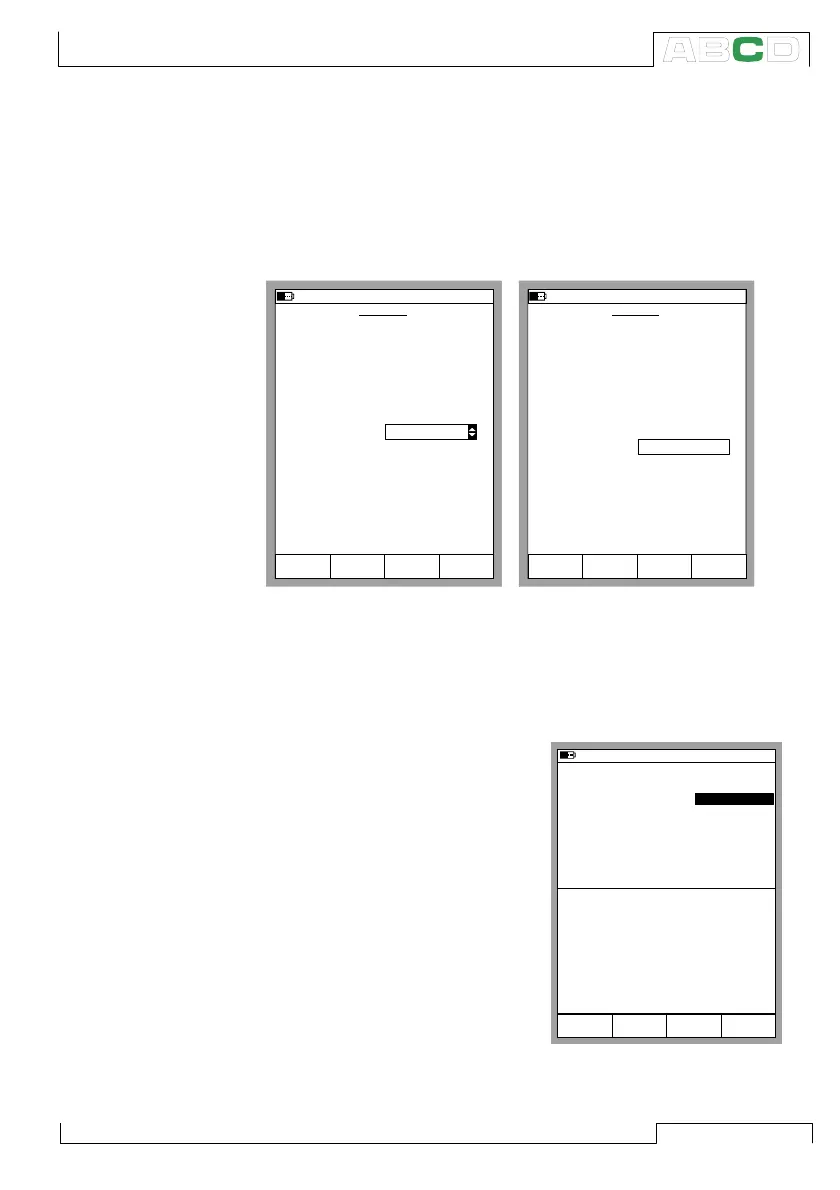
When selecting Scaling Display Mode, the following configuration
window appears:
You can scale the quantity either to a quantity that already exists in
MC5P or select Custom Units from the Scale Mode field. Then
you can manually enter any unit to the Scale Unit field (see the
rightmost picture above).
When scaling is active in a Basic
Mode window, the window contains
the text “SCALED”. The true value
is displayed in Extra Info row. If the
Extra Info row was assigned to
some other measurement before
scaling was started, the other mea-
surement is automatically stopped.
Note.
Remember to set the amount of
decimals to be displayed for a Cus-
tom Unit. The default value is 3.
SCALING
11.11.2003 8:36
Quantity
Port
Pressure
P1:INT2C
Measured Range
kPa
Stop
Ramping
Field StartCancel Edit
0 %
100 %
kPa
0.000
100.000
Scaled Mode
Scaled Unit
mA
Scaled Range
0 %
100 %
4.000
20.000
Transfer Function Linear
Current
SCALING
11.11.2003 8:37
Quantity
Port
Pressure
P1:INT2C
Measured Range
kPa
Stop
Ramping
Field StartCancel Edit
0 %
100 %
kPa
0.000
100.000
Scaled Mode
Custom Units
Scaled Unit
Scaled Range
0 %
100 %
1.00
5.00
Transfer Function Linear
Gallons/min
Decimals
3
11.11.2003 8:37
P2: INT20C/-1.0 ... 20.7 bar g
E: Current Measurement
Gallons/min
20.088
8.3217
mA
2
Current
1
Pressure
Measurement bar
1.004
Mode
Calibration
MENU
SCALED
Advanced Utilities



 To Next Page