2-12 ASSEMBLY AND STAND OPERATION Biodex Medical Systems, Inc. © 2014
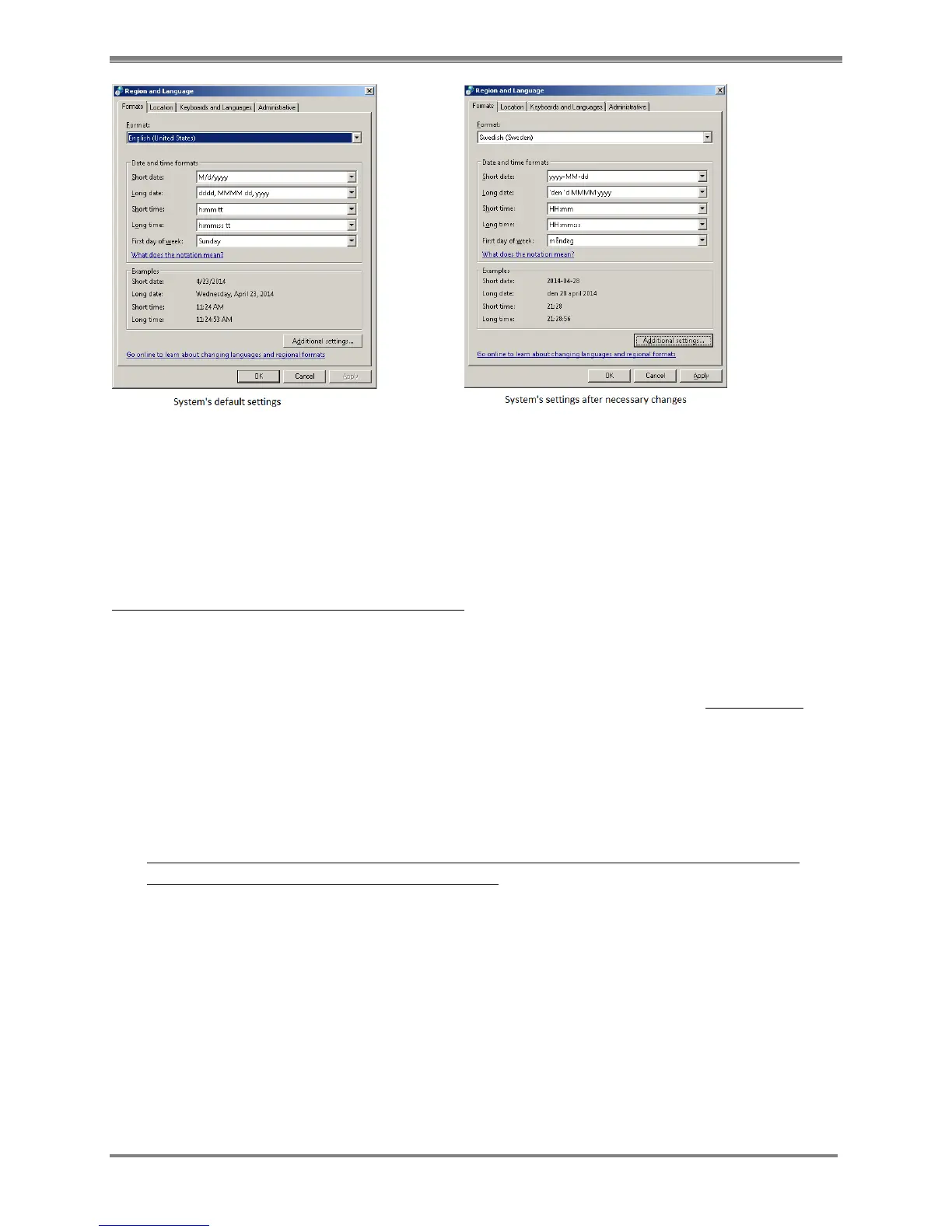
Figure 2.1 4 Panel operating system settings – Region and Language Settings option. The image on the left displays the system’s
default settings; the updated settings are seen on the right side.
NOTE: Once the change in Regional settings is complete, it is recommended to update/change
the time zone of the panel as well, if needed.
5. At this point, Date/Time/Number formatting is set within the Panel. Proceed to the Date
format settings within the actual Atomlab 960 software to complete these changes.
Date format settings on Atomlab 960 software
1. Start up the Atomlab 960 program.
2. At the Home Page, select <Utilities>. The Utilities screen is now displayed. Select
<System Setup>.
3. On the System Setup screen, by default it will display the General tab information. Under
the General tab, locate the “Date Format” option. Choose the Date format that matches the
Regional Settings Date format by selecting the <Up> and <Down> button beside the “Date
Format”. Underneath the format textbox, it will display the date format with an example.
For this example, we changed the Date format in Regional Settings to “yyyy-MM-dd”. Now,
in the Atomlab 960 software, we matched and set the same date format (yyyy-MM-dd). The
software now displays the current date using the specified format.
Without matching the date format in the software and the Regional Settings, it will not
display the correct date format in the software.
NOTE: For international settings, make sure the units are set to “Becquerels”.



 To Next Page