4:5
This vertical aspect ratio is ideal for portraits and viewing on smartphones.
9:16
This vertical aspect ratio is useful for framing social media content.
Custom Frame Guide Ratio
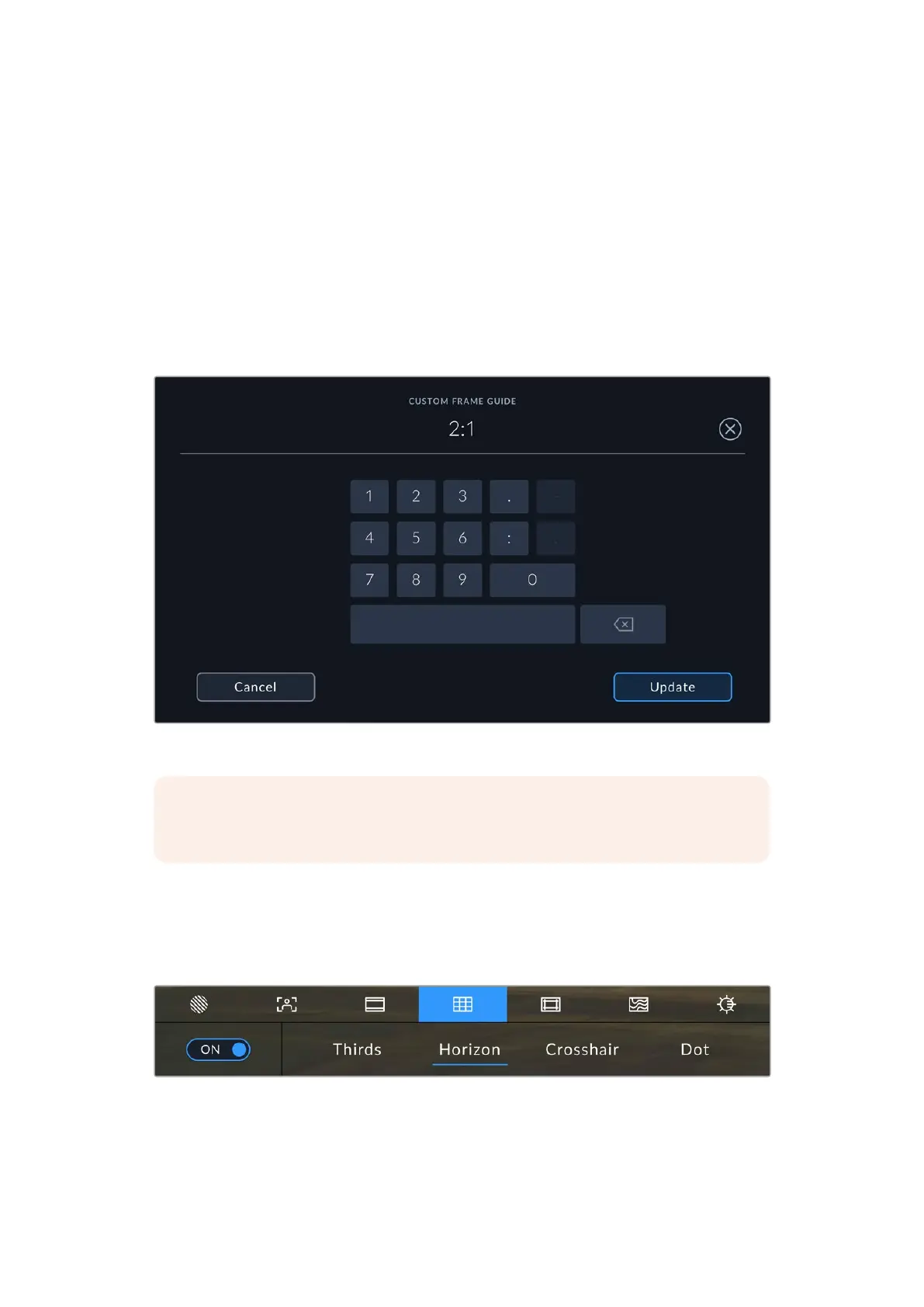
To create your own frame guide ratio for a unique appearance, tap on the ratio displayed
between the arrow buttons. On the ‘custom frameguide’ screen tap the backspace button
to delete the current ratio, then use the numeric keypad to specify a new ratio. Tap ‘update’
to apply your custom frame guide ratio and return to shooting. The opacity of frame guide
overlays can be set using the ‘monitor’ menu settings in the camera’s dashboard.
Use the numeric keypad on the ‘custom frame guide’ screen to enter a new frameguide ratio
NOTE For information on enabling frame guides on your camera’s USB and SDI
outputs, see the ‘monitor settings’ section in this manual.
Grids
The ‘grids’ setting toggles the appearance of a rule of thirds grid, horizon meter, crosshair or
center dot on the LCD touchscreen, as well as setting the overlay that will be visible on all URSA
Cine’s outputs.
Tap the ‘grids’ icon to access your URSACine’s grid settings
83Touchscreen Controls



 To Next Page