104
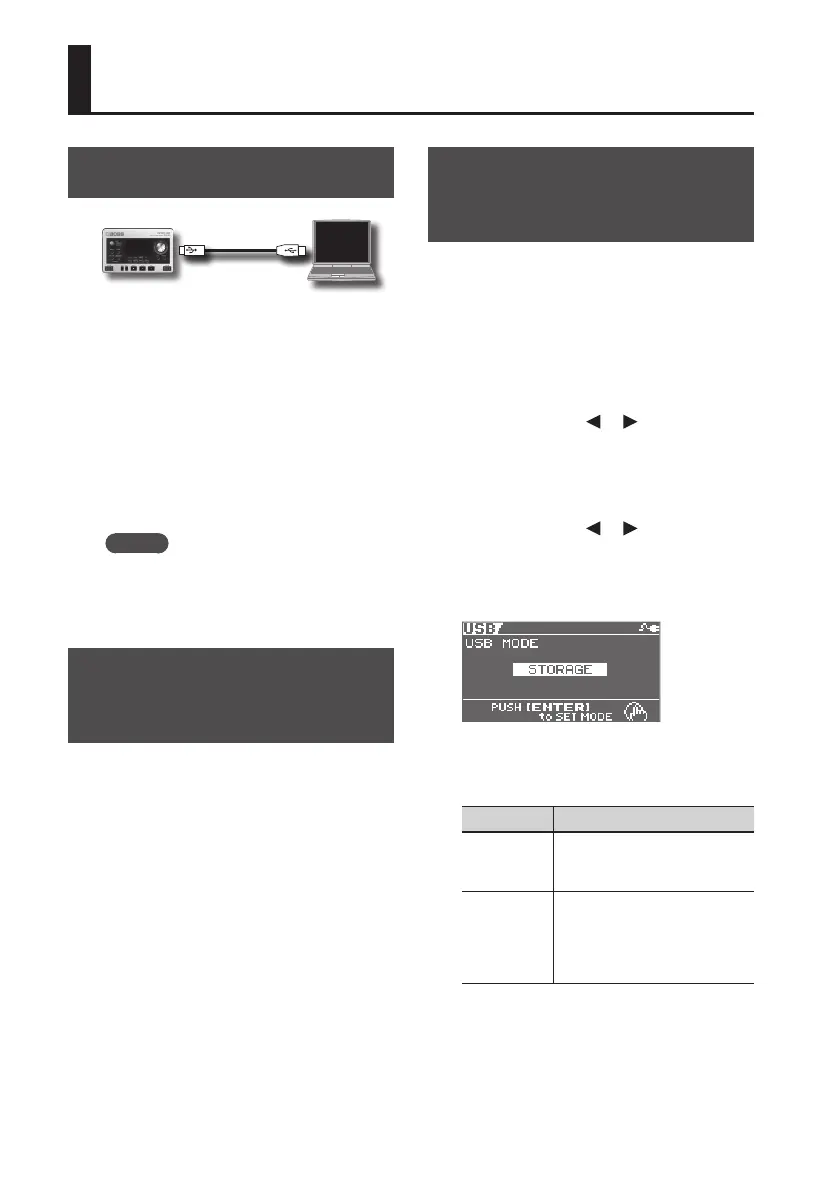
Connecting the BR-80 to a Computer
Before Using USB
The BR-80 is equipped with a USB
connector. When connected to your
computer, you’ll be able to perform the
following operations.
• Use the BR-80 as an audio interface (p. 109).
• Transfer audio data between the BR-80
and your computer (p. 106).
• Back up BR-80 data (p. 107).
• Import SMF music le to create a
pattern (p. 72).
MEMO
For details on USB operating
requirements, refer to the Roland
website (http://www.roland.com/).
Installing the USB
Driver
Before you use the BR-80 as an audio
interface, you must install the USB driver in
your computer.
The USB driver is on the included SD card.
For details on where to nd the USB driver,
refer to “ReadmeEN.txt” on the included
SD card. You should also carefully read the
“Readme.htm” le in the folder containing
the driver for each operating system.
Making Settings for
USB Functionality
This section explains how to make settings
for the BR-80’s USB-related functionality.
Make the settings that are appropriate for
how you’re using the BR-80.
1. Press the [MENU] button.
The Menu screen will appear.
2. Use the cursor [ ] [ ] buttons to
move the cursor to “FUNCTION,” and
press the [ENTER] button.
The FUNCTION screen will appear.
3. Use the cursor [ ] [ ] buttons to
move the cursor to “USB,” and press
the [ENTER] button.
The USB screen will appear.
4. Use the dial to specify the USB mode.
USB mode Explanation
AUDIO
Choose this mode when you
want to use the BR-80 as an
audio interface.
STORAGE
Choose this mode when using
eBand Song List Editor or BR
Series Wave Converter, or when
you want to exchange data with
a computer.
If you decide to cancel the procedure, press
the [EXIT] button.
5. Press the [ENTER] button to return to
the basic screen.


 To Next Page