Managing Your Songs (SONG)
86
Naming a Song
(SONG NAME)
When you create a new song, it will
automatically be given a name such as
“SONG0001.” When you’ve nished a song,
you should give it an appropriate name
so that your song data will be easier to
manage.
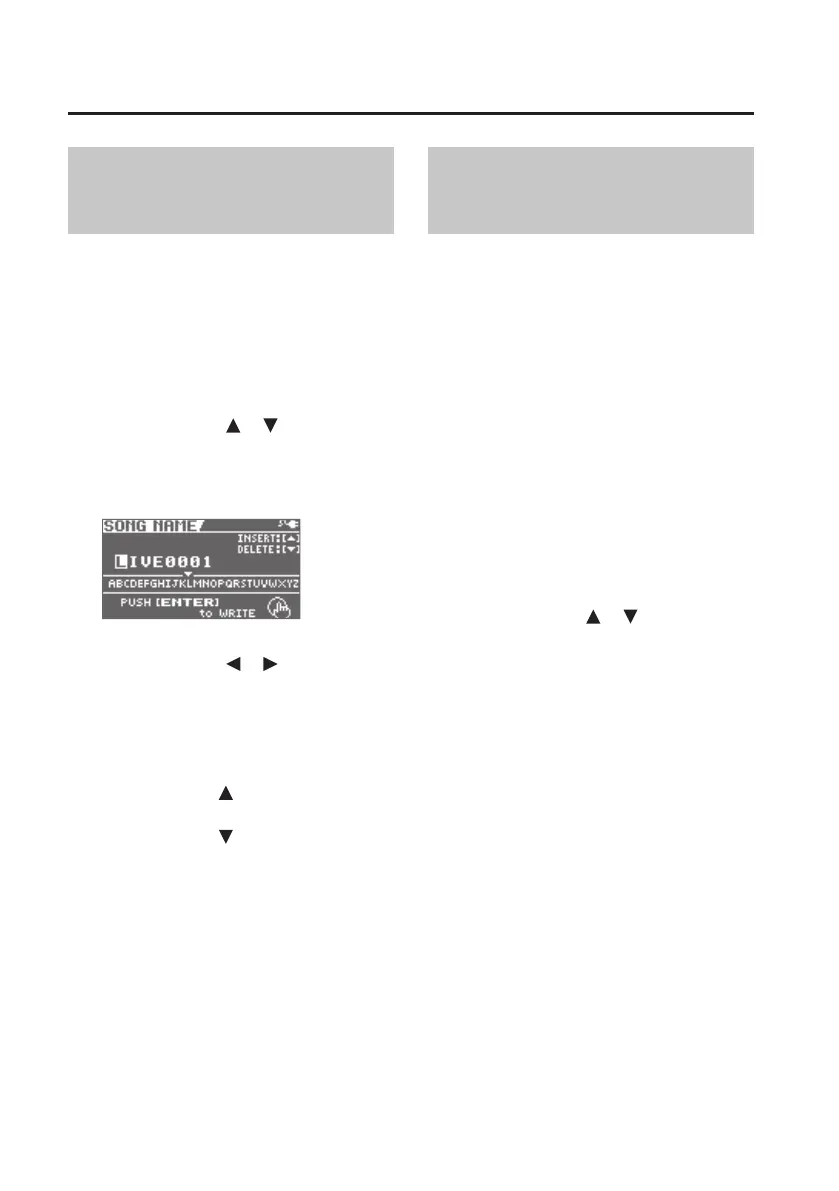
1. Access the “SONG INFO” screen (p. 85).
2. Use the cursor [ ] [ ] buttons to
move the cursor to “INFO,” and press
the [ENTER] button.
The SONG INFO screen will appear.
3. Use the cursor [ ] [ ] buttons to
move the cursor to the character that
you want to edit.
4. Turn the dial to select the desired
character.
Press the cursor [ ] button to insert one
character at the selected location.
Press the cursor [
] button to delete the
selected character.
5. Press the [ENTER] button.
A message will ask “Are you sure?”
If you decide to cancel the procedure, press
the [EXIT] button.
6. Press the [ENTER] button.
The name will be changed.
* While the data is being updated, the
display will indicate “Keep power on!”
Do not turn o the power while this
message is shown.
Protecting a Song
(SONG PROTECT)
You can protect the song data from being
rewritten (Song Protect).
If Song Protect is enabled, the following
operations cannot be performed.
• Recording
• Track editing
• Changing the song name
• Changing the MASTER LEVEL
• Changing the KEY
• Song erase
• Rhythm editing
• Writing to the song eect patches
• Song optimize
1. Access the “SONG INFO” screen (p. 85).
2. Use the cursor [ ] [ ] buttons to
move the cursor to “PROTECT.”
3. Use the dial to select the “ON” setting.


 To Next Page