Recording/Playback
61
Re-Recording Only Over a Mistake
(AUTO PUNCH IN/OUT)
When recording, there may be times when
you made a mistake or were unable to play
as you intended. In such cases, you can use
punch-in/out to re-record only the region
you specify.
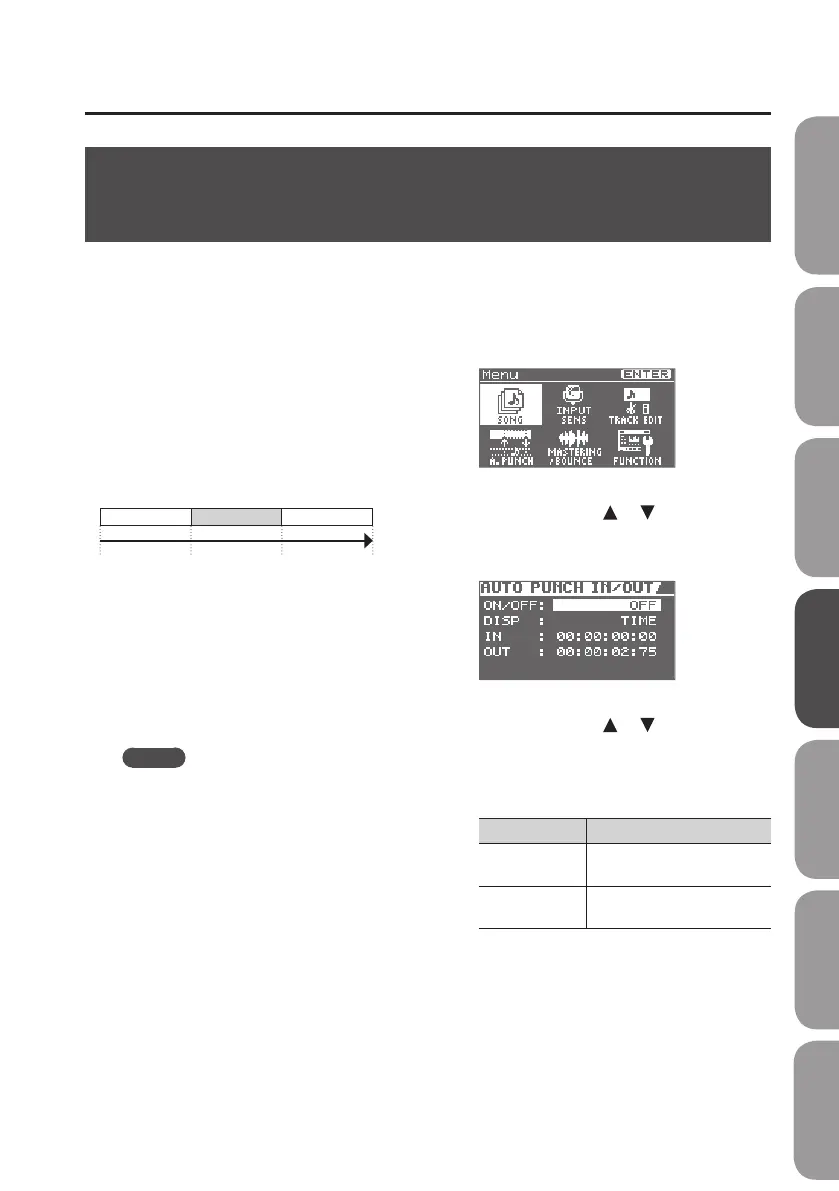
While the track plays, you can “punch-in” to
switch from playback to record; then you
can “punch-out” to resume playback, all
without stopping.
Punch-in at the point where you want to
start re-recording, and then punch-out
when you want to stop re-recording.
Start Punch-In Punch-Out Stop
Playback Recording Playback
Time
“Auto punch-in/out” is the operation of
automatically punching-in/out at the
locations you specify beforehand.
* When using auto punch-in/out,
there must be more than 1.0 seconds
between the punch-in and punch-out
points.
MEMO
The data prior to punching-in/out will
remain on the SD card; it will not be
deleted.
To maximize the free space available
on the SD card, you can execute Song
Optimize p. 88) to delete unneeded data.
1. Press the [MENU] button.
2. Use the cursor buttons to move the
cursor to “A. PUNCH,” and press the
[ENTER] button.
3. Use the cursor [ ] [ ] buttons to
move the cursor to “ON/OFF,” and
turn the dial to choose “ON.”
4. Use the cursor [ ] [ ] buttons to
move the cursor to “DISP,” and turn
the dial to choose the units in which
you’ll specify the locations.
Setting Explanation
TIME
Specify the locations in units
of time.
MEASURE
Specify the locations in units
of measures.
Quick Start Preparations LIVE REC Mode MTR Mode eBand Mode
Convenient Functions
Appendix


 To Next Page