98
Making Settings for a
Song (SONG INFO)
Here’s how to view or edit information
about the song.
1. Press the [MENU] button.
2. Use the cursor [ ] [ ] buttons to
move the cursor to “SONG,” and press
the [ENTER] button.
3. Use the cursor [ ] [ ] buttons to
move the cursor to “INFO,” and press
the [ENTER] button.
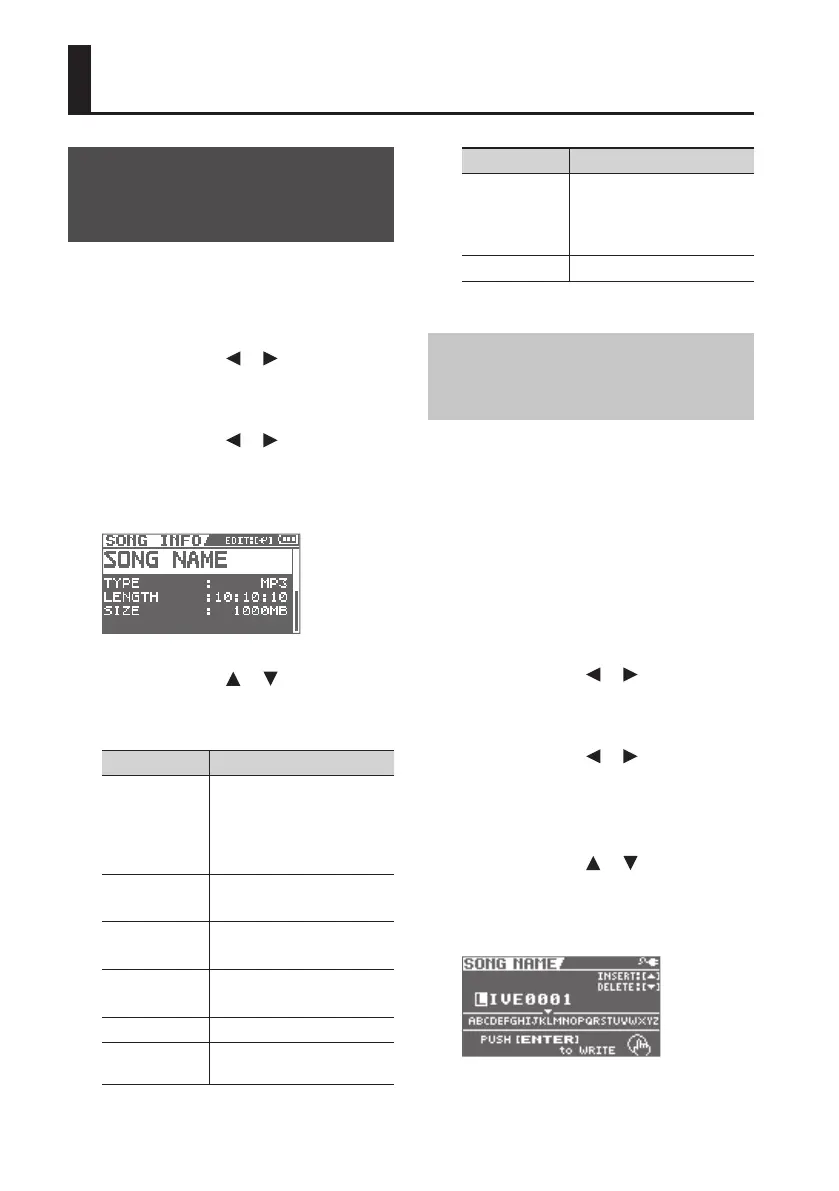
The SONG INFO screen will appear.
4. Use the cursor [ ] [ ] buttons to
select a parameter, and use the dial
to edit the setting.
Parameter Explanation
NAME
Edits the song name.
Move the cursor to NAME
and press the [ENTER] button;
you’ll switch to the song
name editing screen (p. 98.)
TYPE
(not editable)
Indicates the le type.
LENGTH
(not editable)
Indicates the length of the
song (time).
SIZE
(not editable)
Indicates the size (le size) of
the song.
LEVEL Species the song’s volume.
PROTECT
Turns protection on/o for
the song.
Parameter Explanation
PATCH SYNC
Stores the eect patch
number in the song.
If this is o, playback will use
the current eect settings.
KEY Species the key of the song.
Naming a Song
(SONG NAME)
When you record a song, it will
automatically be given a name such as
“SONG0001.” When you’ve nished a song,
you should give it an appropriate name
so that your song data will be easier to
manage.
* The BR-80 can’t edit the name of a song
that was edited in eBand Song List
Editor.
1. Press the [MENU] button.
2. Use the cursor [ ] [ ] buttons to
move the cursor to “SONG,” and press
the [ENTER] button.
3. Use the cursor [ ] [ ] buttons to
move the cursor to “INFO,” and press
the [ENTER] button.
The SONG INFO screen will appear.
4. Use the cursor [ ] [ ] buttons to
move the cursor to “NAME,” and press
the [ENTER] button.
The SONG NAME screen will appear.
Other Functions


 To Next Page