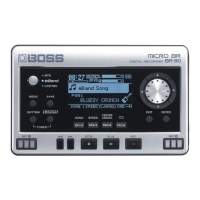
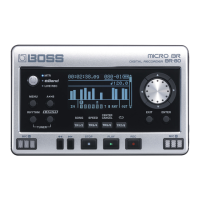
Connecting the BR-80 to a Computer
106
Exchanging Data with
Your Computer
Set the USB mode to STORAGE before you
connect the BR-80 to your computer (p. 104).
Transferring WAV Files
1. Press the [EXIT] button to return to
the main screen.
2. Use a USB cable to connect the BR-80
to your computer.
When the BR-80 has been correctly
recognized by the computer, the IDLING
screen will appear.
A “BR-80 eBand” icon (or a “removable disk
(*:)” icon) will appear on your computer.
If the IDLING screen does not appear, check
the connections and USB mode (p. 104).
3. On your computer, double-click the
“BR-80 eBand” icon (or “Removable
disk (*:)” icon.
4. Double-click the “ROLAND” folder.
The folder in which the BR-80 stores
recorded data will appear.
To transfer les used in LIVE REC mode
Double-click the “LIVEREC” folder to see the
audio les saved in the folder.
Drag and drop the audio les that you want
to copy.
To transfer les mastered in MTR mode
Double-click the “MASTERING” folder to see
the WAV les saved in the folder.
Drag and drop the WAV les that you want
to copy.
5. Stop the connection between the BR-
80 and your computer.
After carrying out the following procedure
on your personal computer, wait until the
IDLING screen has reappeared on the BR-80.
Windows users
From the Windows Start menu, choose
“Computer.”
Right-click the “BR-80 eBand” icon (or
the “Removable disk (*:)” icon), and then
execute “Eject.”
Mac OS users
Drag the “BR-80 eBand” icon to the “Eject”
icon.
6. Turn the BR-80’s power o.
NOTE
The SD card might be damaged if you
fail to stop the connection between
the BR-80 and your computer using the
correct procedure.
7. Disconnect the USB cable.
If you wish to continue using the unit, turn
o the power, then turn it back on again.


 To Next Page