Working with Labels 6-19
Responding to graphics prompts
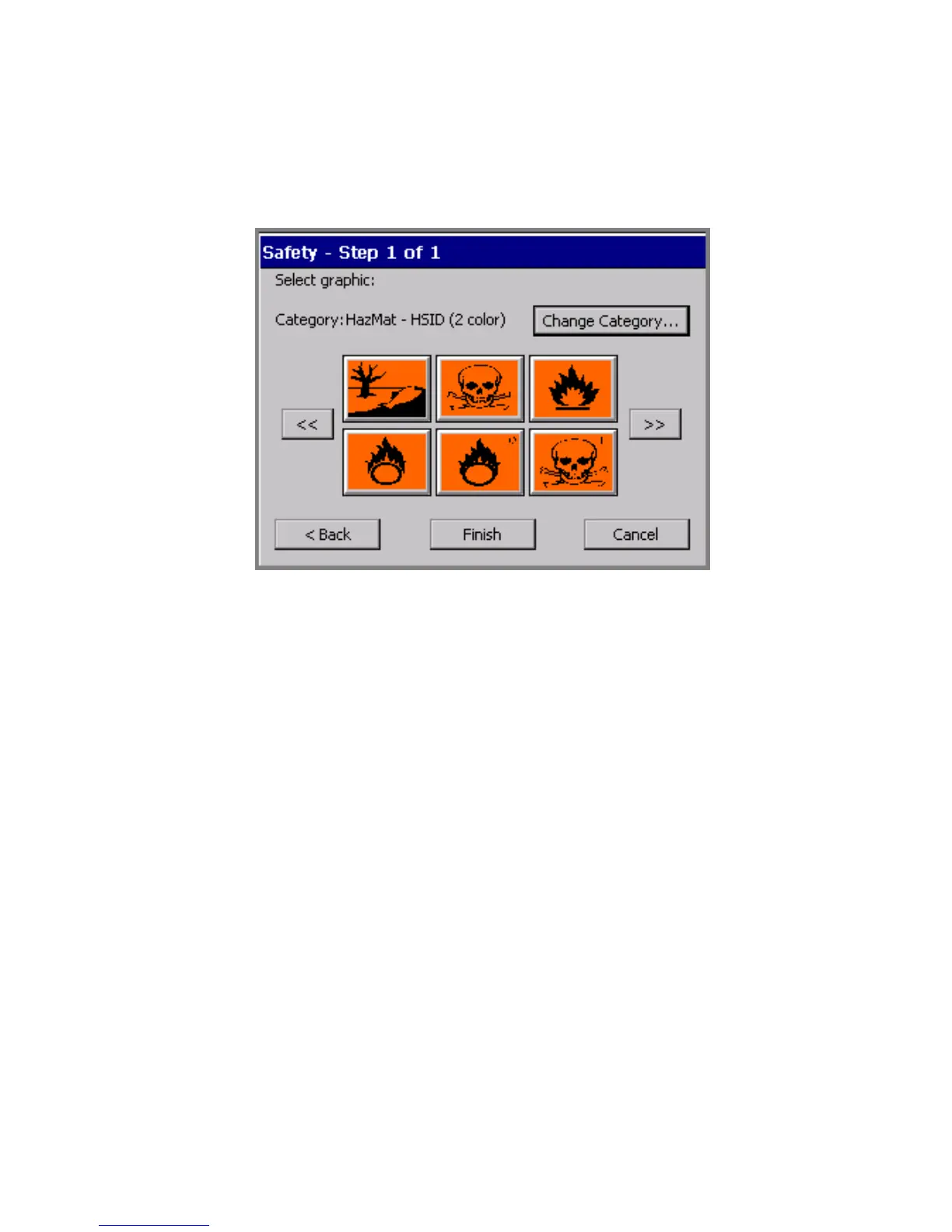
Figure 6-12 shows a graphics prompt. For this template sequence, you are being
prompted to choose a HazMat graphic:
Figure 6-12. A graphics prompt screen.
Complete this screen by choosing a graphic from the thumbnails displayed. You
can also:
z Use the scroll arrow keys to view additional thumbnails.
z Use the Change Category option to go to the Graphic Categories screen (for
an example, see
Figure 7-14 on page 7-22), where you can open another
category and see more graphics.
Responding to Pipe Marker prompts
A typical Pipe Marker application template prompt sequence includes some or all
of these prompt screens:
z Pipe Marker Style, where you choose the type of Pipe Marker you want to
create: standard, rollform, or symbol or arrow tape
z Dimensions, where you select width, length, and height for your Pipe Marker
label
z Pipe Contents, where you choose the contents that describe the pipe you are
marking
z Legend, where you enter legend lines and supplemental data for Pipe Marker
labels



 To Next Page