Printing 11-25
The Preparing to Print screen disappears after the job is completely rasterized. To
cancel a print job that continues to print after this dialog box disappears, press
Alt+F1 (Cancel Print).
Note: Pressing Alt+F1 has the same effect as pressing Cancel on the Preparing
to Print screen: printing stops immediately and anything that has printed
is ejected and cut off. For multi-pass print jobs, the entire job is ejected
and cut off, regardless of where the printer is in the print pass when the job
is canceled.
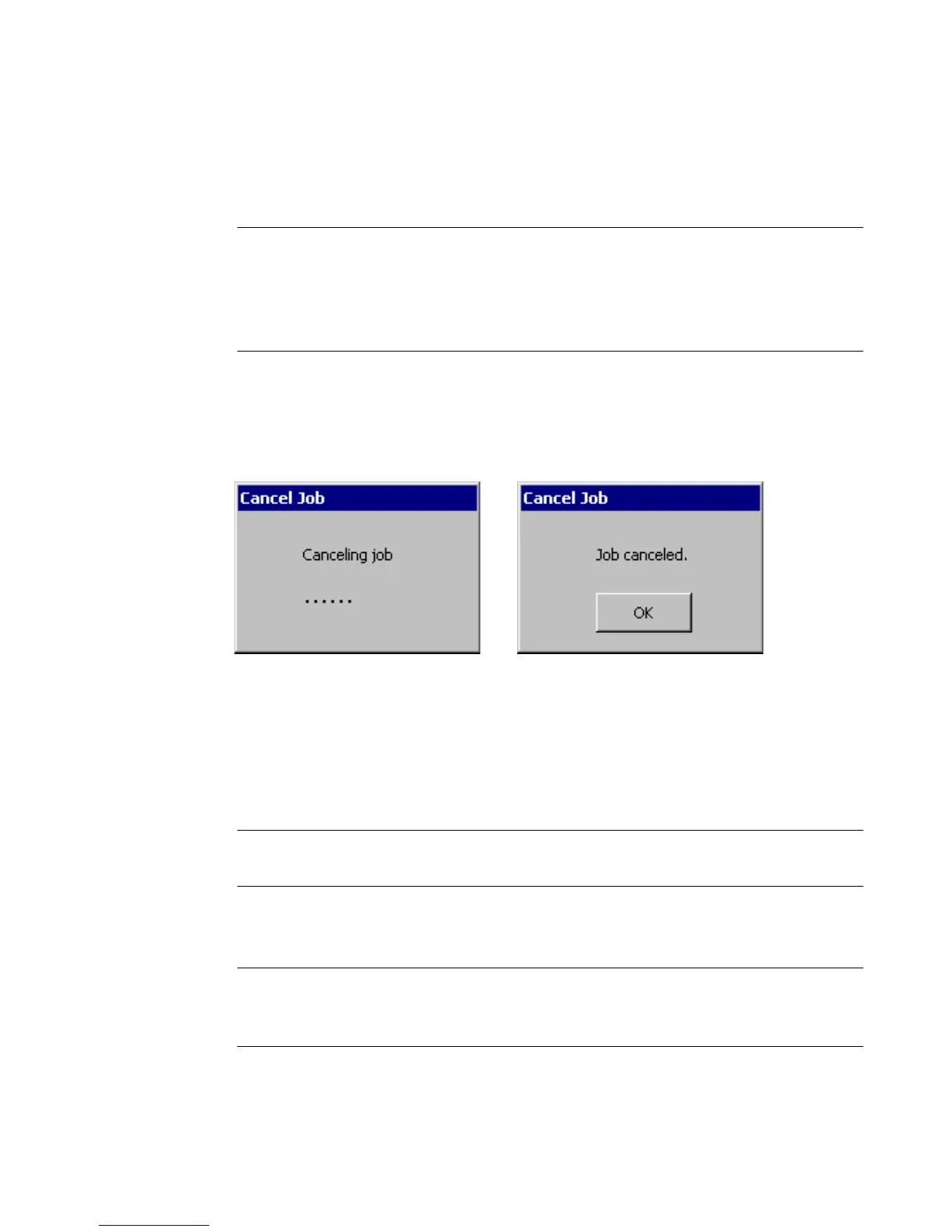
When you press Alt+F1, the Canceling job message immediately appears. Upon
completion, the Job canceled message appears; this message remains until you
press OK:
Figure 11-14. Canceling job and Job canceled messages.
You can press Alt+F1 at any time during printing, regardless of what appears on
the screen (for example, main editor window, template prompt sequence,
application launcher, error message, etc.).
You can also press Alt+F1 to cancel a print job from a PC.
Note: For non-keyboard (peripheral-only) connections, you can press Cancel on
the On Line Status screen to quit printing.
If multiple print jobs are stored, pressing Alt+F1 will cancel all jobs in the printer,
whether they are currently printing or being rasterized.
Note: There is one exception. If you print from a PC and the job has not
downloaded to the printer, it may start to print after the original print job
has been canceled.



 To Next Page