Operator’s Manual: Standard 360a Model Y (360y) Label Applicator
12
360y HMI Applicator Display
360y HMI APPLICATOR DISPLAY
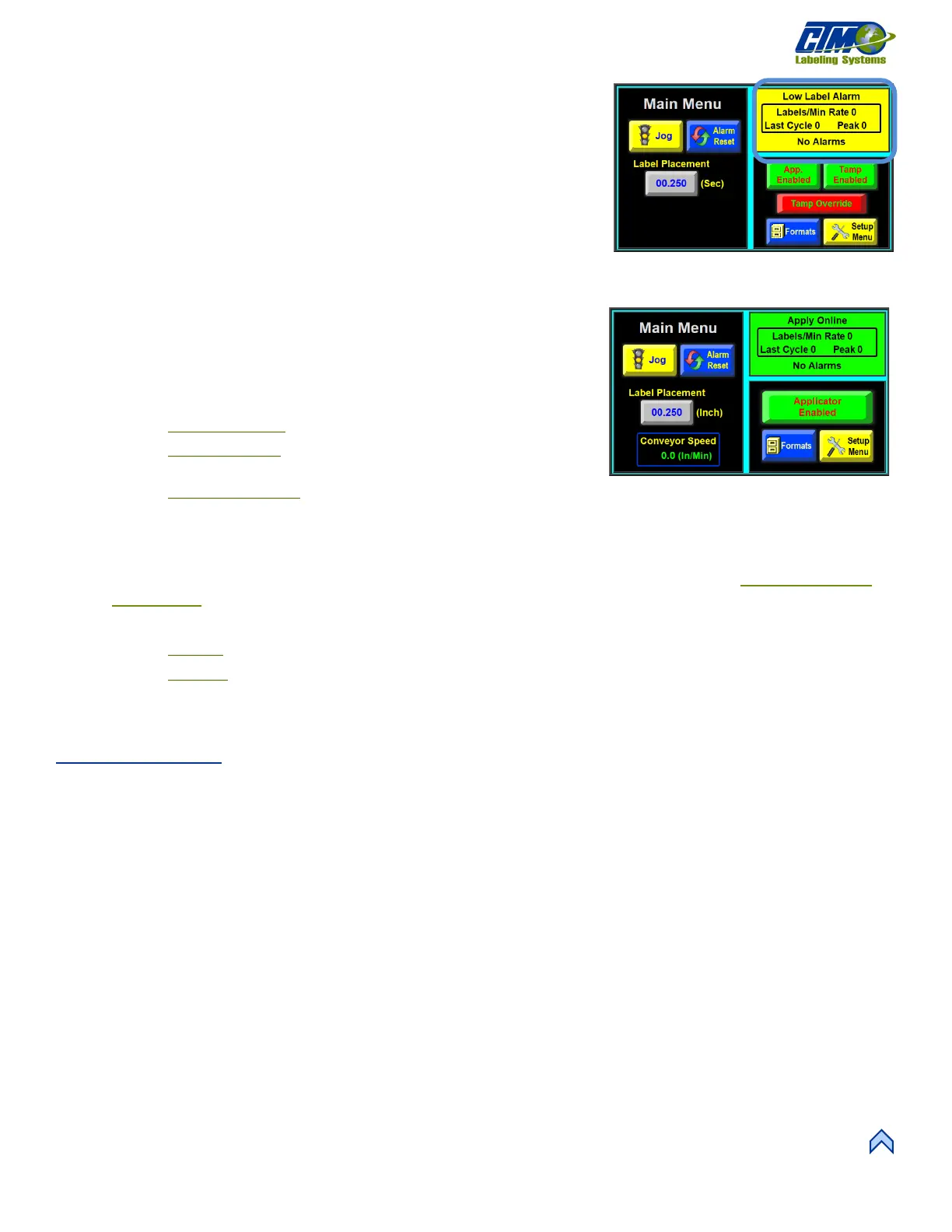
The applicator is controlled through the HMI (Human-Machine Interface) display.
Various buttons bring you to different screens and those screens allow users to adjust
the values for the countless variables used to make the applicator run as needed. A
status box in the right-hand corner of the Main Menu screen displays alarms, the
labeling rate if enabled, or the applicator information if disabled. This screen varies
based on the applicator type.
The 360y display is equipped with a backlight saver function which causes the display
to automatically turn off the backlight after 60 minutes of inactivity
. Any touch or critical
alarm wakes the display again
.
Main Menu
After the power up sequence the display comes to the Main Menu [25] that gives
access to the following:
• Jog button: Dispenses a single label if the applicator is online.
o Merge applicators: Dispenses a label at web speed.
o Tamp applicators: Dispenses a label onto the label pad and cycles
the tamp if the tamp is enabled.
o Air blow applicators: Blows the label and feeds a new label onto
the grid. Jog will not wait for label placement or scan distance.
• Alarm Reset button: Clears alarms from the status box in the top right of the screen that do not clear automatically.
• Label Placement variable: Adjusts the label placement value of the applicator. If encoder based this value is in inches. For
DAT applicators, there is a Swing Placement variable and Tamp Placement variable as well. See the
Dual Action Tamp
(DAT) Setup section for more information.
• Enable or Disable Tamp: Button that keeps the tamp arm from moving.
o Enabled: Applicator dispenses labels without moving the tamp arm.
o Disabled: Applicator moves the tamp arm without dispensing a label.
• Label Formats button: Opens a menu that allows the operator to load and view formats, but not save or delete.
• Setup Menu button: Opens a variety of menus to make the applicator run the way you need it to.
Warning Alarms
Warning alarms are not serious and will not cause the applicator to stop dispensing labels. They appear in the upper right-hand corner
of the Main Menu in the status box [26]. The following are some of the warning alarms monitored by the applicator:
• Inhibit Alarm: Occurs when an external device prevents the applicator from dispensing a label by activating the Inhibit input
on I/O Connector C2-12.
• Tight Loop Alarm: Occurs when the applicator is dispensing labels faster than the printer can print causing the applicator to
pause labeling.
o Labeling resumes when the printer catches up with the applicator.
o This alarm does not need reset and the status box has a red background instead of yellow to signal the alarm
condition.
• Low Label Alarm: Occurs when the low label sensor detects that the unwind roll is nearly out of labels.
• DAT Label Placements Are Too Close Alarm: Occurs when There is not enough time or space to apply the second label
after the first label is dispensed. Increase the second label placement variable to correct.


 To Next Page