Operator’s Manual: Standard 360a Model Y (360y) Label Applicator
15
360y HMI Applicator Display
Setup Menus
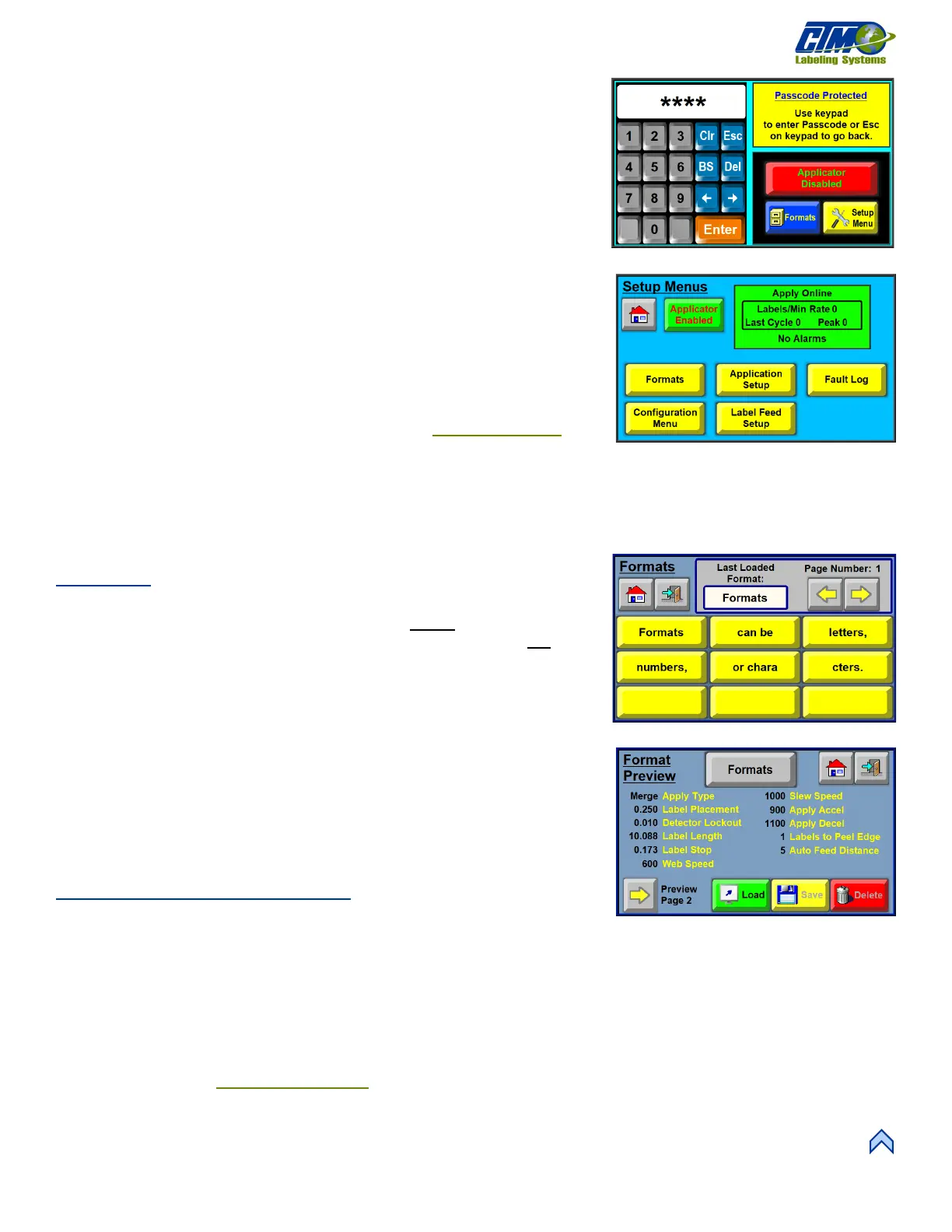
The Setup Menus are passcode-protected; pressing the Setup Menu button at the
Main Menu forces a passcode screen to appear in the Main Menu window [28]. A
correct passcode loads the Setup Menu Screen [28] and the operator has access to the
following setup sections:
• Formats
• Configuration Menu
• Application Setup
• Label Feed Setup
• Fault Log
While in the Setup Menus the applicator can enabled or disabled.
NOTE: Some options are not accessible while the applicator is online.
To access to the Setups Menu, complete the following:
1. Start at the Main Menu screen and tap the Setup Menu button. The setup
area of the display is password protected [29].
2. Type 1800. This is the standard password. See the Custom Password
section in the Maintenance Manual to change the standard password.
3. Tap ENTER to confirm and it brings you to the Setup Menus screen [22]. If an
incorrect password is entered a screen will be shown to notify the operator. Press
C to clear an incorrect entry.
4. Tap the ESC button to go back to the Main Menu.
Formats
Tapping the Formats button on the Main Menu brings up a screen [30] that allows the
operator to view previously saved formats. The operator cannot save or delete formats
viewed from the Main Menu, as those options are grayed out [31]. Formats can be
overwritten by tapping the Load button.
The Format button in the Setup Menu loads the same Format Menu screen as the
Format button on the Main Menu. But when loaded from the Setup Menu, the
preview screens allow the operator to load, save, and delete formats.
Operators can save and load up to 99 formats. This is useful when running various
products requires different options to be selected, or different values in the parameters.
Eleven pages of formats are available to the operator and can be selected with the
arrow buttons to either side of the page number display. This screen [24] shows the last
loaded format and the file name/number of the format. If no format has been loaded, or
if the last loaded file is deleted, the text value in the box is blank.
Previewing/Loading Formats
1. Start at the Main Menu and tap the Formats button. Tap either a blank button
or a previously saved button.
a. Tapping a blank format shows the settings currently saved. The Save and Delete buttons are grayed out, indicating
that operators cannot make any changes.
b. Tapping a saved format like in Figure [31] shows that specific format’s saved variables.
2. From a previously saved format, tap the Load button. This overwrites the previous format.
NOTE: The variables shown in the preview are not the only variables saved in a format. For a full list of variables saved with
formats, see the
Contact and Support
section to contact the factory.
[30] Label Formats Screen
[31] Preview Format Screen


 To Next Page