Operator’s Manual: Standard 360a Model Y (360y) Label Applicator
18
360y HMI Applicator Display
Auto Prime Pad Option
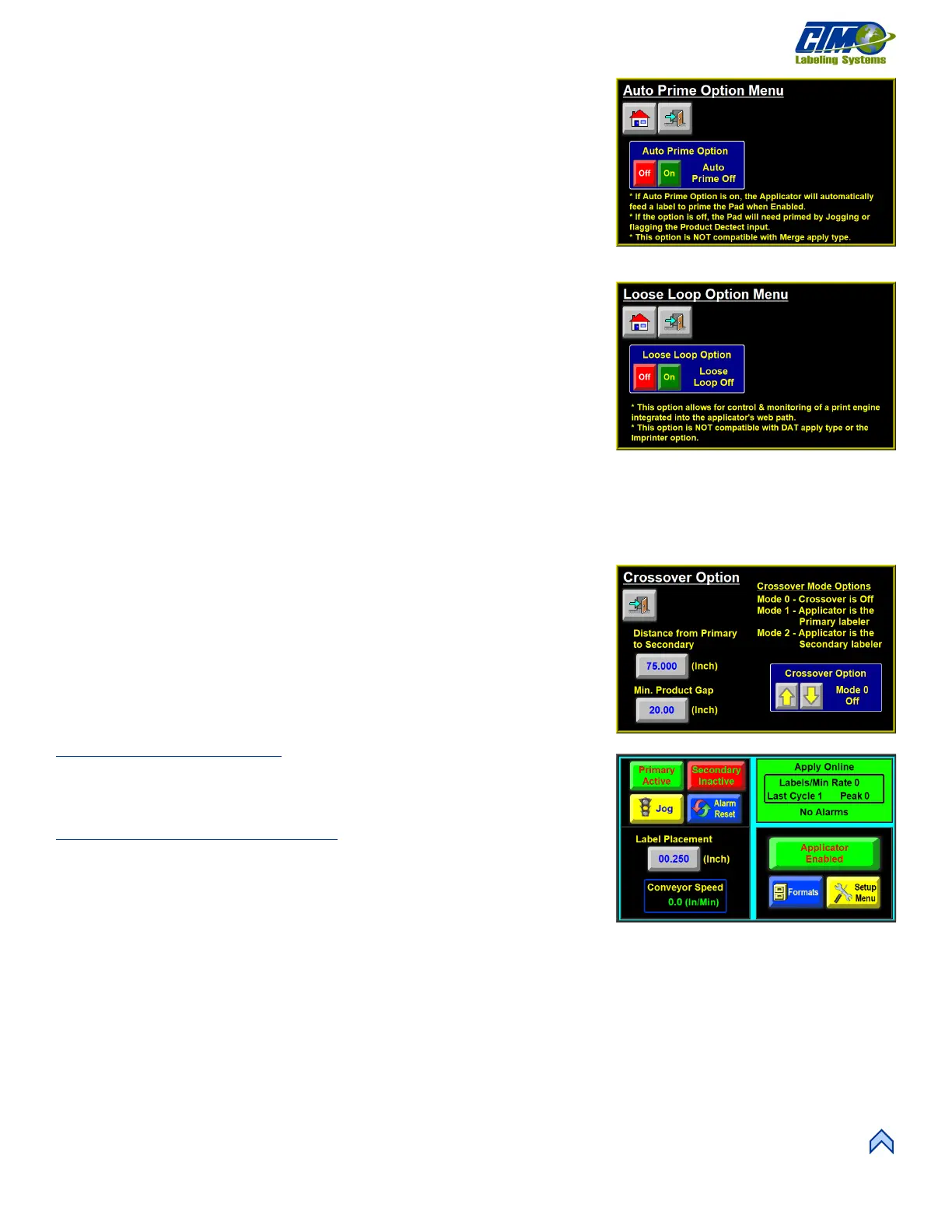
This menu [39] allows the operator to turn the Auto Prime Option on or off. When
on, the applicator automatically feeds a label to prime the pad when the applicator is
enabled. When off, the pad needs to be primed by jogging or flagging the Product
Detect Input.
NOTE: This option is NOT compatible with the Merge apply type.
Loose Loop
This option [40] allows labels to be printed and applied from one system by integrating
a thermal printer into the web path of the applicator.
Three proximity switches monitor the dancer arm position which sets off different
proxies. The dancer arm assembly should be free to travel its full length.
• Loose Loop Prox.: Dancer arm is in the resting position and the printer is not
printing.
• Tight Loop Prox.: Dancer arm is in the middle position and the printer starts
printing.
• Alarm Prox.: Dancer arm is in the bottom position and the applicator enters a
tight loop alarm condition.
o A warning message displays in the status box and the applicator will not apply labels until the dancer arm returns to
the tight loop prox. position.
o When the applicator is properly set up under normal operating conditions the arm will not reach the alarm prox.
position.
Crossover Option
The Crossover Option [41] allows for “zero downtime” operation by interconnecting
two applicators. Both applicators are placed on the conveyor system with one in front
of the other. The upstream applicator is the “Primary” labeler while the downstream
applicator is the “Secondary” labeler. Mode 1 is Primary and Mode 2 is Secondary.
Crossover Option requires an encoder to use. All transferring distances start at the
same time based off a product detect signal from the upstream applicator. This ensures
that all distances begin at the same point.
Crossover Main Menu Changes
The Main Menu screens for both the primary and secondary applicators are changed
when running in crossover [42]. The display shows two buttons indicating which
applicator is currently “Active.”
Primary to Secondary Transfer Process
1. Primary applicator is labeling, and the secondary applicator is ready.
2. Primary applicator begins the transfer process at the first product detect input
after it is taken offline or enters a critical alarm state.
3. Secondary applicator waits for the Distance from Primary to Secondary
distance seen in Figure [41] to pass after the process has begun before it starts
labeling. This allows products that are currently labeled between the primary and secondary to pass the secondary without
being labeled twice.
a. If products are labeled twice the Distance from Primary to Secondary value needs increased.
b. If products are missed by the secondary applicator and need labeled, the Distance from Primary to Secondary value
needs decreased.
[41] Crossover Option Menu
[42] Crossover Main Menus
[39] Auto Prime Option Menu


 To Next Page