Operator’s Manual: Standard 360a Model Y (360y) Label Applicator
16
360y HMI Applicator Display
Saving New Formats
1. Start at the Main Menu and tap Setup Menu > Setup Passcode > Formats button. Tap a blank yellow button to write
the new format.
2. Tap the blank gray button at the top of the screen and type a name for the new format on the keypad and tap Enter.
NOTE: The maximum character limit for format names is eight.
3. The Save button flashes telling the operator to save. Saving stores the current applicator settings, regardless of the preview
values, to the format file.
Overwriting an Existing Format with a New Name
To retain the settings of the file being overwritten the file must be loaded first, or the current applicator settings must match the format
file.
1. Start at the Main Menu and tap Setup Menu > Setup Passcode > Formats button. Tap a saved Format you want to
overwrite. When the preview screen loads, the gray button at the top of the screen displays the current Format name.
2. Tap the current Format name and use the keypad to type the new name and tap Enter.
NOTE: The maximum character limit for format names is eight.
4. The Save button flashes telling the operator to save. Saving stores the current applicator settings, regardless of the preview
values, to the format file.
Overwriting an Existing Format with New Settings
To change the settings of an existing format, the current applicator settings must be at
the preferred settings.
1. Start at the Main Menu and tap Setup Menu >Setup Passcode >
Formats. Tap the saved format button to overwrite. When the preview screen
loads, the gray button at the top of the screen displays the current Format
name.
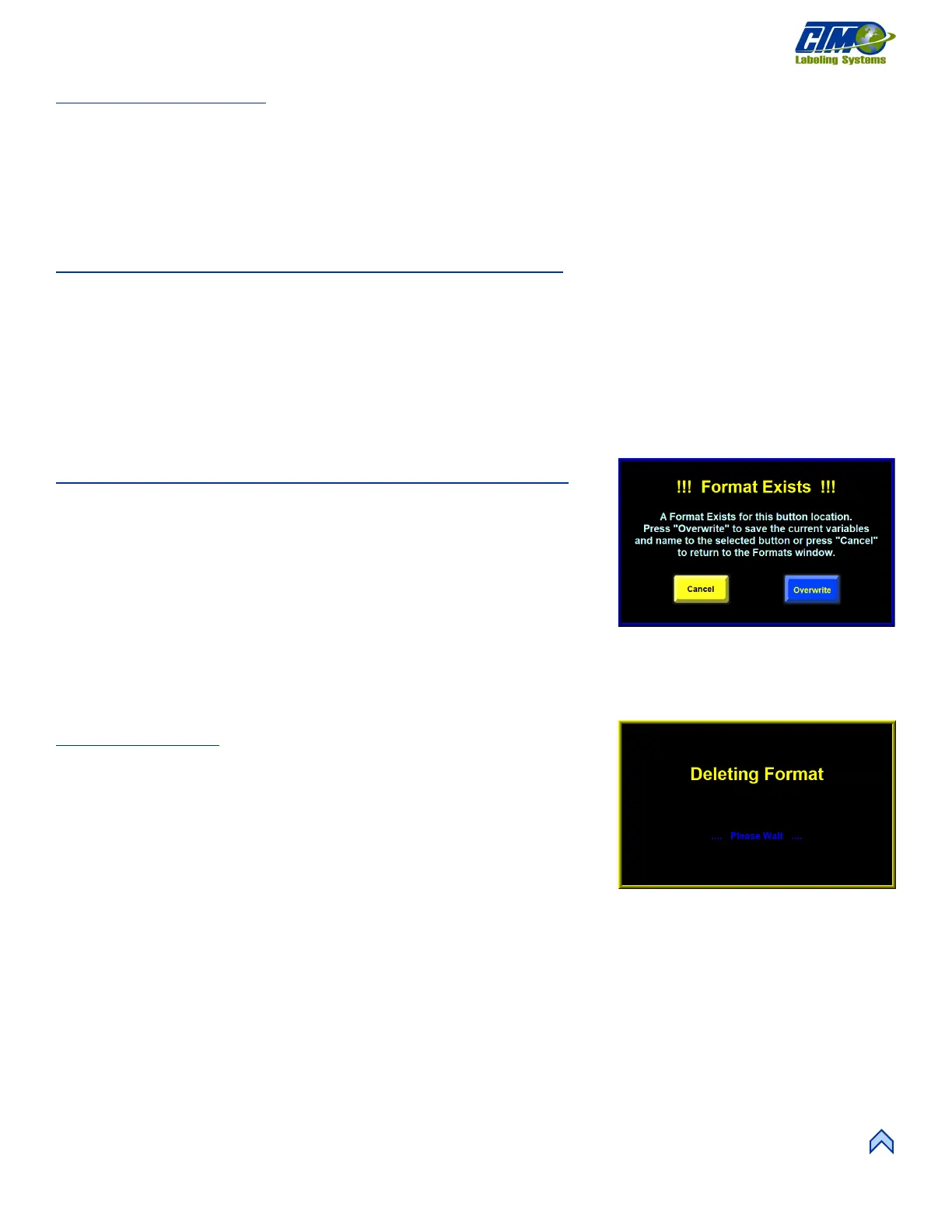
2. Tap the Save button to overwrite the format. A new screen pops up asking for
confirmation [32].
3. Confirm overwrite by tapping the Overwrite button or tap the Cancel button to
return to the preview screen. The Overwrite button stores the current applicator
settings, regardless of the preview values, to the format file.
Erasing Formats
1. Start at the Main Menu and tap Setup Menu > Setup Passcode>
Formats. Tap the saved format button to be deleted. When the preview screen
loads, the gray button at the top of the screen displays the current Format
name.
2. Tap the Delete button to delete the format. After deleting, the Formats screen
reloads [33] and the value for the deleted format is blank.
NOTE: There is no additional step to this operation. Once you press the delete
button, the format will be erased.


 To Next Page