Operator’s Manual: Standard 360a Model Y (360y) Label Applicator
14
360y HMI Applicator Display
Changing Text Values
Formats are the only options where text can be changed. The process is like
changing a numeric value except a keypad is displayed covering most of the
screen. Complete the following steps to change a text value:
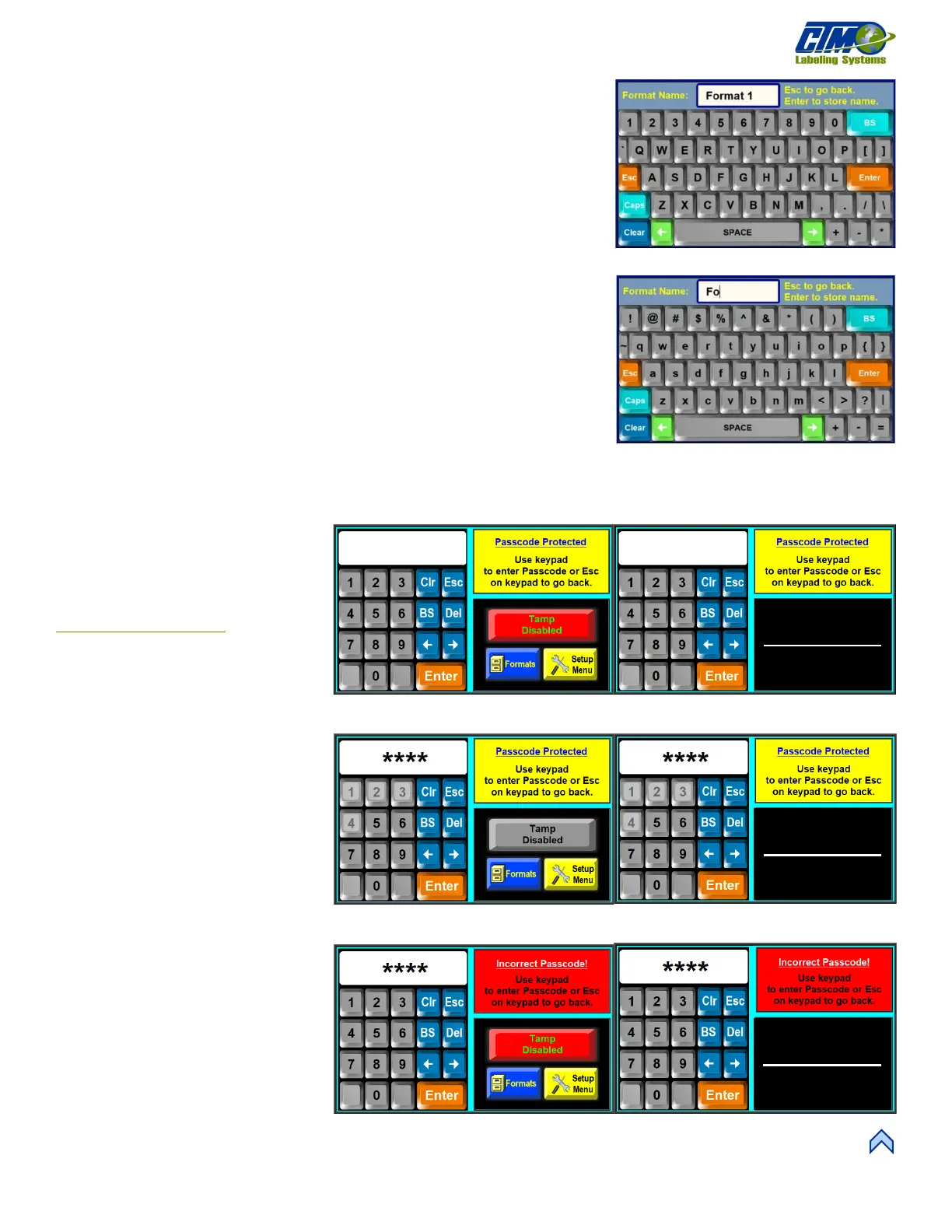
1. Tap the text value that needs changed and a keypad appears [20]. The text
value in the white value display box is the initial value of the selected field.
2. Type a new text value. As the keypad is pressed, the old variable is cleared,
and the new variable is keyed into the keypad value display [21]. No cursor is
shown.
a. Tap Caps to toggle between upper and lowercase.
b. Tap BS to backspace.
c. Tap Esc to leave the screen without changing the value.
d. Tap Clear to clear the value being changed.
e. Tap Enter to finish the process.
NOTE: Leaving the field blank and pressing “Enter” or using the “Space” key at
the beginning of a text value may cause a warning message and not allow
the applicator to save the value. Spaces at the end of a text value are
automatically cut. The keypad value display stops filling when the character
limit of the value being changed is reached.
Passcode
The Setup Menu and Special Options
Menu are passcode protected [22].
Passcodes are programable in the
Change Main Password
section. When
entering a passcode-protected area, a
passcode screen with a number pad
appears. When the keypad is opened from
the Main Menu, the keypad will only stay
open for four seconds if the operator does
not begin to enter a value.
1. Tap a number on the keypad.
That number is highlighted, and
an asterisk displays in the
keypad value display. The
numeric entry for the passcode is
not displayed [23].
a. Tap Esc to leave the
screen without
changing the value
b. Tap Clr to clear the value
being changed
c. Tap Enter to finish the
process.
2. If the wrong passcode is entered,
the status screen in Figure [24]
appears. The Incorrect
Passcode status screen times
out after four seconds and
returns to the status screen.
[23] Keypad to Change Text Value
[24] Changing Text Values
Special Options
Special Options
Special Options



 To Next Page