Operator’s Manual: Standard 360a Model Y (360y) Label Applicator
21
360y HMI Applicator Display
I/O Diagnostics
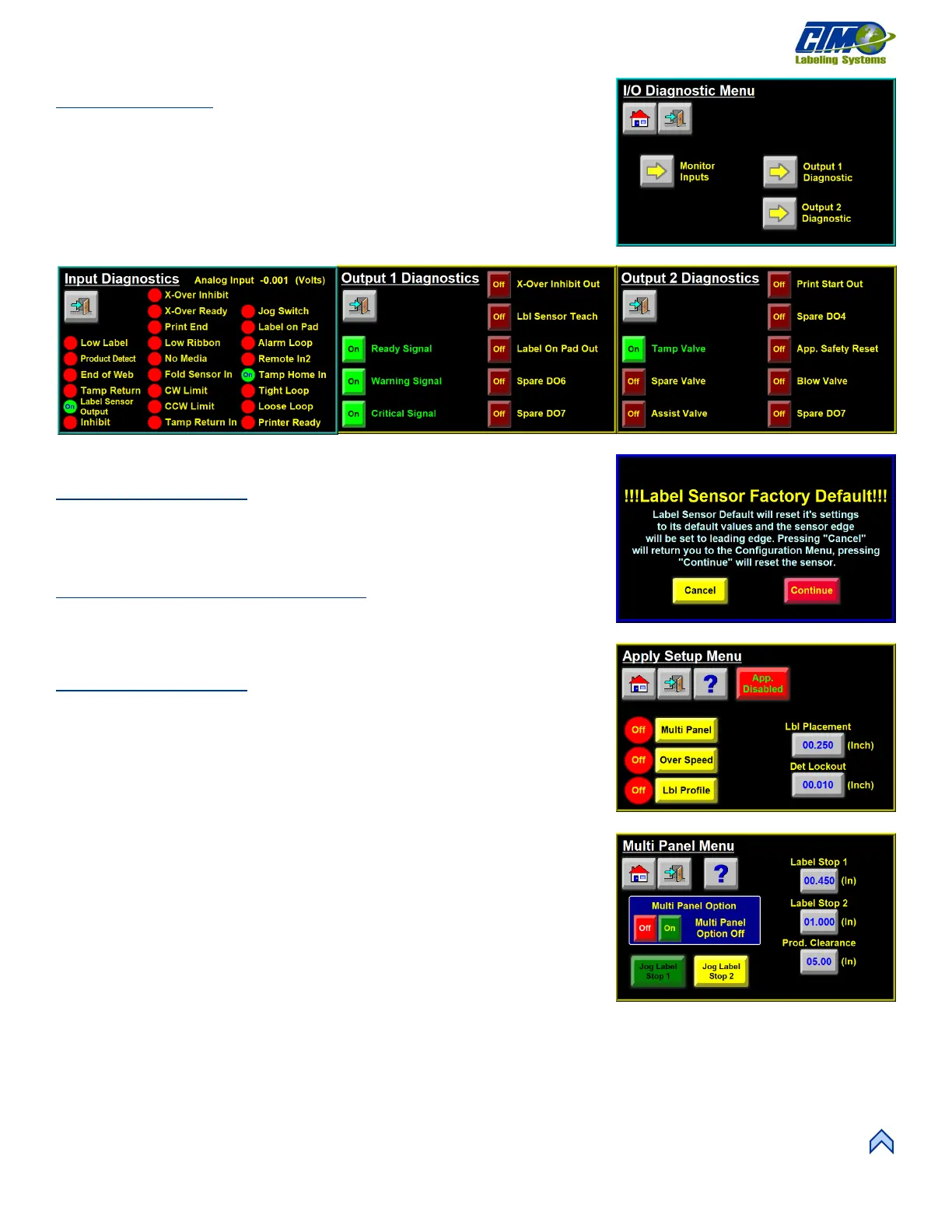
The menu in Figure [52] is a troubleshooting tool that allows the operator to verify the
status of inputs to the controller as well as force outputs on.
In Figure [53] the Label Sensor Output and Tamp Home In inputs are active. In
Figure [54] the Ready Signal, Warning Signal, Critical Signal, and Tamp Valve outputs
are on. When exiting the I/O Diagnostics Menu all inputs and outputs return to their
proper state.
Reset Label Sensor
Pressing the Reset Sensor button factory defaults the label detect sensor and
changes the applicator and sensor to lead edge detection. After a reset the display goes
to the Label Sensor Setup screen so that the operator can set up the sensor again.
Application Setup—Merge
The settings on the Apply Setup Menu are different for Merge assemblies and
Tamp, Air Blow, and RVB assemblies. Figure [57] shows the applicator Setup for the
Merge applicator.
Multi-Panel Menu
This menu [57] enables a Merge applicator to apply a label onto two or three panels of
a product. Enable the Encoder Option and Multi-Panel Option and complete an
auto teach of the label sensor. The following variables affect multi-panel apply:
• Short Feed: Distance the label feeds after label placement on product detect
which is done at encoder speed. This is taught by doing an auto teach of the
label sensor with the multi-panel option enabled.
• Prod Clear: Amount of encoder-based distance the applicator waits before
flagging out the next label. This allows a product to be removed from the
labeling area before a new label is dispensed into it.
Multi-Panel Auto Teach
With the multi-panel option enabled, the steps of an auto teach change slightly. After
performing a normal auto teach, the display instructs the operator to move the leading
edge of the label to the peel edge. This is used to calculate the short feed distance.
Figure [57] shows the variables taught in a multi-panel auto teach.
[52] I/O Diagnostics Menu
[56] Apply Setup Menu—Merge


 To Next Page