120 Configuring System Information
The SNTP Servers page contains the following fields:
•
SNTP Server —
Selects user-defined SNTP server IP address from a drop-down menu. Up to eight
SNTP servers can be defined by using the
Add
button.
•
Encryption Key ID —
Specifies user-defined key ID used to communicate between the SNTP server
and device. The encryption key ID is defined in the
SNTP Authentication
page.
•Priority (1
–
8) — Specifies the priority of this server entry in determining the sequence of servers to
which SNTP requests are sent. Values are 1 to 8, and the default is 1. Servers with lowest numbers have
priority.
•
Status
— Displays the operating SNTP server status. The possible field values are:
–
Up —
The SNTP server is currently operating normally.
–
Down —
Indicates that a SNTP server is currently not available. For example, the SNTP server is
currently not connected or is currently down.
–
In progress —
The SNTP server is currently sending or receiving SNTP information.
–
Unknown
— The progress of the SNTP information currently being sent is unknown. For
example, the device is currently looking for an interface.
•
Last Response
— Displays the last time a response was received from the SNTP server.
•
Remove SNTP Server
— Removes a specified SNTP server from the
SNTP Servers
list when checked.
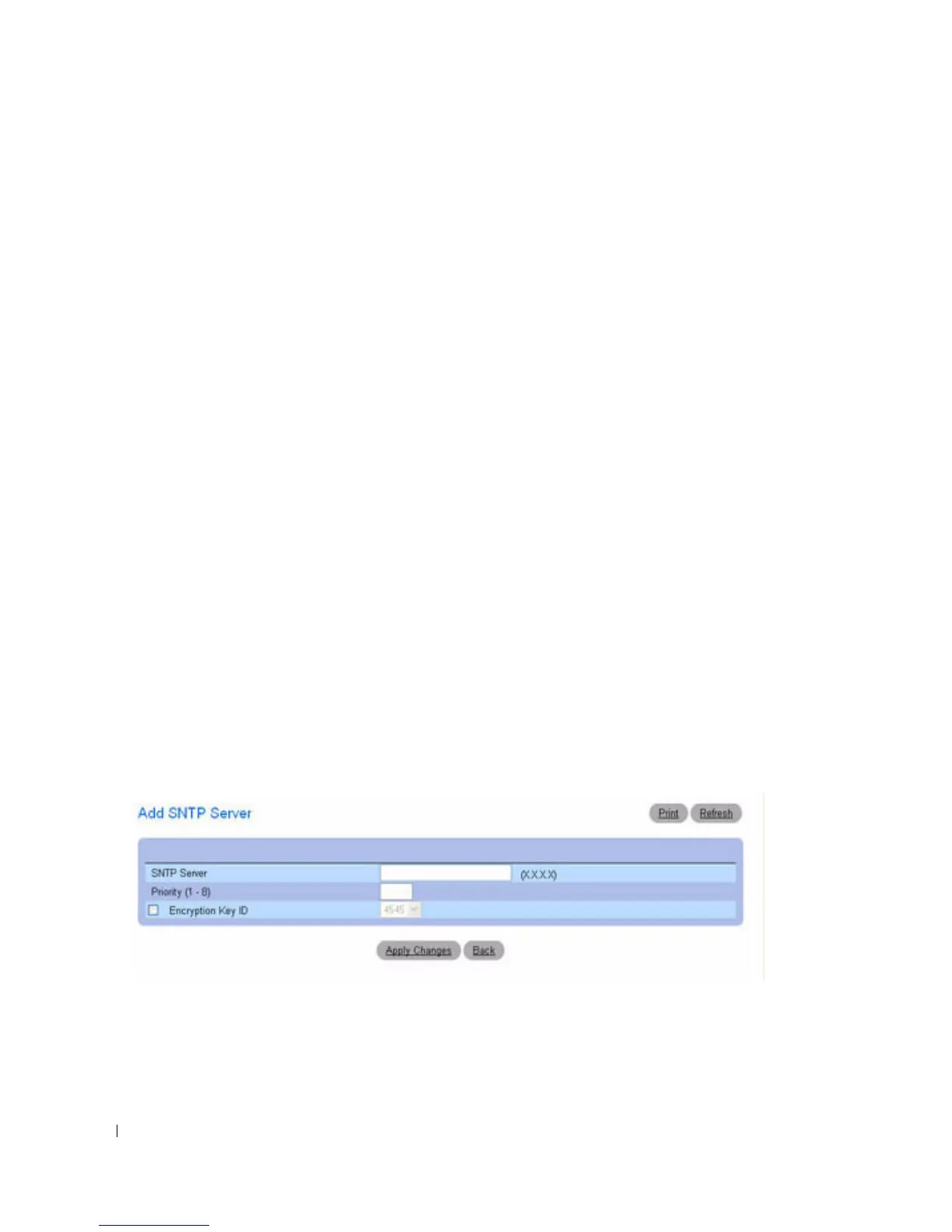
Adding an SNTP Server
1.
Open the
SNTP Servers
page.
2.
Click
Add.
The
Add SNTP Server
page displays.
Figure 6-14. Add SNTP Server
3.
Define the fields as needed.
4.
Click
Apply Changes
.
The SNTP server is added, and the device is updated.


 To Next Page