185
Barcode Handy Terminal
7. Use the cursor keys ([▲] [▼]) or numeric key ([1]) to highlight
[1: DO IT] and then press the ENT key.
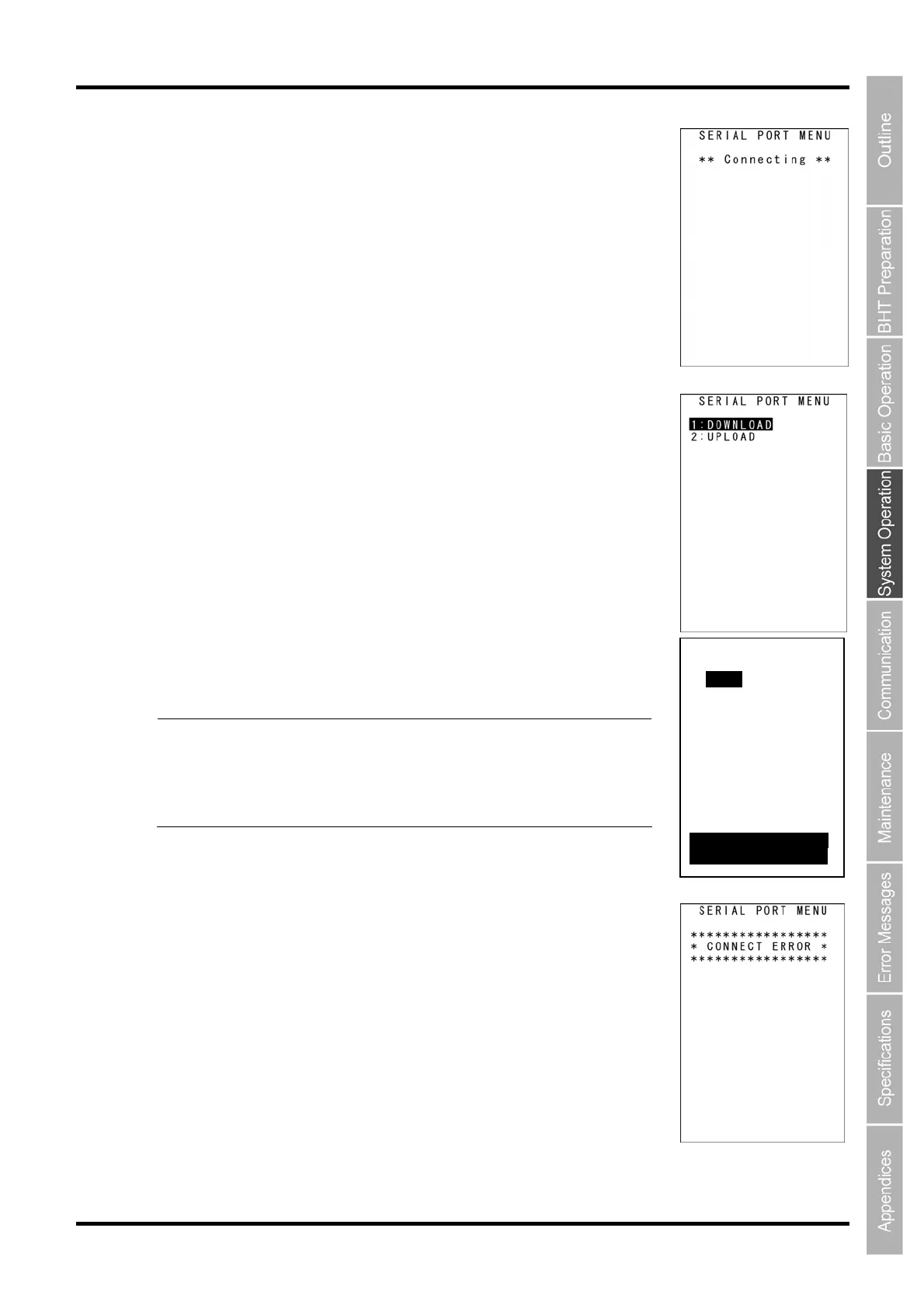
A serial port connection is started.
Press and hold the BS/C key to return to the SERIAL PORT MENU.
When the connection is established, the screen on the right is displayed.
[1: DOWNLOAD]: Transfers files from the host computer to the BHT.
Downloading between the BHTs is also possible.
See “4.5.3 Downloading Files (DOWNLOAD Menu)” for
details.
[2: UPLOAD]: Transfers files from the BHT to the host computer.
Uploading between the BHTs is also possible.
See “4.5.4 Uploading Files (UPLOAD Menu)” for details.
Use the cursor keys ([▲] [▼]) or numeric keys ([1] [2]) to select the desired
menu and then press the Enter key.
Press and hold the BS/C key to return to the SERIAL PORT MENU.
Select [1: FILE] and press the ENT key.
Press and hold the BS/C key to return to the DOWNLOAD MENU.
Point The protocols (Ymodem protocol, BHT protocol, or BHT-I
protocol) used for the file transfer comply with the
communication protocol setting specified in “4.5.6 [5] Setting
the communication environment”. The protocol option complies
with the option specified in “[2] BLUETOOTH MENU (RF
MENU)” – “File transfer protocol option setting”.
If the serial port connection fails, the screen on the right is displayed.
Check the followings and retry the serial port connection.
・ The destination remote devices are in the vicinity.
・ The destination remote devices are ready for use.
・ The destination remote devices support the serial port profile.
・ The Bluetooth
®
passkey is correctly set.
・ The sufficiently long timeout period is set.
Press and hold the BS/C key to return to the BROWSE DEVICE menu.
DOWNLOAD
1:FILE
2:HT<‐‐>HT COPY
F4:DRIVE
Internal Memory
[Ymodem]



 To Next Page