83
Barcode Handy Terminal
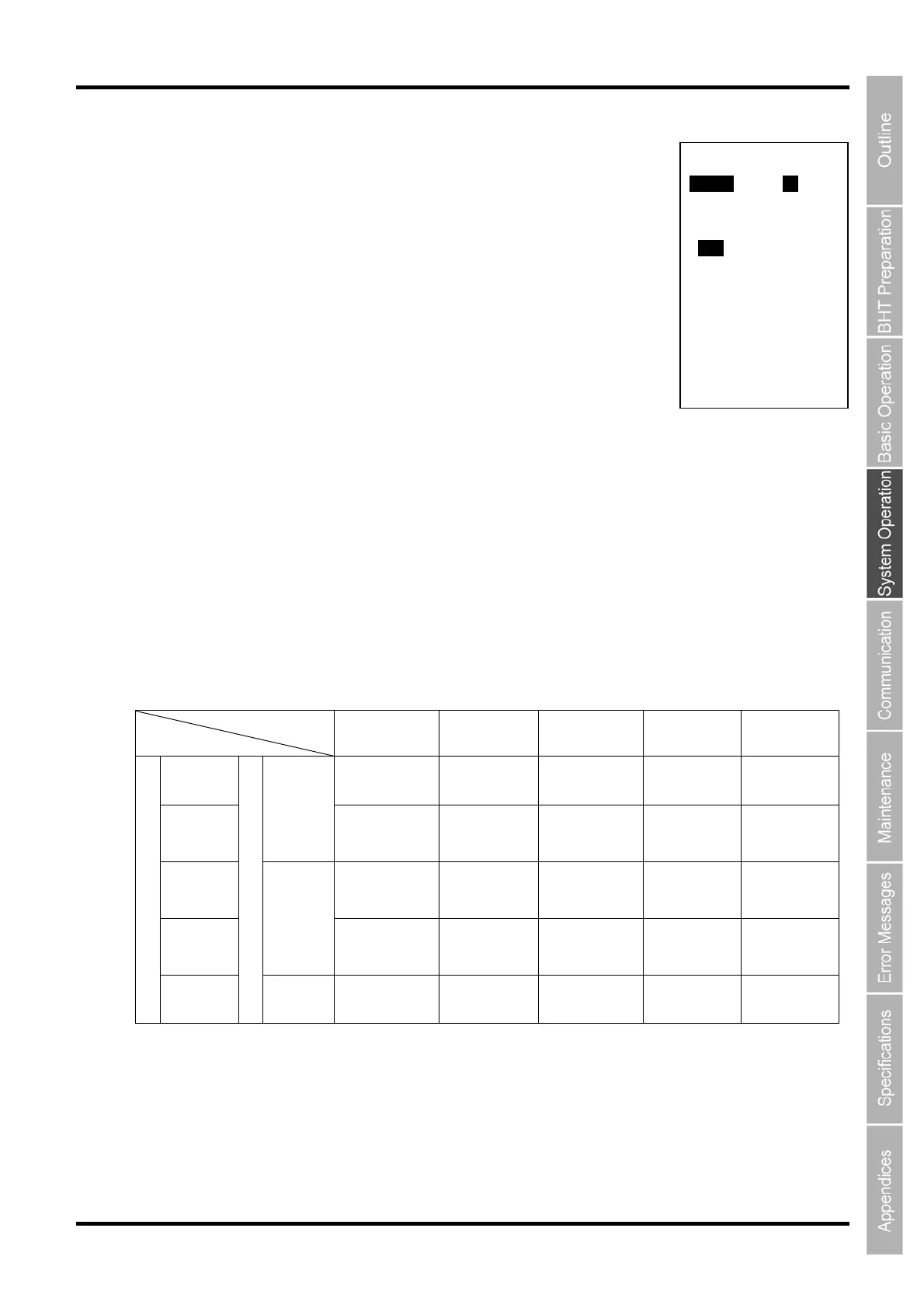
4. Simultaneously press the SF key and “1: MESSAGE” at the SET
DISPLAY menu.
The SET DISPLAY menu on the right is displayed.
The highlighted settings will be the current settings.
5. Use the cursor keys ([▲] [▼]) or numerical keys ([1] [2]) to highlight
”1: MENU” or ” 2: COMPATIBLE MODE”.
6. Highlight the target setting with the cursor keys ([◄] [►]) and press the
ENT key.
Press the BS/C key to return to the SET SYSTEM menu.
“1: MENU”:
Sets whether to permit or prohibit the menu screen (Buzzer volume, vibrator, screen brightness, power
saving and lighting control setting) starting up while application program is running.
“ON”: Permits menu screen display.
“OFF”: Prohibits menu screen display.
“2: COMPATIBLE MODE”:
Sets compatible mode for screen display with the BHT-100, BHT-300, BHT-7500, BHT-8000, or
BHT-900.
This allows BHT-100 Series, BHT-300 Series, BHT-7500 Series, BHT-8000 Series, or BHT-900 Series
application programs to run at the BHT-1300 without changing or correcting the font size.
BHT-100 BHT-300 BHT-7500 BHT-8000 BHT-900
Standard
font
16 x 25 char.
(12 x 12 dots)
22 x 9 char.
(6 x 8 dots)
26 x 20 char.
(6 x 8 dots)
21 x 8 char.
(6 x 8 dots)
21 x 12 char.
(6 x 8 dots)
Small font
ANK
mode
16 x 25 char.
(12 x 12 dots)
22 x 12 char.
(6 x 6 dots)
26 x 26 char.
(6 x 6 dots)
21 x 10 char.
(6 x 6 dots)
21 x 16 char.
(6 x 6 dots)
Standard
font
12 x 19 char.
(16 x 16 dots)
8 x 4 char.
(16 x 16 dots)
10 x 10 char.
(16 x 16 dots)
8 x 4 char.
(16 x 16 dots)
8 x 6 char.
(16 x 16 dots)
Small font
Kanji
mode
16 x 25 char.
(12 x 12 dots)
11 x 6 char.
(12 x 12 dots)
13 x 13 char.
(12 x 12 dots)
10 x 5 char.
(12 x 12 dots)
10 x 8 char.
(12 x 12 dots)
Font Size
Screen mode
Reduced
Kanji
(Not
supported)
11 x 4 char.
(12 x 16 dots)
(Not
supported)
(Not
supported)
(Not
supported)
SET DISPLAY
1:MENU ON OFF
2:COMPATIBLE MODE
None BHT-300
BHT-7500 BHT-100
BHT-8000 BHT-900


 To Next Page