FC8000-UM-251-9370 3-3
3. OPERATIONS
3.2 Reading the Screen (LCD)
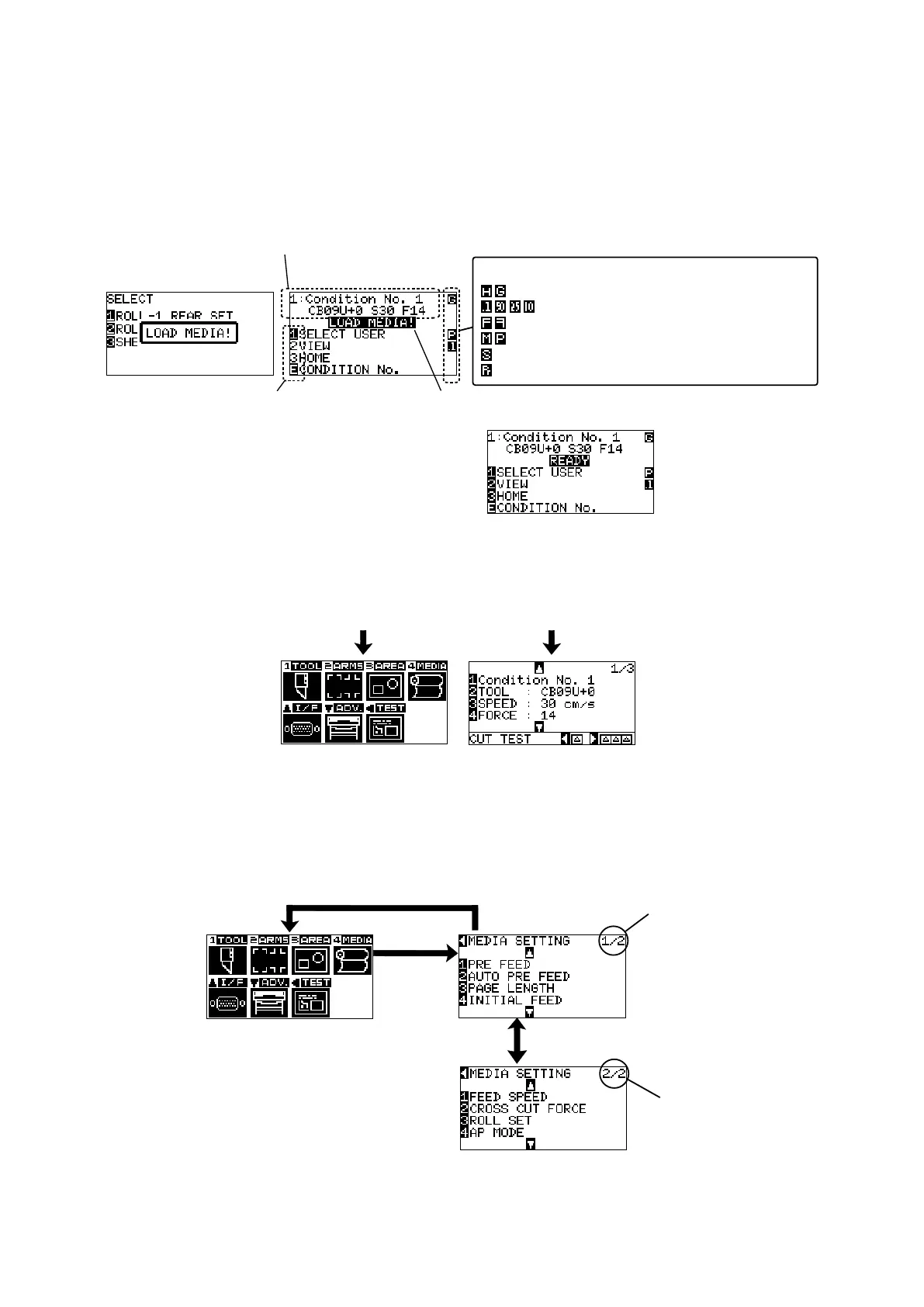
Informationreectingthestatuswillbedisplayedinthescreenofthecontrolpanel.
Nameofthebuttonandcorrespondingfunctionisdisplayedonthescreenwhenafunctionisallocatedtothe
buttononthecontrolpanel.Buttonnamewillbedisplayedinreversewhenthebuttonisenabled.
Followingitemsaredisplayedinthedefaultscreen.
Tool condition currently using
Corresponding button name of control panel
Set condition of media
(READY status: It will display "READY" when the media is loaded)
Display of setting condition
Command: HP-GL/GP-GL
Step size: 0.1 mm/50 µm/25 µm/10 µm
Rotate/mirror: Rotate 90 degrees/mirror
Priority: Manual priority/program priority
Sort: Display when sort is on
Prefeed: Display when automatic media feed is on
Media set lever raised
Media set lever lowered
Display of Default Screen
(Valid button is displayed in reverse)
Screentosetthecorrespondingconditionsisdisplayedwhenthe[MENU]keyor[CONDITION]keyare
pressed.
MENU CONDITION
MENU screen CONDITION screen
It will return to default
screen when [MENU]
key is pressed while
displaying MENU
screen.
It will return to
default screen when
[CONDITION] key is
pressed while displaying
CONDITION screen.
MENU screen displayed by button operation
Pagenumberisdisplayedintheupperrightcornerofthescreeniftherearetoomanysettingsorselection
thatwillneedmultiplepagestodisplay.
Presstheposition(pq)keytomovedifferentpage.
POSITION(t) key
[4] key
Page number
Page number
POSITION(
??
) key
Example of moving page and operation button









 To Next Page