7 - 46
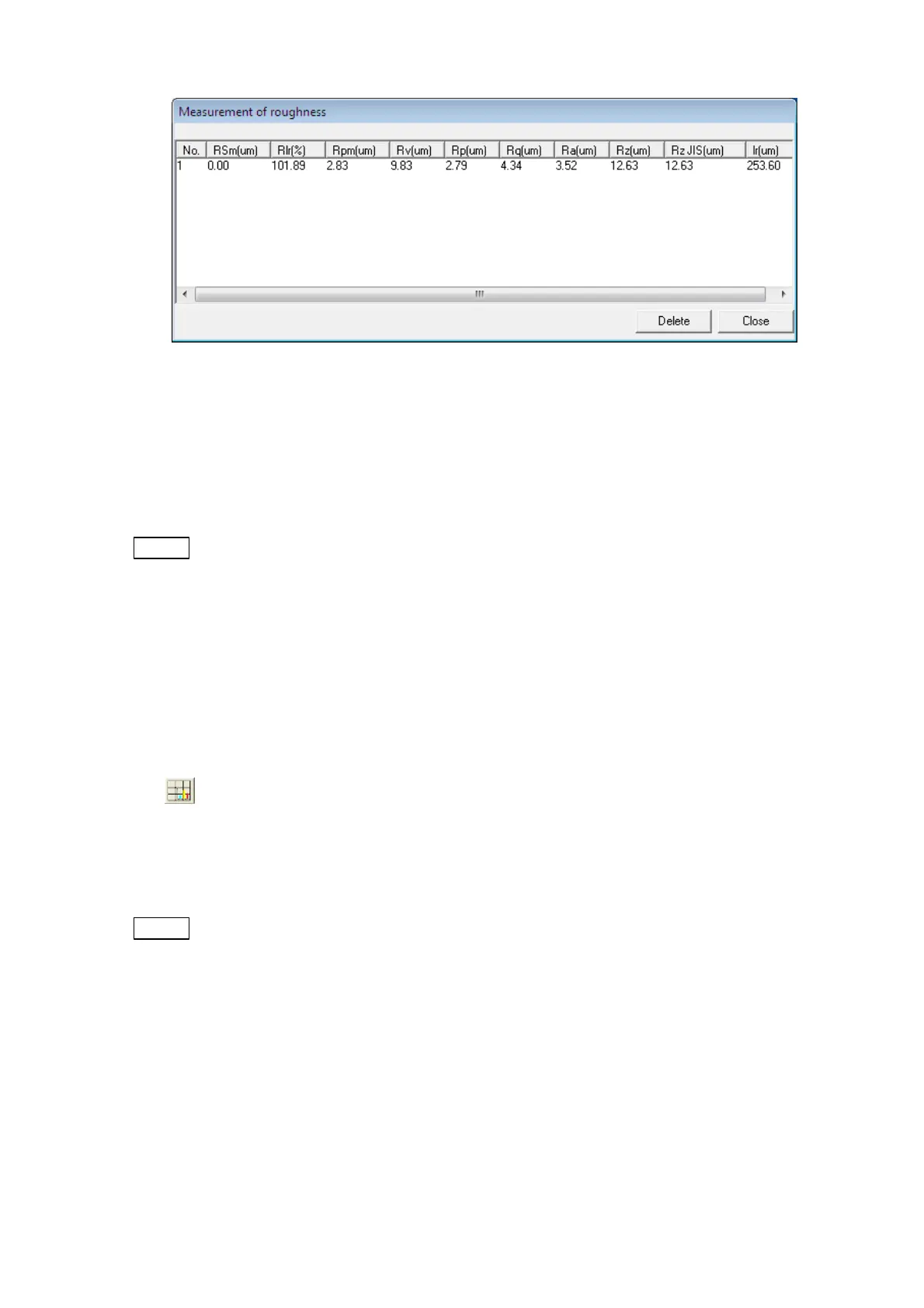
Figure 7.16.3-2 Example of Measurement of roughness Dialog
2. Transfer of the Measurement Result of Roughness to Excel
The measurement result of roughness can be transferred to Excel by setting it on [User
Setting] menu.
NOTE
: 3D-VIEW does not include Excel. Purchase Excel separately, and install it into the
computer that 3D-Image Viewer is installed in. When Excel is not installed, this
function is not available.
When clicking the [User Setting] of the [File] menu, the User Setting dialog is displayed.
The Excel transfer function can be used when checking the [Use Excel] on the [Statistic]
block and clicking the [OK] button. Automatic or manual transfer is selectable. Whenever
the line of the profile is selected when selecting the [Auto], the measurement result is
automatically transferred to Excel. When selecting the [Manual], the [Excel Transfer]
button is displayed in the Toolbar. When clicking the [Excel Transfer] button after
selecting the line of the profile, the roughness measurement result is transferred to
Excel.
See 7.9 Menu Functions 1. [File] menu - User Setting.
NOTE
: The [Excel Transfer] button is displayed only when selecting the [Use Excel]
checkbox and the [Manual] radio button on the User setting dialog.


 To Next Page