Chapter 3: ValProbe RT System Connections
ValProbe RT User Manual 36
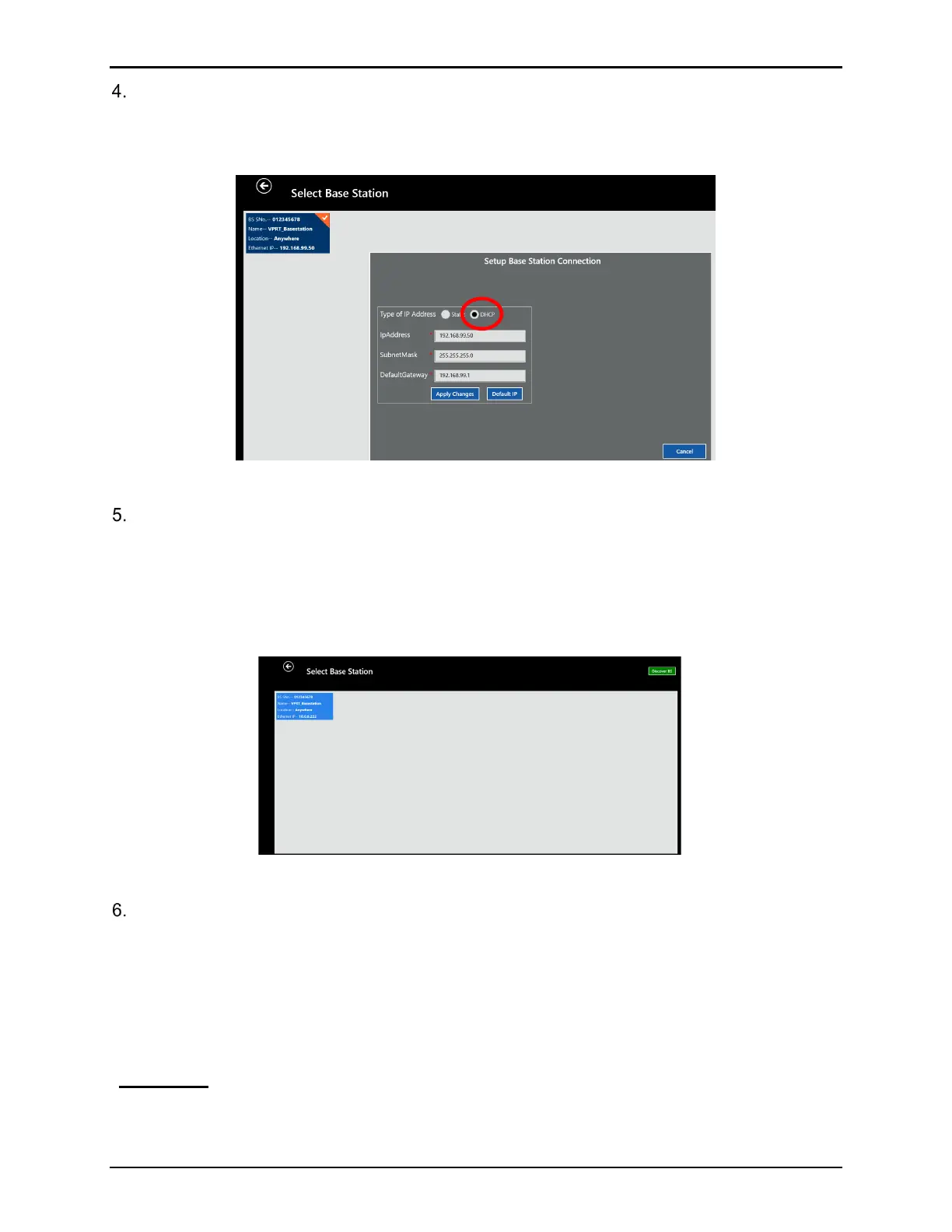
From the Setting Base Station Connection window change the Type of IP Address from
Static to DHCP. Connect the supplied Ethernet cable from the Base Station to the network
ethernet port and define network IP Address, Subnet Mask, and Default Gateway and then
select Apply Changes.
Figure 50: Change to DHCP
The changes are stored in the Base Station and the software attempts to communicate
with the Base Station. Follow the prompts until Base Station connection is found.
Note: If you ever want to return to Direct / Static IP connection simply select Static and select
Default IP.
• Return to the ValProbe RT software’s Select Base Station screen.
Figure 51: Select Base Station
Select the Discover BS button. If the Network connection and setup were successful, the
Base Station blue tile appears with the network assigned IP address.
Note: The discovery function can only detect Base Stations in the same IP segment and
the same subnet as the computer. If the Base Station is not in the same sub
segment or configured to another subnet mask, manually add the IP using the Add
button. If Base Station discovery was unsuccessful, contact Kaye support or your
company IT department.
WARNING! If a Base Station is configured to a static IP address, it is the only way to
communicate with it. If the IP is changed and the “Apply” command is sent,
the previous setup is not active for any further connection. If the IP address
is not reachable or forgotten, the Base Station may need to be reset.



 To Next Page