Chapter 4: Initial ValProbe RT Software Setup
ValProbe RT User Manual 51
4.4. Hardware Maintenance
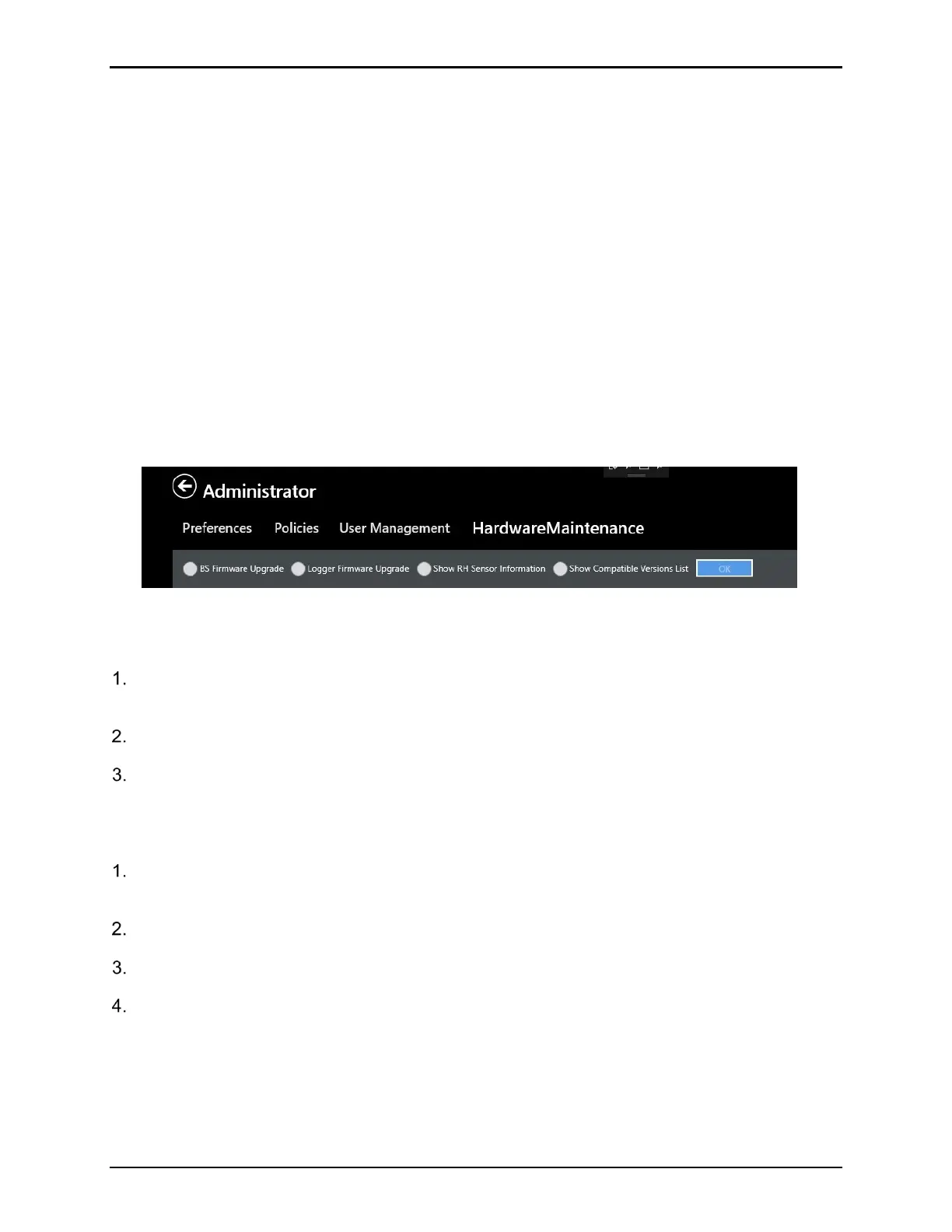
The Hardware Maintenance screen allows the Administrator the ability to upgrade the Base
Station and Logger Firmware whenever desired upgrades are released from Kaye. This
eliminates the need to have to return the Loggers and Base Station to the factory when
desired upgrades become available.
All upgrades are posted on the Kaye website for download to a USB drive or computer. Use a
USB inserted into a Console Docking Station to install the upgrade, or if downloading to a PC,
use tools such as Remote Access to connect to the Validation Console and copy the files from
a PC to the Console.
Note: Refer to release notes and instructions provided with the appropriate upgrade
download.
Note: Firmware upgrades usually include both the Base Station firmware and associated
Logger firmware. It is recommended to perform the Base Station firmware upgrade prior
to upgrading the Logger firmware.
Figure 66: Hardware Maintenance
BS Firmware Upgrade:
From the Admin / Hardware Maintenance screen, select BS Firmware Upgrade and
select OK.
Ensure that the Base Station is properly connected and powered on.
From the Select Base Station screen select the desired Base Station to upgrade and
select Connect.
Logger Firmware Upgrade:
From the Admin / Hardware Maintenance screen, select Logger Firmware Upgrade and
select OK.
Ensure that the Base Station is properly connected and powered on.
From the Select Base Station screen, select the desired Base Station and select Connect.
Wake up and select Loggers to be upgraded.
Logger Battery Reset: Select this option to reset the Logger batter and select OK.
Contact Kaye technical support for additional assistance or instructions.



 To Next Page