Chapter 4: Initial ValProbe RT Software Setup
ValProbe RT User Manual 40
Setting Up Initial Administrator using Local Security and
Policies
When the Initial default User ID and Password are entered, the system automatically
opens the Policy screen and defaults to Local security and policies.
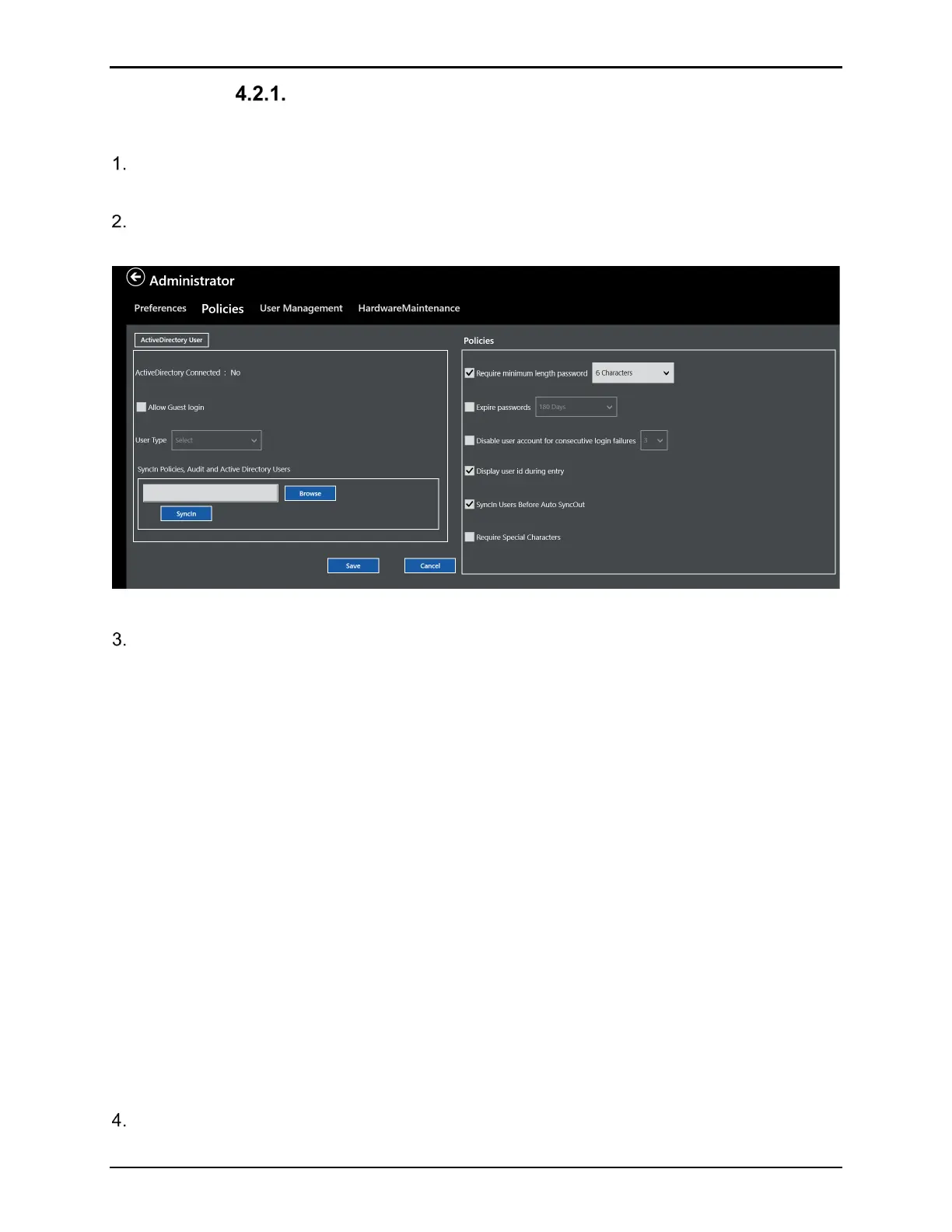
Ensure that Active Directory* Connected displays NO. If not, select ActiveDirectory
User button to toggle Off Active Directory*.
Figure 53: Login Screen
In the policies window define the local security and 21 CFR Part 11 options to meet your
security needs. The options include:
• Set passwords to expire after a defined number of days: Use the dropdown list to select
how long to passwords take to expire. The password expiration date set here is
displayed at login when there are five days or less before password expiration. Expired
passwords can no longer be used as new passwords.
• Disable user accounts after a certain amount of unsuccessful login attempts: Check the
checkbox to enable and set the amount of consecutive unsuccessful login attempts to
disable a user account with the dropdown. Only System Administrators can re-enable
Users
• Disable user id during entry: Check the checkbox to enable masking of the user ID
during login.
• Disable the password system: Check the checkbox to disable the password system,
meaning user ID’s and passwords are not required to use the software. Only allow by
Admin and documented in the Audit Trail
• Require Special Characters:
Additional options as part of Policies include:
• Syncin User before Auto Sync Out: If enabled Users will be automatically Synced
In from backup prior to automatic Sync Out. This can automate control of ensuring
all Console have same Users
Once the Local Policies have been defined select “Save” and then proceed to the User
Management screen to define a Local Administrator.



 To Next Page