Chapter 4: Initial ValProbe RT Software Setup
ValProbe RT User Manual 45
In the User Type box, use the dropdown to select System Administrator. The Default
Users Privileges appear.
Select Save once completed the Default User ID and Password is deleted and the
complete Policies and User Management configuration is saved locally to the console to
allows Users to still utilize Active Directory™* login even when not connected to the
domain the system then reboots.
Log in using the Administrator password and proceed to User Management to map other
User groups.
Adding / Managing User Accounts – Local Security
When logged in with a new system administrator account, additional Users may be added to
the system. The software supports up to 500 Users.
Note: It is recommended to create more than one System Administrator account if access to
one is lost.
To create a new or additional System Administrator account:
On the Main screen, select the Admin tile to open the Admin Settings window.
From the Admin Settings window, select User Management.
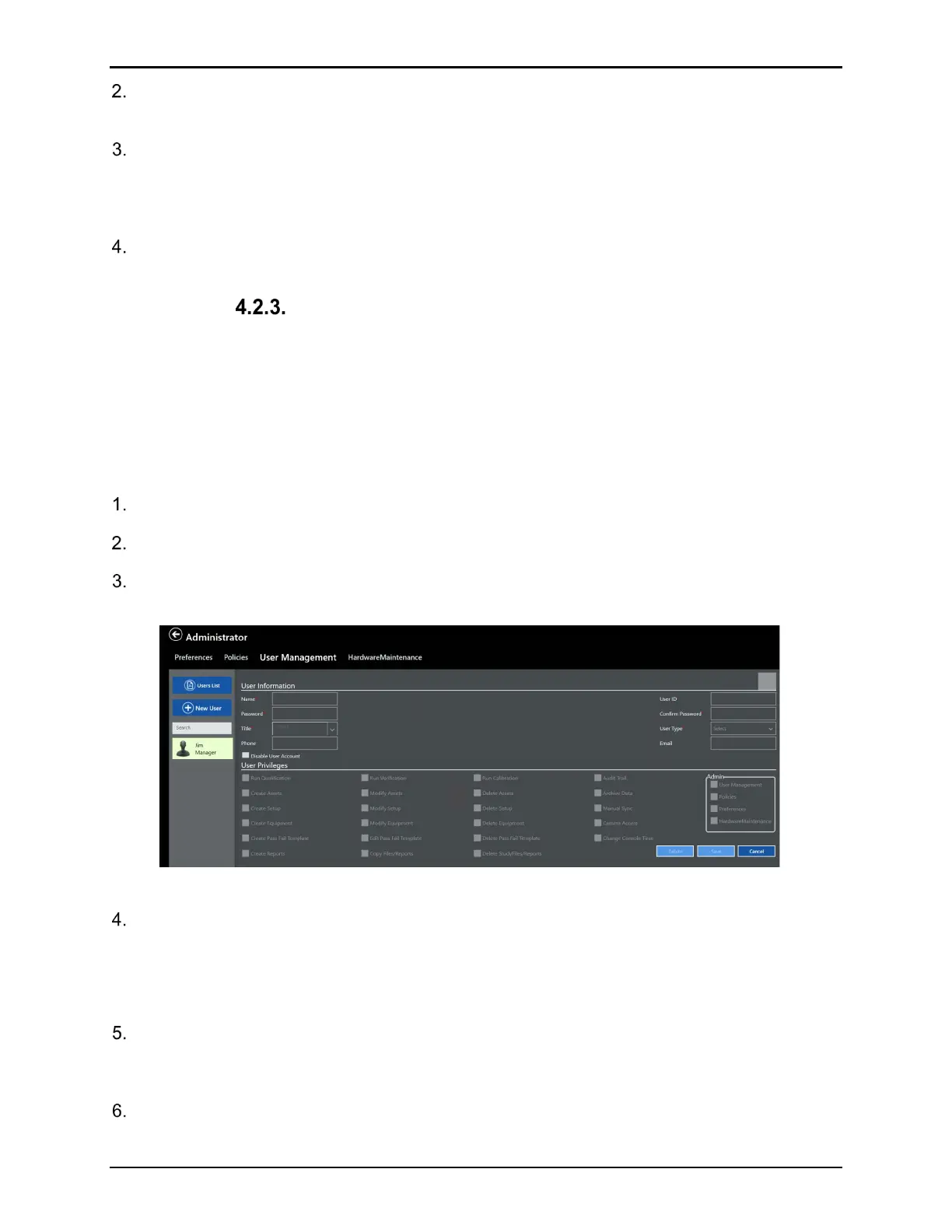
On the User Management screen, select New User, and enter the User’s name in the
Name textbox. This Username appears in the active User list.
Figure 60: User Management Screen
Use the dropdown to select your desired Authentication Type, if you do not know it,
contact your IT department.
Note: User IDs must be unique. Once a User ID has been used, it cannot be used again or
used by more than one active account.
Enter a new System Administrator/User password in the Password textbox. Passwords
are any combination of numbers and characters, up to a maximum of 16. For security
reasons, it is preferable to use more than six characters or numbers.
Reenter the password in the Confirm Password textbox and select OK.
Note: Please record the User ID and password for future reference.



 To Next Page