Chapter 7: Defining Assets
ValProbe RT User Manual 63
Chapter 7. Defining Assets
7.1. Overview
The ValProbe RT includes an intuitive Asset Centric Data Management concept (patent
pending) to store and access data faster and more efficiently.
Each individual validation process, whether a sterilizer, freeze dryer, cold room etc. may be
set and defined as an asset. All files and data related to the asset, like setups, calibrations, or
study files, are organized and accessed in one single screen around the basic asset data. It is
possible to upload additional documents like standard operation procedures or certificates and
associate them with an asset. Assets are sortable and searchable by type, location,
manufacturer, etc. for easy access. A maximum of 200 assets may be defined.
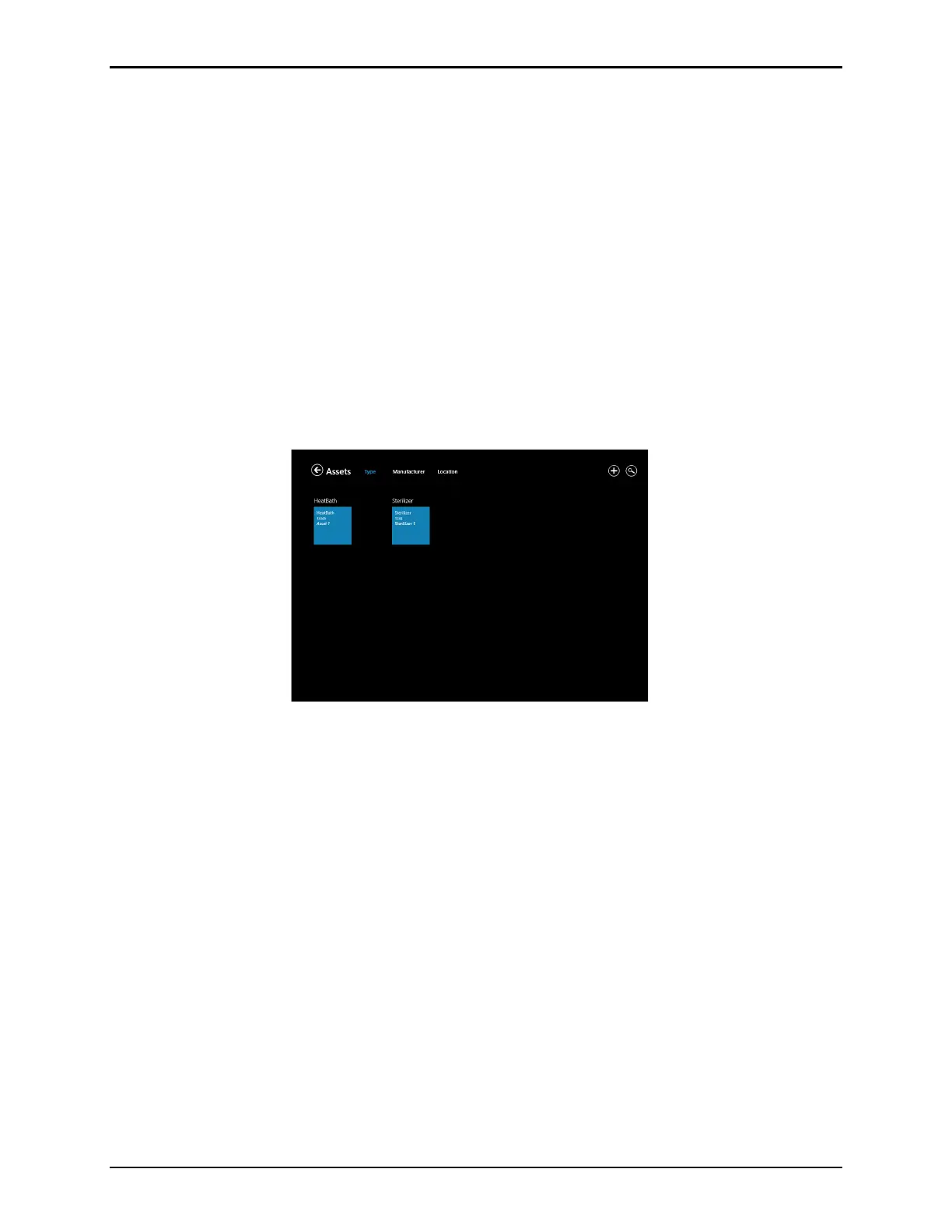
To open the Assets hub, select the Assets tile on the Main Menu. The Assets Hub appears as
below.
Figure 86: Assets Hub
The Asset Hub lists the various assets validated by the ValProbe RT system. On the top text
line, select each category to display the assets by:
• Type (sterilizer, dry heat oven, controlled temperature, etc.) up to 20 User-designated
types
• Manufacturer
• Location
The asset tiles display each asset with its Asset type, Asset ID, and Asset name. If the number
of assets exceeds the screen size, scrolling and zooming enables viewing additional assets.
To search for an asset, select the Search (magnifying glass) icon, and enter search criteria /
data.
For further details regarding a particular asset, select the tile for that asset to open its Asset
Details window.
To add one or more assets to the list, select the Plus icon (+) to open the New Asset creation
window. Select the Back icon (the left arrow) to return to the Main screen.



 To Next Page