Chapter 12: Qualification Reports
ValProbe RT User Manual 127
12.5. Audit Trail Report
To meet 21 CFR Part 11 and Data Integrity requirements, the ValProbe RT system includes a
robust and comprehensive Audit Trail.
The Audited Trail automatically captures all system and Operator actions which affect the
creation, modification, deletion, or storage of GXP data and reports.
The purpose of the Audit Trail is to give Users the ability to review and print the history of
actions affecting Gxp files and events.
The Audit Trail is automatically generated and stored in monthly encrypted files which are
protected from User access or modification. Integrity checks are performed before any data is
written to the current monthly file and a backup of the monthly file is captured each time the
ValProbe RT software is started.
Actions which are captured include:
• User actions requiring a login with a User ID and Password.
• Automated system actions or events.
• Any additional actions deemed critical to the history of the data or Qualification files.
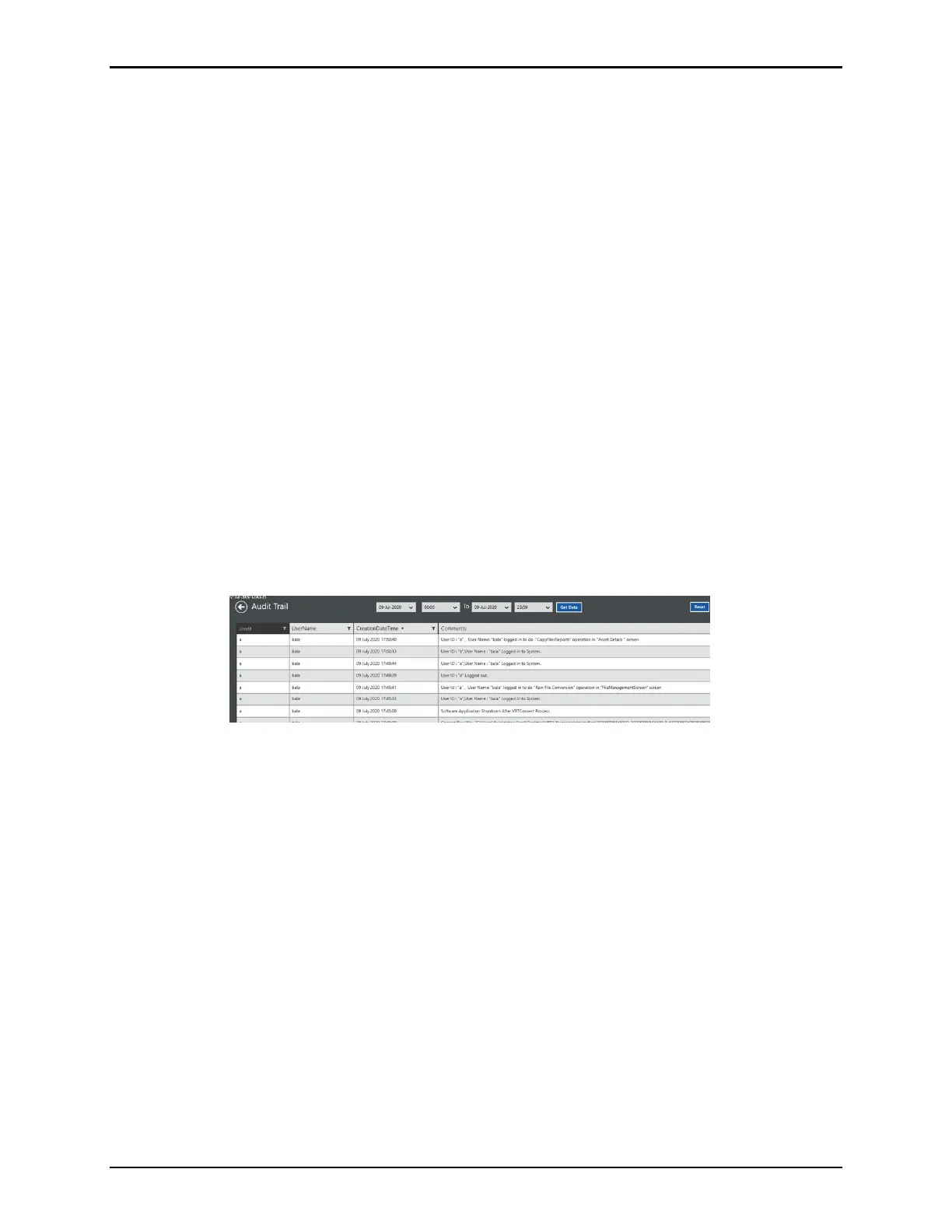
• To access the Audit Trail, navigate to the ValProbe RT Software Main screen and
select Audit.
Figure 164: Audit Trail
The Audit Trail contains a complete history of the system. The entries include:
• User ID and Name of Operator initiating the action
• Date and time the action was taken
• Description of action taken. If action was to change value description includes original
value and well as new value
• User comments entered when action was taken
• ValProbe RT hardware serial number of units affected
• ValProbe RT Console Machine ID to identify from which Console action was initiated
Use the drop downs above the header to find date specific data over a range and select the
Get Data button. Select Reset to remove the date filter from the data.
There are two ways to generate Audit Trail Reports. For a detailed and flexible analysis,
navigate to the Audit tile from the Main screen. When initially opening the Audit Trail tile, the
Audit Trail displays data from the current monthly file. Use the dropdowns above the header to
modify the monthly range and select Get Data. Each column of the Audit Trail contains a filter



 To Next Page