Chapter 8: Defining Study Setups
ValProbe RT User Manual 75
8.5. Assigning Sensors to Groups
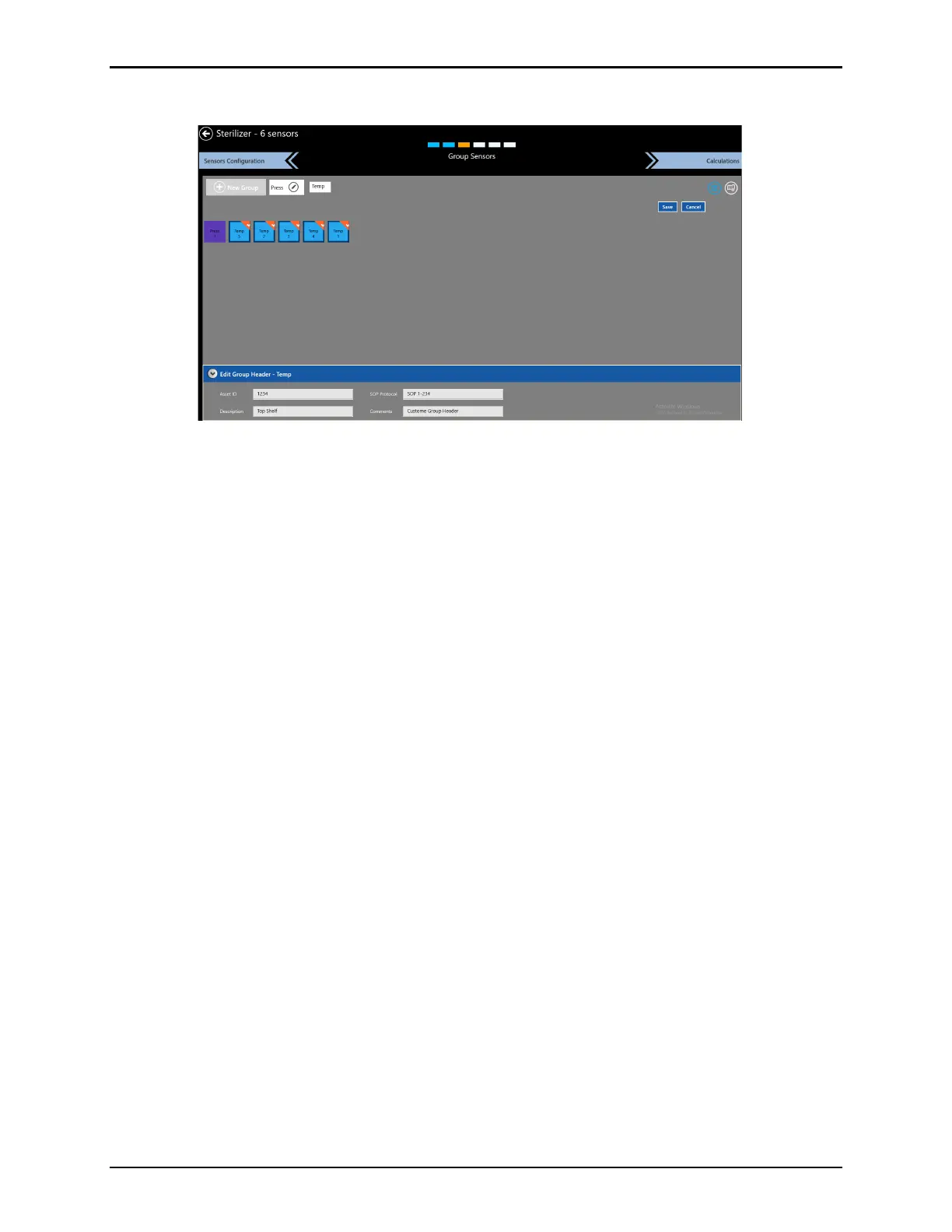
Figure 99: Group Sensors Screen
When the sensors are configured, the next step is to group the sensors by selecting Group
Sensors. The Group Sensors screen displays a scrollable listing of existing groups and the
New Group button.
To assign sensors to groups:
• Select the New Group button, to open the Group Name textbox. The Group Name textbox
accepts upper- and lower-case characters, numeric characters, special characters like
hyphens, underscores, slashes (forward and backward), and spaces.
• Enter a name for the group and select Enter
• Select individual sensors to add them to the group. These sensors appear deep blue with an
orange checkbox on screen.
• If desired, customize the header for each group: The group specific header fields are pre-
populated with the information from the asset. Use the Save button before switching to
another group to save changes.
The screen has the following options:
• Delete: delete a group of sensors.
• Customized Header: the group specific header fields Asset ID prepopulates from the
Asset and the SOP number prepopulates from the Define setup screen. The header is
customizable for each group. Select Save before switching to another group to save any
changes to the header.
• Edit Group: select the Pen icon inside the Group name to edit the group.
• Add Sensors: add additional sensors to a group.
• Wiring Layout: accessible via the Book icon, enables wiring layout configuration.



 To Next Page