Chapter 7: Defining Assets
ValProbe RT User Manual 64
7.2. Asset Details Screen
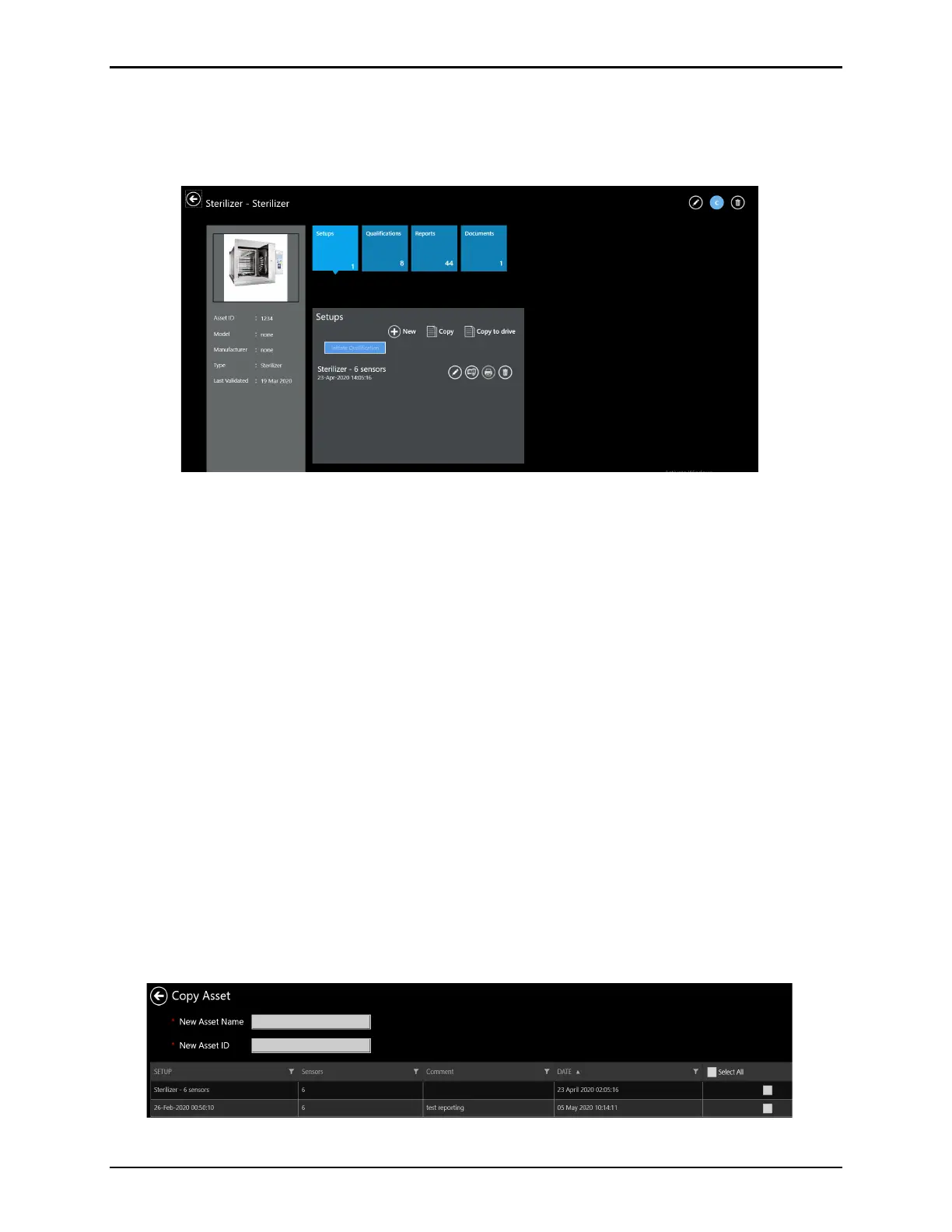
To learn more about an asset, select its asset tile to open the Asset Details screen (displayed
below).
Figure 87: Asset Details
In the upper left, the asset type and name is listed as the Title. The pane on the left displays
up to three User-loaded photos (swipe to change to the next picture) of the asset, and lists the
asset information as entered with the following data:
• Asset ID: The internal asset number or serial number for unique identification.
• Manufacturer: Manufacturer name of the asset
• Type: Categorization of the asset
• Model: A model name or subtype can be specified
• Last validated: Date of the last validation as manually entered in the Edit Asset screen.
The action buttons in the upper right corner allow editing of the asset details (pencil) and the
ability to delete the asset from the system (trash bin). In that case all associated files needs to
be deleted manually before the system allows deleting the asset.
Note: All available actions within each tile are controlled by the privileges assigned to the
logged in User account. All actions are logged into the Audit Trail
The existing asset can also serve as a template for a new asset. Use the blue C button to
open the Copy Asset screen. It is required to enter a new name and ID for the asset. Select
certain available setups to be automatically copied to the new asset. This is useful if there are
multiple chambers of the same type.
Figure 88: Copy Asset



 To Next Page