Chapter 7: Defining Assets
ValProbe RT User Manual 65
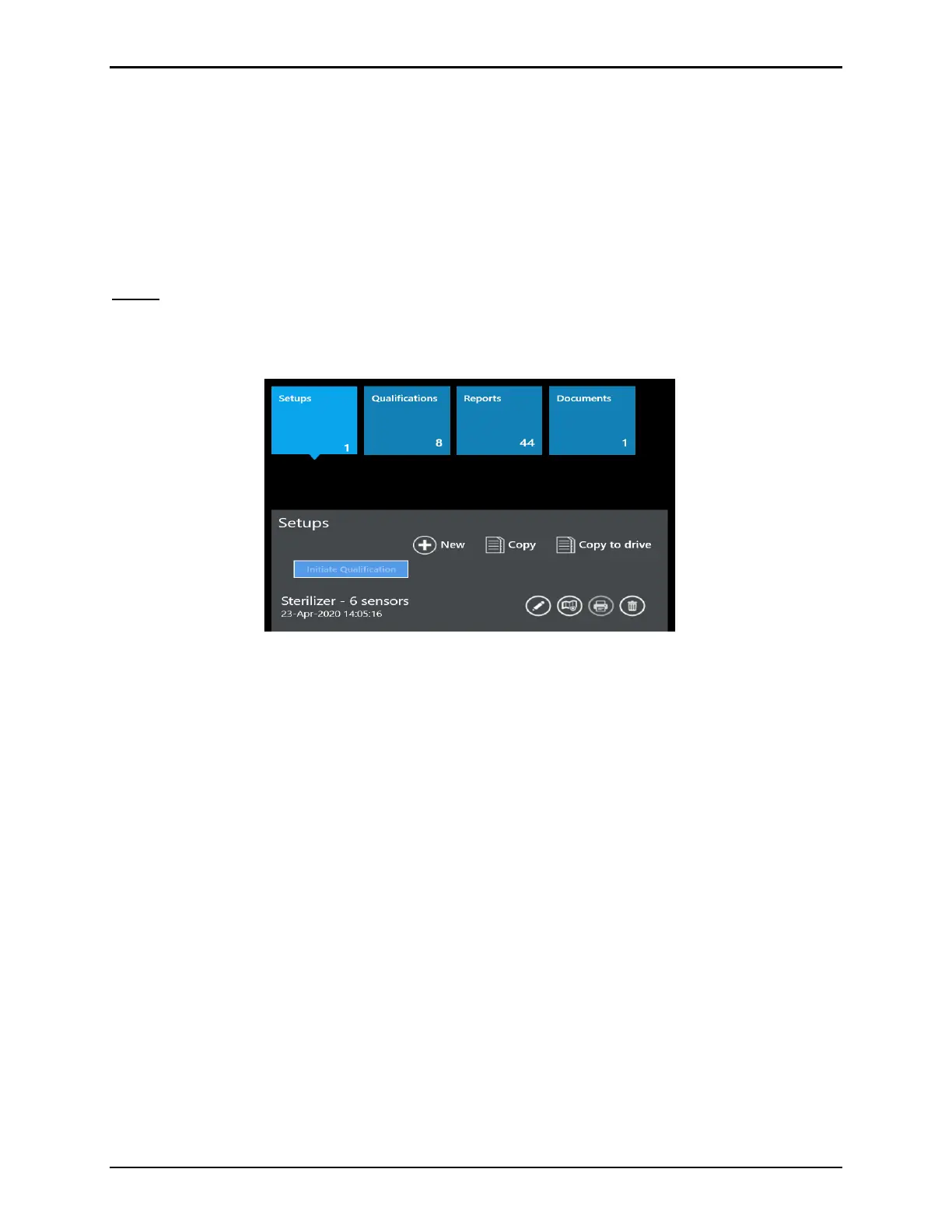
The Asset screen also contains separate blue tiles for Setups, Qualifications, Reports, and
Documents.
The number on each tile represents the number of available files under this specific tile. Select
a tile, and the lower right window displays the list of related data as well as the actions
available to perform from this tile.
Note: All available actions within each tile are controlled by the privileges assigned to the
logged in User account. All actions are logged into the Audit Trail
Setup
Selecting the Setup tile displays a listing of all available Setups for the Asset. A scroll bar to
the right will be displayed to allow access to all Setups.
Figure 89: Setup Tile
The Setup file contains all the configuration information to define sensors, groups, wiring
diagram, calculations, and qualification parameters which define the requirements for the
validation study.
For every Setup listed the following buttons are available:
• Pencil: Permits editing an existing setup and saving under the same or new name.
• Wiring Map: Permits reviewing of the sensors wiring diagram and exporting them to a
.pdf. Wiring diagrams are created inside the setup when defining the groups.
• Print: Permits exporting a setup report including the wire diagram to a .pdf file.
• Delete: Permits deletion of a setup (privileges required).
The New (+) button creates a new setup, and it is also possible to copy existing setups from
other assets as templates.
The Copy button opens a list of all available setups on the console. Assets are listed by their
names and setup names, number of sensors, comments, and last modification date. Select
setups to copy to the Asset and select Copy.
Use Copy to Drive to copy the selected setup file to a chosen drive. This is primarily used for
service as requested Setup files are copied to a USB and then sent to Technical Support for
review.



 To Next Page