Chapter 11: Sensor Verification
ValProbe RT User Manual 108
If desired, setup printing is available by selecting the Printer icon. To delete a setup, select
the Trash Bin icon.
If multiple Setups are generated and saved with different configurations, they are all listed on
the right of the screen by Setup name and sorted by creation date. To modify an existing
setup, double-click on it to open it, modify it and then click Save to save the changes or
Cancel to revert changes.
11.3. Loading a Temperature Verification Setup
Before beginning a Verification process, load a setup into the ValProbe RT Loggers. A Kaye
IRTD must be used to execute a Verification study. Please connect it and the Temperature
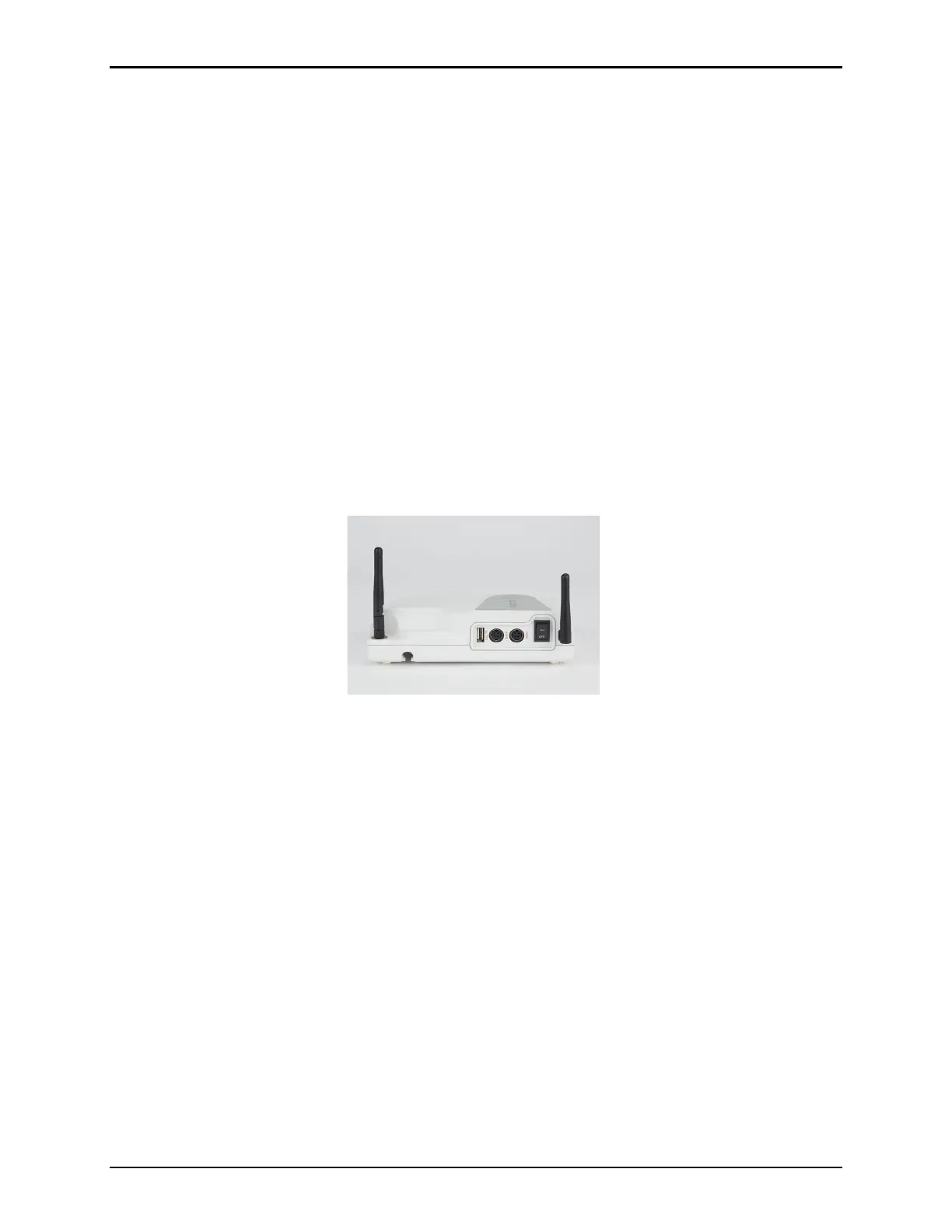
bath / drywell to the Base Station connectors on the rear of the Base Station. Each connector
is marked with the appropriate icon. Utilize the supplied cables for the connection. Power up
the connected bath.
IMPORTANT: If a calibration bath is not connected to the ValProbe RT Base Station, only a
manual calibration can be performed. A fully automated calibration is only
possible if a KAYE IRTD and a KAYE calibration bath is connected to the Base
Station. Please ensure that the correct port is used for each instrument.
.
Figure 142: Connecting a Bath to the Base Station
To load a setup:
From the Main Menu navigate to the Equipment / Setup/ Temperature Verification and
select a setup from list of available setups.
After highlighting the required Verification Setup, click Select Base station.



 To Next Page